
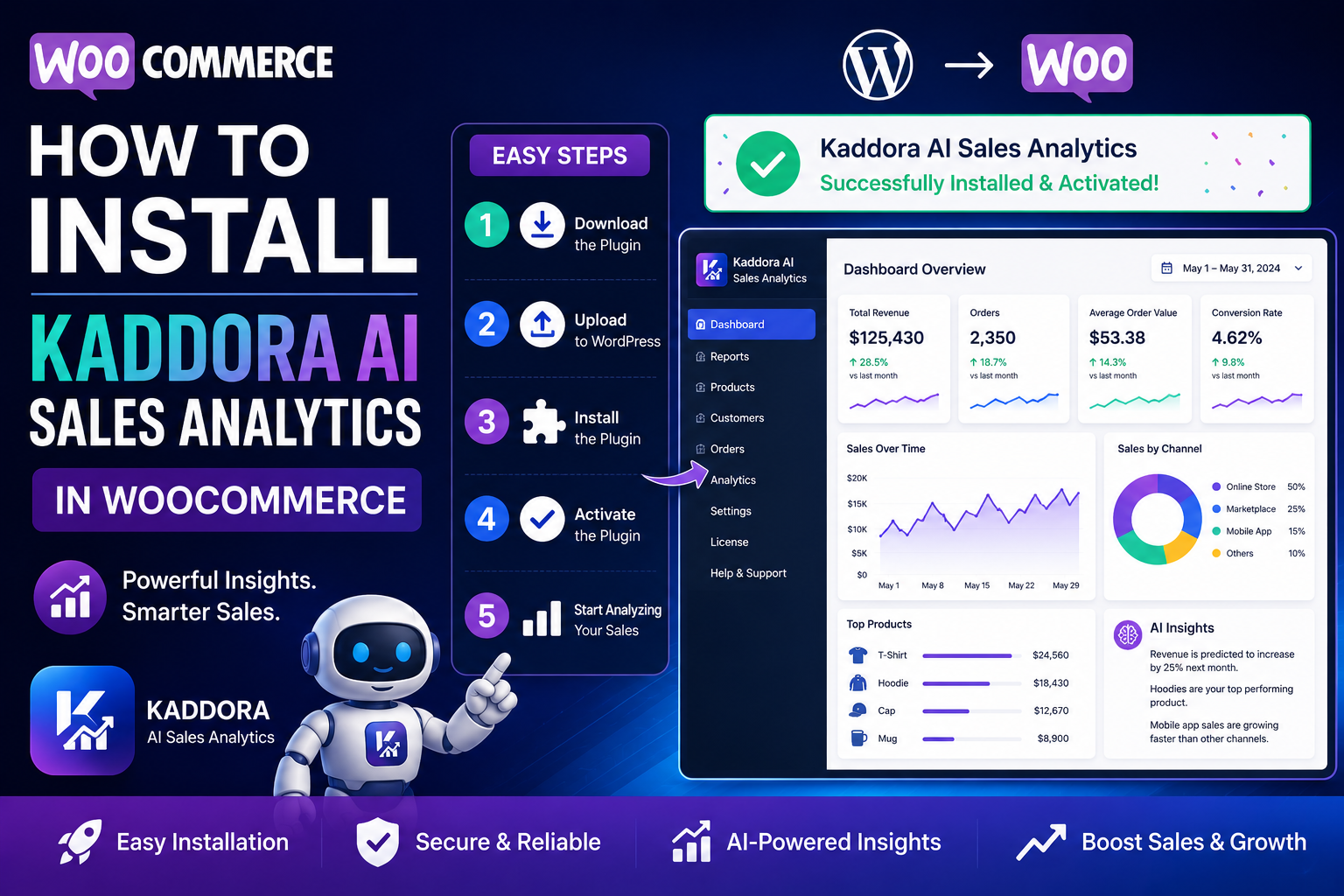
How to Install Kaddora AI Sales Analytics in WooCommerce
Data-driven decisions begin with the right analytics setup. Once you've chosen an analytics solution, the next step is installing it correctly so you can start monitoring your store's performance.
This guide walks you through the installation process for Kaddora AI Sales Analytics. Whether you're launching a new WooCommerce store or upgrading your reporting capabilities, these steps will help you get started quickly.
Quick Answer
Installing Kaddora AI Sales Analytics typically involves:
Download the plugin package.
Upload it to your WordPress website.
Activate the plugin.
Complete the initial setup.
Connect it to your WooCommerce store.
Configure reporting preferences.
Review your analytics dashboard.
Before You Start
Make sure you have:
A working WordPress website
WooCommerce installed and activated
Administrator access to your dashboard
A recent backup of your website (recommended before installing any new plugin)
Step 1: Download the Plugin
Step 2: Upload the Plugin
In your WordPress dashboard:
Go to Plugins → Add New
Click Upload Plugin
Select the downloaded ZIP file
Click Install Now
After installation finishes, click Activate.
Step 3: Open the Plugin Settings
After activation, locate Kaddora AI Sales Analytics in your WordPress admin menu.
Open the settings page to begin the initial configuration.
Step 4: Connect with WooCommerce
Allow the plugin to access WooCommerce data so it can analyze:
Orders
Products
Customers
Revenue
Refunds
Store performance metrics
Depending on the plugin version, data synchronization may take a few moments.
Step 5: Configure Dashboard Preferences
Customize your dashboard by selecting the metrics most important to your business.
Examples include:
Revenue
Orders
Average Order Value
Best-selling products
Customer insights
Sales trends
Key Performance Indicators (KPIs)
Step 6: Review Your Dashboard
Once data has synced, visit the analytics dashboard.
Check that:
Revenue figures appear correctly.
Orders are displayed.
Product performance is visible.
Customer insights are available.
KPIs are updating as expected.
Best Practices After Installation
To get the most value from your analytics dashboard:
Review your dashboard weekly.
Compare month-over-month performance.
Track your most important KPIs consistently.
Use insights to guide marketing and inventory decisions.
Keep the plugin updated to benefit from new features and improvements.
Troubleshooting Tips
If analytics data does not appear immediately:
Confirm WooCommerce is active.
Check that the plugin is activated.
Verify user permissions.
Refresh the dashboard after synchronization completes.
Ensure your WordPress and WooCommerce versions are compatible with the plugin.
If issues persist, consult the plugin documentation or contact Kaddora support.
Frequently Asked Questions
Is Kaddora AI Sales Analytics difficult to install?
No. Most users can install the plugin using the standard WordPress plugin upload process.
Do I need coding knowledge?
No. The installation is designed to be completed through the WordPress admin dashboard.
Will my existing WooCommerce data be available?
The plugin is designed to analyze your WooCommerce data after synchronization, subject to its supported features and configuration.
How long does setup take?
The exact time depends on your store size and server performance, but most installations can be completed in just a few minutes.
Can I customize the dashboard?
Yes. Depending on the available features, you can configure which business metrics and reports are most relevant to your store.
Final Thoughts
Once configured, you can monitor revenue, customer activity, product performance, and key business metrics from a centralized dashboard. Combined with regular performance reviews, these insights can help you make more informed decisions as your online store grows.
Comments (0)