
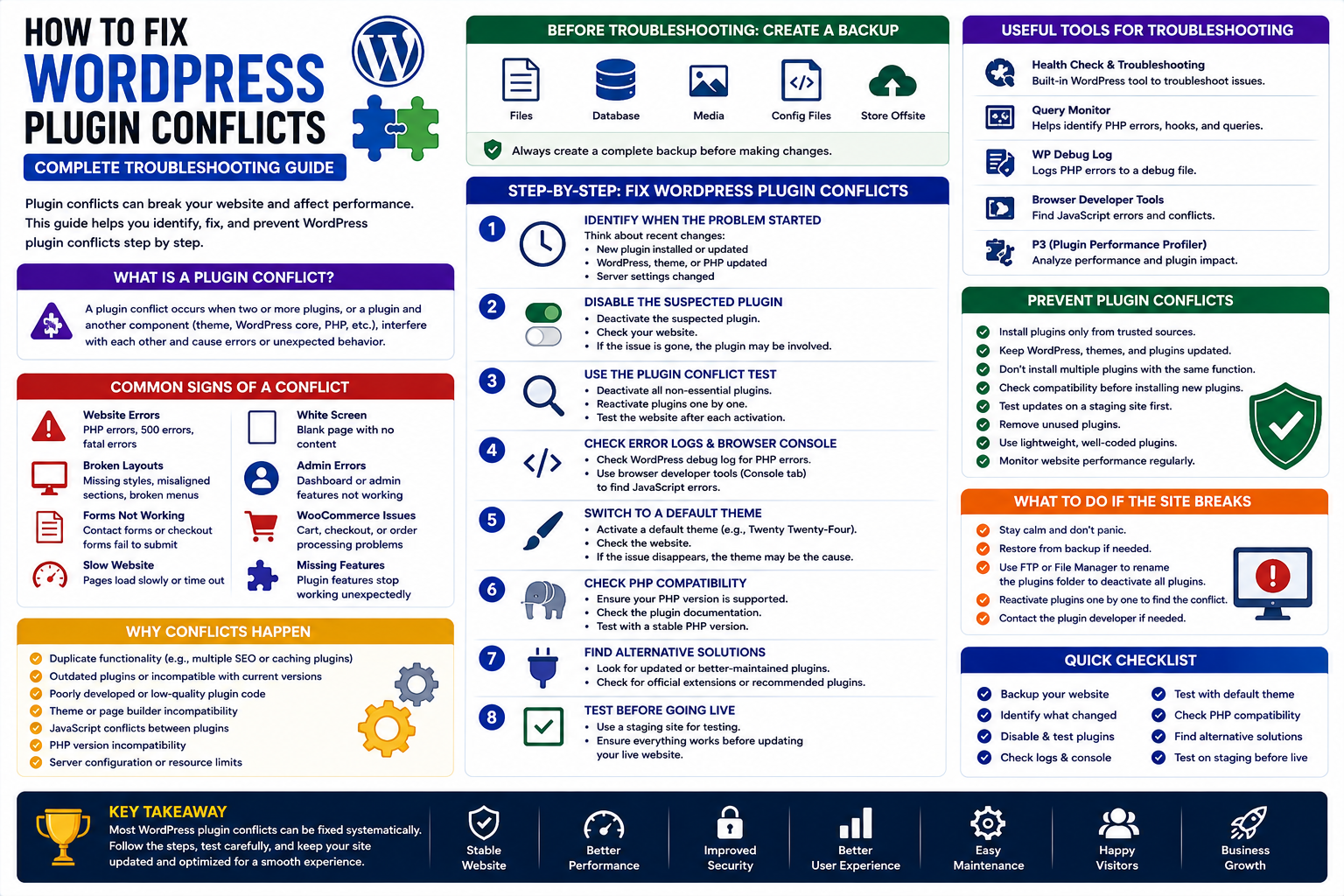
How to Fix WordPress Plugin Conflicts: Complete Troubleshooting Guide
Introduction
WordPress plugins make it easy to add powerful features to a website. From SEO and security to WooCommerce, analytics, AI, marketing, and automation, plugins allow website owners to extend WordPress without developing every feature from scratch.
However, adding multiple plugins can sometimes create compatibility problems.
A plugin conflict occurs when two or more pieces of software interfere with each other, causing unexpected behavior on a WordPress website. A conflict can also occur between a plugin and the WordPress core, theme, PHP version, hosting environment, or another third-party service.
Common symptoms include:
Website errors
Broken layouts
Missing features
White screen
Slow pages
Failed forms
WooCommerce checkout problems
WordPress admin errors
Unexpected PHP errors
The good news is that most plugin conflicts can be diagnosed systematically.
In this guide, you'll learn what WordPress plugin conflicts are, why they happen, how to identify the problematic plugin, how to fix conflicts safely, and how to prevent similar problems in the future.
What Is a WordPress Plugin Conflict?
A WordPress plugin conflict happens when a plugin interacts incorrectly with another component of your website.
The conflicting component could be:
Another plugin
WordPress core
Your theme
PHP
A page builder
WooCommerce
An external API
Your hosting environment
For example, two plugins may attempt to modify the same functionality in incompatible ways.
The result can be an error, broken feature, or unexpected website behavior.
Common Signs of a Plugin Conflict
A plugin conflict may appear in different ways.
Website Displays an Error
You may see:
PHP errors
Fatal errors
500 errors
Database errors
Website Layout Breaks
Your website may suddenly display:
Missing styles
Broken menus
Incorrect spacing
Missing buttons
Misaligned sections
WordPress Admin Stops Working
You may experience problems accessing:
Dashboard
Plugin settings
Posts
Pages
WooCommerce settings
Forms Stop Working
Contact forms, registration forms, or checkout forms may stop submitting correctly.
Website Becomes Slow
A conflict may cause excessive processing, repeated requests, JavaScript errors, or database problems.
Why Do WordPress Plugin Conflicts Happen?
Several factors can cause conflicts.
1. Duplicate Functionality
Two plugins may attempt to control the same feature.
Examples include:
Multiple SEO plugins
Multiple caching systems
Multiple security plugins
Multiple analytics integrations
2. Outdated Plugins
Older plugins may not be compatible with newer WordPress or PHP versions.
3. Poorly Developed Code
Plugins with inefficient or incompatible code can interfere with other components.
4. Theme Compatibility
Some plugins interact closely with themes and page builders.
5. JavaScript Conflicts
Multiple plugins may load JavaScript libraries or scripts that interfere with each other.
6. PHP Compatibility
A plugin designed for an older PHP environment may produce errors on a newer server configuration.
Before Troubleshooting: Create a Backup
Before making significant changes, create a complete website backup.
Your backup should ideally include:
WordPress files
Database
Uploaded media
Configuration files
A backup provides a recovery option if troubleshooting causes additional problems.
For important websites, use both automated backups and an independent backup location.
Step 1: Identify When the Problem Started
Think about what changed immediately before the issue appeared.
Ask:
Did you install a new plugin?
Did you update a plugin?
Did you update WordPress?
Did you change your theme?
Did you change PHP versions?
Did you modify server settings?
The timing can provide an important clue.
If the website worked correctly before a plugin update, that plugin should be one of the first things you investigate.
Step 2: Disable the Suspected Plugin
If you can access the WordPress dashboard:
Go to Plugins.
Find the suspected plugin.
Deactivate it.
Check the website again.
If the problem disappears, you have a strong indication that the plugin may be involved.
However, this does not always prove that the plugin is defective. It may be conflicting with another component.
Step 3: Use the Plugin Conflict Test
If you don't know which plugin is responsible, systematically test them.
A common approach is:
Deactivate non-essential plugins.
Check whether the problem remains.
Reactivate plugins one at a time.
Test the website after each activation.
Identify when the problem returns.
The plugin activated immediately before the problem returns becomes a strong candidate for investigation.
This process is often called a conflict test.
Step 4: Check the Theme
If plugins appear to be working individually, test whether the theme is involved.
Temporarily switch to a default WordPress theme and test the affected functionality.
If the issue disappears, the conflict may involve:
Theme code
Theme JavaScript
Theme CSS
Theme hooks
Theme integrations
Never permanently change a production site's theme without first understanding the consequences.
Use a staging environment whenever possible.
Step 5: Check WordPress and PHP Versions
Compatibility problems can occur when software versions are mismatched.
Review:
WordPress version
PHP version
Plugin versions
Theme version
WooCommerce version
Make sure your plugins support the software environment you are using.
Step 6: Check Browser Console Errors
Some plugin conflicts are caused by JavaScript.
Your browser's developer tools can help identify problems.
Look for:
JavaScript errors
Failed requests
Missing resources
Blocked scripts
AJAX errors
A browser console error can provide useful clues about which script is failing.
Step 7: Check WordPress Error Logs
Server and WordPress logs can provide more detailed information.
Errors may reveal:
Plugin file names
PHP functions
Line numbers
Fatal errors
Database problems
When debugging a production website, avoid displaying sensitive error details publicly.
Use logs instead of leaving debugging information visible to visitors.
Step 8: Check Plugin Documentation
Before changing code, check the plugin's official documentation.
The developer may already have information about:
Known conflicts
Compatibility requirements
Recommended settings
Troubleshooting steps
Required extensions
This can save significant debugging time.
Step 9: Check for Plugin Updates
If a plugin is causing problems, check whether an update is available.
A newer version may contain:
Bug fixes
Compatibility improvements
Security patches
Performance improvements
Before updating an important production website, create a backup and test the update in staging whenever possible.
Step 10: Contact Plugin Support
If the problem continues, contact the plugin developer.
Provide useful information such as:
WordPress version
PHP version
Plugin version
Theme name
Error message
Steps to reproduce the problem
Screenshots
Relevant log information
Avoid sending unnecessary passwords, private keys, API credentials, or sensitive customer information.
Detailed information helps developers reproduce and fix the problem faster.
How to Fix a WordPress Plugin Conflict
Once you've identified the source, several solutions may be available.
Update the Plugin
Install a compatible version that fixes the issue.
Update WordPress
If the plugin requires a newer WordPress version, update WordPress after appropriate testing.
Change Plugin Settings
Sometimes a conflict can be resolved by disabling a specific feature rather than removing the plugin.
Replace the Plugin
If a plugin is abandoned or incompatible, consider a well-maintained alternative.
Remove Duplicate Functionality
If two plugins perform the same function, choose one reliable solution.
Fix Custom Code
If the conflict is caused by custom theme or plugin code, a developer may need to modify the implementation.
Avoid editing third-party plugin files directly because updates can overwrite your changes.
WordPress Plugin Conflict Prevention
The best conflict is one that never happens.
Follow these practices:
Keep Software Updated
Maintain WordPress, themes, and plugins.
Use Reliable Plugins
Choose professionally maintained plugins.
Avoid Duplicate Features
Don't install multiple plugins for identical functionality without a clear reason.
Test Before Production
Use a staging environment for major changes.
Maintain Backups
Create reliable backups before significant updates.
Monitor Your Website
Regularly check:
Forms
Login
Checkout
Important pages
Admin functionality
Website performance
Plugin Conflicts on WooCommerce Websites
WooCommerce websites can be particularly sensitive to plugin conflicts because multiple systems interact with:
Products
Orders
Customers
Payments
Cart
Checkout
Shipping
Emails
A plugin conflict affecting checkout can directly impact revenue.
For WooCommerce stores, test plugin updates against:
Product pages
Cart
Checkout
Payment gateway
Order creation
Customer accounts
Email notifications
Testing is especially important before major sales campaigns.
Plugin Conflicts and Website Security
A plugin conflict is primarily a compatibility issue, but security should still be considered.
If a plugin is:
Abandoned
Vulnerable
Unmaintained
Downloaded from an unauthorized source
it may create a broader security problem.
Never use troubleshooting as a reason to install modified or unauthorized plugin packages.
Use trusted sources and maintain your website properly.
Why ThemeKaddora Focuses on Quality WordPress Plugins
At ThemeKaddora, professional plugin development should focus on more than feature quantity.
Reliable plugins should emphasize:
Clean code
WordPress standards
Compatibility
Security-conscious development
Performance
Maintainability
Documentation
User experience
ThemeKaddora develops WordPress plugins for WooCommerce, AI, analytics, automation, marketing, productivity, and business growth.
The objective is to provide practical functionality while keeping plugin architecture maintainable and suitable for modern WordPress websites.
Conclusion
WordPress plugin conflicts can be frustrating, but they are usually easier to solve when approached systematically.
Start by creating a backup, identifying what changed, testing plugins individually, checking the theme and software versions, reviewing logs, and consulting official documentation.
Avoid randomly changing multiple settings at once. A structured troubleshooting process makes it much easier to identify the real cause.
For long-term stability, use reliable plugins, keep software updated, avoid duplicate functionality, test important changes on staging, and maintain regular backups.
A carefully managed WordPress plugin ecosystem can provide powerful functionality without sacrificing reliability or performance.
Frequently Asked Questions
What is a WordPress plugin conflict?
A WordPress plugin conflict occurs when a plugin interferes with another plugin, theme, WordPress core, PHP environment, or another component of a website.
How do I find which plugin is causing a problem?
Deactivate non-essential plugins and reactivate them one at a time while testing the affected functionality. The plugin associated with the return of the problem is a strong candidate.
Can two WordPress plugins conflict with each other?
Yes. Plugins can conflict when they modify the same functionality, load incompatible scripts, use overlapping resources, or make incompatible changes to WordPress behavior.
Can a theme cause a plugin conflict?
Yes. A theme can conflict with a plugin through PHP code, JavaScript, CSS, hooks, or custom integrations.
What should I do if a plugin breaks my website?
Create or use a recent backup, deactivate the suspected plugin, check error logs, and investigate compatibility. If necessary, contact the plugin developer for support.
Should I edit plugin files to fix a conflict?
Generally, avoid directly modifying third-party plugin files because your changes may be overwritten during updates. Use supported settings, hooks, filters, or a custom extension when appropriate.
Are plugin conflicts common in WooCommerce?
They can occur because WooCommerce stores often use multiple plugins for payments, shipping, products, checkout, analytics, marketing, and customer management.
Why choose ThemeKaddora plugins?
ThemeKaddora focuses on clean development practices, WordPress compatibility, performance, security-conscious development, maintainability, and practical functionality for businesses and website owners.
Comments (0)