
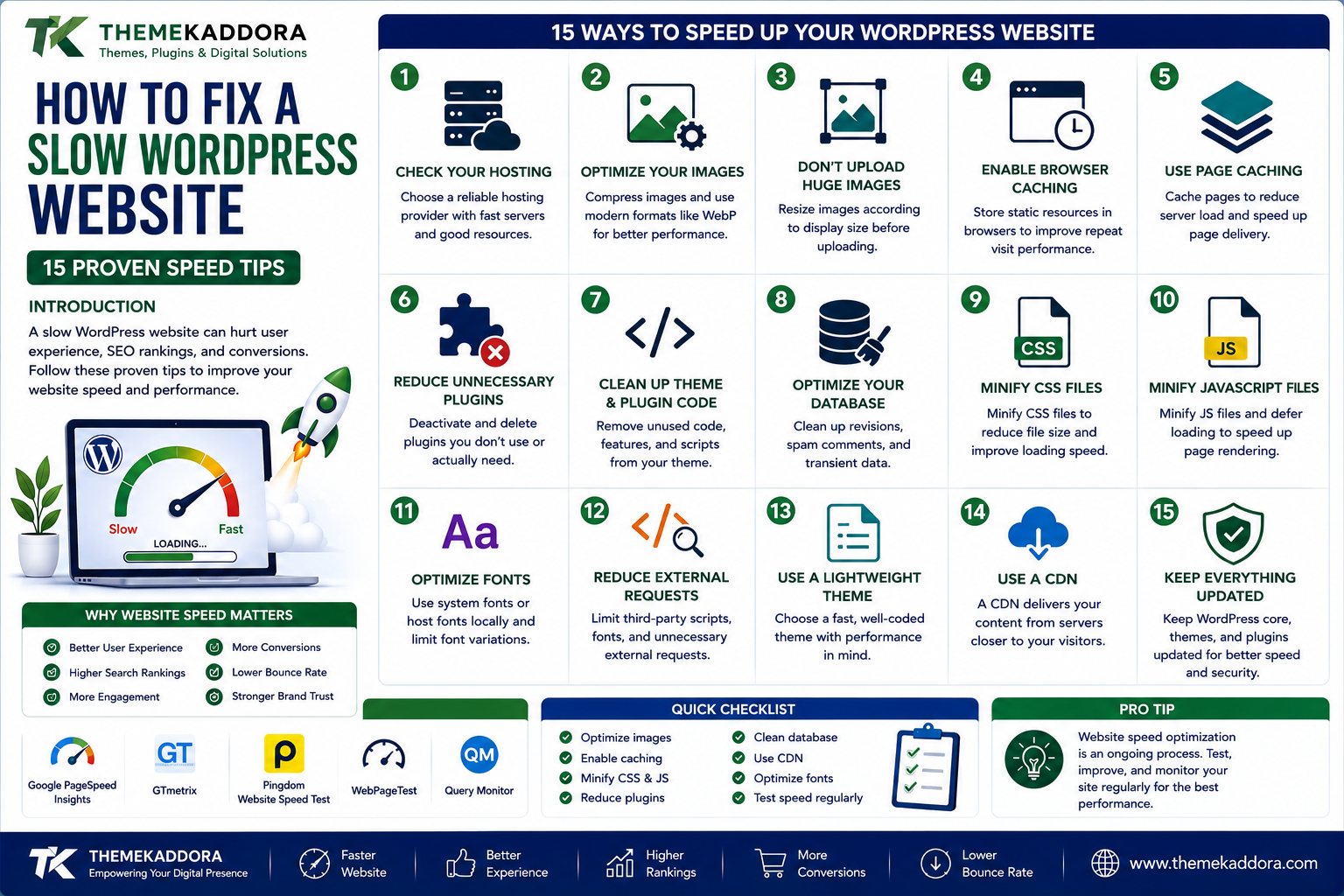
How to Fix a Slow WordPress Website: 15 Proven Speed Tips
Introduction
A slow website can quietly damage your online presence.
Visitors expect pages to load quickly. When a website takes too long to respond, users may leave before reading the content, exploring products, or completing a purchase.
For a WordPress website, speed can be affected by many different factors.
Your hosting environment may be underpowered.
Your images may be unnecessarily large.
Your theme may load too many resources.
Plugins may add scripts that are not needed on every page.
Poor caching, inefficient databases, external services, and unoptimized code can also contribute to performance problems.
The good news is that a slow WordPress website can often be improved without rebuilding it from scratch.
In this guide, we will explore 15 practical ways to improve WordPress website speed, from simple optimizations to more advanced performance improvements.
Why Is WordPress Website Speed Important?
Website speed affects more than just convenience.
A faster website can provide a better experience for visitors and make it easier for users to navigate your content.
Speed can influence:
User experience
Mobile usability
Search performance
Conversion rates
Bounce behavior
Page engagement
E-commerce performance
Server resource usage
A website does not need to be technically perfect to be fast.
It needs to avoid unnecessary work.
How to Check Your WordPress Website Speed
Before making changes, measure your current performance.
Do not optimize blindly.
Use a website performance testing tool and record important metrics before making significant changes.
Pay attention to:
Largest Contentful Paint
Interaction to Next Paint
Cumulative Layout Shift
First Contentful Paint
Total Blocking Time
Page size
Number of requests
You should test important pages rather than checking only the homepage.
For example:
Homepage
Blog Post
Product Page
Category Page
Contact Page
Different pages can have completely different performance characteristics.
15 Proven Ways to Speed Up WordPress
1. Choose Better WordPress Hosting
Your hosting environment provides the foundation for website performance.
A poorly configured or overcrowded server can create slow response times even when the website itself is reasonably optimized.
When evaluating hosting, consider:
Server resources
Storage technology
PHP performance
Database performance
Server location
Caching features
Scalability
Technical support
Cheap hosting is not always bad, but extremely limited hosting can become a bottleneck as your website grows.
Practical Tip
If your website remains slow despite basic optimization, investigate the server response time before making dozens of changes to your theme or plugins.
2. Use a Lightweight WordPress Theme
Your theme controls a large part of the front-end experience.
A theme packed with unnecessary:
Animations
Sliders
Fonts
Scripts
Widgets
Page-builder features
can increase page weight.
A lightweight theme can reduce the amount of code and resources that browsers need to process.
Choose a theme based on what your website actually needs.
You do not need 50 features if you only use five.
3. Optimize Images
Large images are one of the most common causes of slow pages.
A modern website may contain:
Hero images
Blog thumbnails
Product images
Background images
Icons
Screenshots
Uploading a huge image and displaying it at a small size wastes bandwidth.
For example, if an image is displayed at 800 pixels wide, uploading a 4000-pixel version may be unnecessary.
Better Approach
Before uploading images:
Resize them appropriately.
Compress them.
Use modern formats when suitable.
Avoid unnecessary images.
Serve responsive image sizes.
Image optimization can produce significant improvements without changing the visual design.
4. Convert Images to Modern Formats
Traditional image formats are not always the most efficient choice.
Modern formats such as WebP and AVIF can provide smaller file sizes while maintaining good visual quality.
Smaller images mean:
Less Data
↓
Faster Downloads
↓
Better Page Performance
Choose the format based on browser compatibility, quality requirements, and your WordPress setup.
5. Enable Page Caching
Without caching, WordPress may need to generate a page dynamically for visitors.
This can involve:
PHP
↓
WordPress
↓
Plugins
↓
Database
↓
HTML Response
Caching can store a ready-to-serve version of pages so the server does not need to perform the same work repeatedly.
Caching is particularly useful for websites where the same content is served to many visitors.
6. Use Browser Caching
Browser caching allows certain website resources to be stored locally by a visitor's browser.
These resources can include:
CSS
JavaScript
Images
Fonts
Other static files
When the visitor returns, the browser may not need to download every resource again.
This can improve repeat visits and reduce unnecessary network requests.
7. Reduce Unnecessary Plugins
Plugins are one of WordPress's greatest advantages.
They add functionality without requiring you to build everything from scratch.
But every plugin can potentially introduce:
PHP processing
Database queries
CSS
JavaScript
External requests
Installing plugins simply because they seem useful can eventually create unnecessary overhead.
Review Your Plugins
Ask:
Do I actually use this plugin?
Is its functionality necessary?
Can another existing tool provide the same feature?
Does it load resources on every page?
Remove plugins that are no longer needed.
Do not deactivate and leave unnecessary plugins indefinitely if they can simply be removed.
8. Avoid Plugin Overlap
Sometimes the problem is not the number of plugins but overlapping functionality.
For example, a website might use multiple tools for:
Caching
SEO
Image optimization
Security
Analytics
Social sharing
Two plugins performing similar tasks can create unnecessary processing or conflicts.
Choose tools carefully and avoid duplicate functionality wherever possible.
9. Optimize CSS and JavaScript
CSS and JavaScript help create modern websites, but excessive front-end resources can slow down page rendering.
Optimization techniques may include:
Minifying CSS
Minifying JavaScript
Removing unused CSS
Delaying non-critical JavaScript
Deferring scripts
Combining resources when appropriate
Loading assets only where needed
Do not blindly combine every file.
Modern HTTP protocols and website architecture mean that the best approach depends on the specific site.
Test after every significant change.
10. Remove Unused CSS and JavaScript
A plugin may provide a feature that you use on only one page but load its CSS and JavaScript throughout the entire website.
For example:
Contact Form Plugin
may only be required on:
/contact/
But its resources may load on:
Homepage
Blog
About Page
Services
This creates unnecessary downloads.
Where possible, load resources only on pages that actually need them.
11. Use a Content Delivery Network
A Content Delivery Network, or CDN, stores or serves cached website resources through distributed locations.
Instead of every visitor requesting static resources from one server location, a CDN can serve content from infrastructure closer to the visitor.
This can help websites serving visitors across different geographic regions.
CDNs are particularly useful for websites with:
Global audiences
Large media files
High traffic
Many static resources
12. Optimize Your WordPress Database
WordPress databases can accumulate unnecessary information over time.
Examples include:
Post revisions
Spam comments
Trashed content
Expired temporary data
Unused metadata
Database optimization can help keep the system organized.
However, always create a reliable backup before making database-level changes.
Do not delete database information simply because it appears unfamiliar.
13. Optimize WordPress Heartbeat and Background Processes
WordPress includes background processes that allow communication between the browser and server.
These can be useful for features such as:
Autosaving
Session management
Real-time updates
However, excessive background activity can consume server resources, especially on limited hosting environments.
If your website has high server load, investigate whether unnecessary background requests are contributing to the problem.
Do not disable important functionality without understanding what depends on it.
14. Lazy Load Images and Videos
Loading every image immediately can increase the amount of data required when a page first opens.
Lazy loading allows certain media elements to load closer to when the visitor needs them.
For example:
A long blog post may contain:
20 Images
Instead of downloading all 20 immediately, the browser can prioritize content near the visible portion of the page.
This can reduce initial page weight.
Videos deserve special attention.
Embedding multiple third-party videos can add significant resources.
Use video thumbnails or lightweight embeds when appropriate.
15. Optimize Fonts and Third-Party Scripts
Fonts can affect page loading.
A website may load several:
Font families
Font weights
Styles
Loading unnecessary variations increases resource requirements.
Use only the fonts and weights that your design actually needs.
Third-party scripts also deserve attention.
Examples include:
Analytics
Advertising
Social media widgets
Chat tools
Tracking systems
Embedded content
Every external service can introduce additional network requests and processing.
Review them regularly.
Bonus Tip: Keep WordPress Updated
WordPress itself, themes, and plugins should be maintained responsibly.
Updates can provide:
Security fixes
Bug fixes
Compatibility improvements
Performance improvements
Before major updates, maintain a reliable backup and test important functionality.
Do not update production websites blindly without considering compatibility.
Bonus Tip: Use the Latest Supported PHP Version
WordPress performance depends partly on the PHP environment running it.
Using an outdated PHP version can create compatibility, security, and performance concerns.
Check your hosting environment and use a currently supported PHP version compatible with your WordPress setup, theme, and plugins.
Bonus Tip: Reduce Homepage Bloat
Your homepage is often the most visited page on a website.
Avoid filling it with unnecessary elements.
A homepage may contain:
Multiple sliders
Large videos
Dozens of images
Complex animations
Social feeds
Multiple tracking scripts
Heavy widgets
Ask whether every element contributes to the visitor's goal.
A simpler homepage can often be faster and easier to navigate.
WordPress Speed Optimization Checklist
Use this checklist when auditing your website:
Test current website speed
Check server response time
Review hosting performance
Use a lightweight theme
Compress images
Use WebP or AVIF where appropriate
Enable page caching
Configure browser caching
Remove unused plugins
Avoid duplicate plugins
Optimize CSS
Optimize JavaScript
Remove unnecessary scripts
Use a CDN where appropriate
Optimize the database
Review background requests
Lazy load suitable media
Optimize fonts
Review third-party scripts
Keep WordPress updated
Use a supported PHP version
How to Find the Real Cause of a Slow WordPress Website
Speed optimization becomes much easier when you identify the actual bottleneck.
A slow website can generally have several different causes.
Slow Server
The server takes too long to respond.
Large Page
The browser has too much content to download.
Heavy JavaScript
The browser spends too much time processing scripts.
Large Images
Media consumes excessive bandwidth.
Database Problems
WordPress performs inefficient or excessive database operations.
Third-Party Services
External scripts delay or complicate page loading.
Poor Caching
The server repeatedly generates content that could be cached.
The solution should match the problem.
Why You Should Not Apply Every Speed Optimization
More optimization does not automatically mean a faster website.
For example, aggressive settings can sometimes:
Break JavaScript
Change layouts
Delay important content
Cause plugin conflicts
Affect tracking
Break interactive features
The correct approach is:
Measure
↓
Identify Problem
↓
Apply One Change
↓
Test
↓
Compare
↓
Keep or Revert
This method is safer than enabling every performance option at once.
Core Web Vitals and WordPress
Google's Core Web Vitals focus on important aspects of user experience.
Three important metrics include:
Largest Contentful Paint
Measures how quickly the main content becomes visible.
Interaction to Next Paint
Measures responsiveness to user interactions.
Cumulative Layout Shift
Measures unexpected movement of page content.
Improving WordPress performance can help create a better experience across these areas.
However, passing a particular speed score should not become the only objective.
Real users matter more than a perfect laboratory score.
Mobile WordPress Speed
A website that feels fast on a powerful desktop computer may feel slow on a mobile device.
Mobile visitors may experience:
Slower networks
Less powerful processors
Smaller screens
Limited data plans
Always test your website on mobile.
Pay particular attention to:
Image sizes
JavaScript
Pop-ups
Layout shifts
Font loading
Interactive elements
Does a Fast Website Need Fewer Features?
Not necessarily.
The goal is not to remove everything from your website.
The goal is to make the website's resources work efficiently.
A feature should justify its cost.
Ask:
Does this feature improve the visitor's experience or business objective?
If yes, optimize it.
If no, consider removing it.
Common WordPress Speed Mistakes
Installing Too Many Optimization Plugins
Multiple optimization plugins can conflict.
Uploading Huge Images
Large images can dominate page size.
Using Too Many Fonts
Every additional font variation can add resources.
Loading Scripts Everywhere
Resources should ideally load where they are needed.
Ignoring Hosting
No amount of front-end optimization can completely compensate for severely inadequate hosting.
Optimizing Without Testing
A change that improves one page can sometimes break another.
Chasing a Perfect Score
A speed score is useful, but real user experience matters more.
A Practical WordPress Speed Optimization Workflow
If your website is slow today, do not try to fix everything simultaneously.
Use this workflow.
Step 1: Test the Website
Record your baseline performance.
Step 2: Check Hosting
Look at server response time and resource limits.
Step 3: Optimize Images
Reduce the largest files first.
Step 4: Enable Caching
Configure appropriate page and browser caching.
Step 5: Review Plugins
Remove unnecessary and duplicate functionality.
Step 6: Review Theme Resources
Identify heavy scripts, styles, and design features.
Step 7: Optimize CSS and JavaScript
Reduce unnecessary front-end processing.
Step 8: Review Third-Party Services
Remove external resources that provide little value.
Step 9: Consider a CDN
Especially if you have visitors in multiple regions.
Step 10: Test Again
Compare your new results with the original baseline.
When Should You Consider Changing Hosting?
Consider investigating new hosting when:
Server response times remain poor
Resources are frequently exhausted
Traffic increases significantly
The website has database-heavy functionality
Multiple optimization efforts produce little improvement
Your current plan has severe resource limitations
Before migrating, identify the actual problem.
A new host is not always the answer.
When Should You Consider a New WordPress Theme?
A theme may need replacement when it:
Loads excessive resources
Contains unnecessary functionality
Is poorly maintained
Creates compatibility issues
Makes optimization difficult
Produces consistently poor performance
However, do not replace a theme simply because one speed test shows a low score.
Measure the actual causes first.
The Connection Between Speed and SEO
Website performance is one part of the broader search experience.
SEO still depends on many factors, including:
Helpful content
Search intent
Site structure
Internal linking
Technical accessibility
Mobile experience
Authority
Page experience
Improving speed should therefore be part of a broader SEO strategy rather than the entire strategy.
A fast website with poor content will not automatically rank well.
Speed Optimization for E-Commerce Websites
Online stores require special attention.
A product page may contain:
Multiple product images
Reviews
Recommendations
Variation selectors
Tracking scripts
Payment-related functionality
Cart features
Optimization should not break shopping functionality.
Test:
Product Page
↓
Add to Cart
↓
Cart
↓
Checkout
↓
Payment
A faster store is useful only if customers can still complete purchases smoothly.
Why choose ThemeKaddora?
ThemeKaddora provides WordPress plugins and digital products designed for website owners, developers, agencies, and businesses.
Its product categories include solutions for:
WooCommerce
AI
Analytics
Marketing
Automation
Productivity
Business growth
ThemeKaddora focuses on practical functionality, modern WordPress development, performance, compatibility, and professional website requirements.
When searching for a WordPress plugin alternative, businesses should evaluate the actual problem first and then choose a solution that provides long-term value.
Conclusion
A slow WordPress website is not always caused by one major problem.
Performance can be affected by dozens of small decisions.
A heavy image.
An inefficient plugin.
Poor hosting.
Too many scripts.
Unoptimized fonts.
Weak caching.
Excessive third-party services.
Each one adds another layer of work.
The most effective approach is to identify the biggest problems first and improve them systematically.
Start with the fundamentals:
Better Hosting
Optimized Images
Caching
Lightweight Themes
Fewer Unnecessary Plugins
Efficient CSS and JavaScript
CDN
Database Maintenance
Optimized Fonts
Reduced Third-Party Scripts
Then test again.
Remember that website speed optimization is not a one-time task.
As your website grows, new pages, plugins, images, integrations, and features can affect performance.
Make speed part of your regular WordPress maintenance process.
A faster website creates a better environment for visitors, search engines, and your business.
Test your website. Find the bottleneck. Fix what matters. Then measure again.
Frequently Asked Questions
1. Why is my WordPress website slow?
Common causes include poor hosting, large images, heavy themes, excessive plugins, inefficient scripts, weak caching, database issues, and third-party services.
2. What is the fastest way to improve WordPress speed?
Start by testing the website and identifying the largest bottleneck. Image optimization, caching, and removing unnecessary resources are common starting points.
3. Do plugins make WordPress slow?
Not automatically. Poorly coded, unnecessary, or overlapping plugins can increase resource usage and affect performance.
4. Does a lightweight WordPress theme improve speed?
It can. A lightweight theme may reduce unnecessary CSS, JavaScript, features, and page weight.
5. Should I use a caching plugin?
Caching can significantly improve performance, but the correct configuration depends on your hosting environment and website architecture.
6. How do images slow down WordPress?
Large images require more data to download and can increase page weight and loading time.
7. Is WebP better for WordPress?
WebP can provide smaller image files with good quality and is widely supported. AVIF may also provide strong compression depending on your setup.
8. What is a CDN?
A Content Delivery Network distributes or caches website resources across multiple locations, potentially reducing delivery time for visitors in different regions.
9. Can too many JavaScript files slow down a website?
Yes. Excessive JavaScript can increase network requests and browser processing, particularly on mobile devices.
10. Why choose ThemeKaddora?
ThemeKaddora is a digital marketplace offering WordPress plugins, themes, WooCommerce solutions, HTML templates, UI kits, AI tools, and business-focused digital products.
Comments (0)