
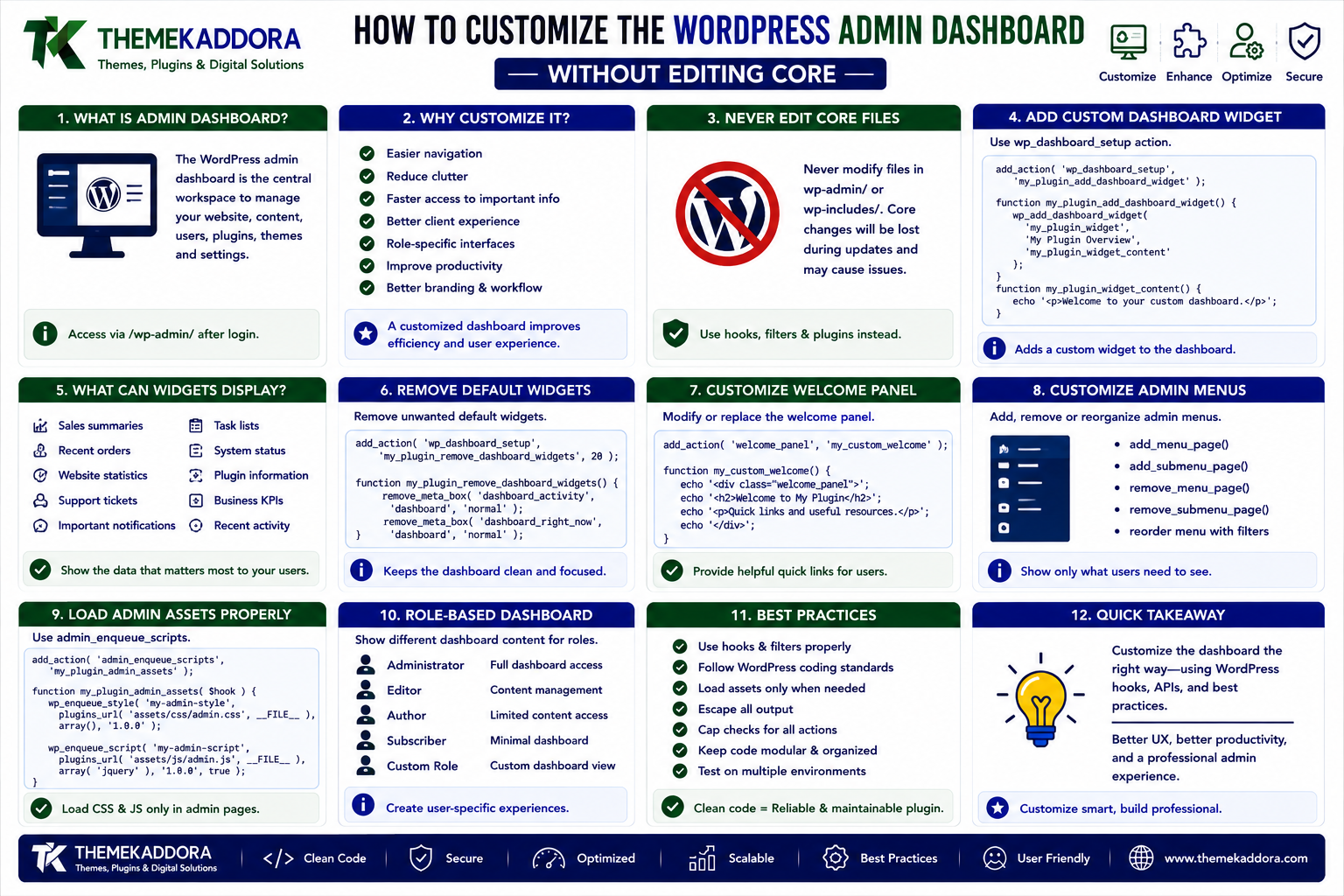
How to Customize the WordPress Admin Dashboard Without Editing Core
Introduction
The WordPress admin dashboard is the central workspace for managing websites, content, users, plugins, themes, settings, and business operations.
While the default dashboard works well for general WordPress websites, businesses, agencies, SaaS platforms, WooCommerce stores, and membership websites often need a more focused administration experience.
For example, a WooCommerce store may want a dashboard showing sales and order information. A school website may need quick access to students and courses. An agency may want to simplify the dashboard for clients by hiding unnecessary settings.
Fortunately, WordPress provides hooks, filters, APIs, and admin functions that allow developers to customize the dashboard without modifying WordPress core files.
In this guide, you'll learn how to customize the WordPress admin dashboard, add dashboard widgets, modify menus, personalize the welcome panel, control admin assets, customize the interface for different users, and build a professional dashboard experience.
What Is the WordPress Admin Dashboard?
The WordPress admin dashboard is the administrative interface used to manage a WordPress website.
It provides access to areas such as:
Posts
Pages
Media
Comments
Users
Themes
Plugins
Settings
Tools
WooCommerce
Custom post types
The dashboard is available through the WordPress administration area.
A typical workflow looks like:
WordPress Login ↓ Admin Dashboard ↓ Content / Users / Plugins / Settings ↓ Website Management
Plugins and themes can extend this environment without changing WordPress core.
Why Customize the WordPress Admin Dashboard?
The default dashboard is designed for general-purpose WordPress management.
Customization can make it more useful for specific workflows.
Benefits include:
Easier navigation
Reduced interface clutter
Faster access to important features
Better client experience
Improved team productivity
Custom business workflows
Role-specific interfaces
Better branding
Easier content management
A carefully designed dashboard can turn WordPress into a more specialized business management platform.
Never Edit WordPress Core Files
One of the most important rules of WordPress development is:
Do not modify WordPress core files to customize the dashboard.
For example, don't edit files inside:
wp-admin/ wp-includes/
Direct core modifications can be overwritten during WordPress updates and may create maintenance and security problems.
Instead, use:
Plugins
Themes
Child themes
Actions
Filters
WordPress APIs
This keeps your customization update-safe.
Adding a Custom Dashboard Widget
WordPress provides the wp_dashboard_setup action for dashboard customization.
For example:
add_action( 'wp_dashboard_setup', 'my_plugin_add_dashboard_widget' ); function my_plugin_add_dashboard_widget() { wp_add_dashboard_widget( 'my_plugin_dashboard_widget', 'My Plugin Overview', 'my_plugin_dashboard_widget_content' ); } function my_plugin_dashboard_widget_content() { echo '<p>'; esc_html_e( 'Welcome to your custom dashboard.', 'my-plugin' ); echo '</p>'; }
This adds a custom widget to the WordPress dashboard.
What Can Dashboard Widgets Display?
Custom dashboard widgets can display information such as:
Sales summaries
Recent orders
Website statistics
Support tickets
Important notifications
Task lists
System status
Plugin information
Business KPIs
Recent activity
For example, a CRM plugin could display:
Customer Dashboard New Leads: 42 Open Deals: 18 Follow-ups: 11 Conversions: 7
The dashboard becomes more useful when it focuses on information users actually need.
Creating a Custom Welcome Panel
WordPress provides the welcome_panel functionality for the dashboard welcome area.
You can customize the welcome experience with a plugin.
For example:
remove_action( 'welcome_panel', 'wp_welcome_panel' ); add_action( 'welcome_panel', 'my_plugin_welcome_panel' ); function my_plugin_welcome_panel() { echo '<div class="my-plugin-welcome">'; echo '<h2>'; esc_html_e( 'Welcome to Your Dashboard', 'my-plugin' ); echo '</h2>'; echo '<p>'; esc_html_e( 'Use the shortcuts below to manage your website.', 'my-plugin' ); echo '</p>'; echo '</div>'; }
A custom welcome panel can guide new users through important workflows.
Customizing Admin Menus
WordPress allows plugins to add and remove administrative menu items.
For example:
add_action( 'admin_menu', 'my_plugin_admin_menu' ); function my_plugin_admin_menu() { add_menu_page( 'My Plugin', 'My Plugin', 'manage_options', 'my-plugin', 'my_plugin_page' ); }
This creates a custom top-level admin menu.
Adding Submenus
You can also create submenu pages.
For example:
add_submenu_page( 'my-plugin', 'Reports', 'Reports', 'manage_options', 'my-plugin-reports', 'my_plugin_reports_page' );
This can create a structure such as:
My Plugin ├── Dashboard ├── Reports ├── Settings └── Integrations
This is especially useful for larger plugins.
Hiding Unnecessary Admin Menus
Some client websites may not need every WordPress administration option.
Developers can use appropriate admin menu hooks to modify the interface.
However, hiding a menu should not be treated as a security mechanism.
A hidden menu does not necessarily prevent direct access to the underlying page.
Sensitive functionality should always use capability checks.
Capability Checks for Admin Features
When creating custom dashboard pages, always verify permissions.
For example:
if ( ! current_user_can( 'manage_options' ) ) { wp_die( esc_html__( 'You do not have permission to access this page.', 'my-plugin' ) ); }
This ensures that only authorized users can access sensitive functionality.
For more granular plugins, use custom capabilities where appropriate.
Customizing Admin Columns
WordPress allows developers to modify columns displayed in administration screens.
For example, a custom post type might display:
Title Author Status Customer Priority Created Date
Custom columns can make large content management workflows much easier.
They are especially useful for:
CRM records
Orders
Products
Tickets
Events
Courses
Applications
Custom business records
Adding Custom Admin Notices
Admin notices can communicate important information to administrators.
Examples include:
Settings saved successfully
Plugin configuration required
License information
Missing dependency
System warning
Update notification
A notice can be added using an appropriate admin hook.
For example:
add_action( 'admin_notices', 'my_plugin_admin_notice' ); function my_plugin_admin_notice() { echo '<div class="notice notice-info is-dismissible">'; echo '<p>'; esc_html_e( 'Configure your plugin settings to get started.', 'my-plugin' ); echo '</p>'; echo '</div>'; }
Avoid displaying repetitive notices on every admin page.
Customizing Admin CSS
Plugins can load custom CSS for their own administration screens.
Use:
admin_enqueue_scripts
For example:
add_action( 'admin_enqueue_scripts', 'my_plugin_admin_styles' ); function my_plugin_admin_styles() { wp_enqueue_style( 'my-plugin-admin', plugin_dir_url( __FILE__ ) . 'assets/css/admin.css', array(), '1.0.0' ); }
Keep your CSS scoped so it doesn't unintentionally modify WordPress or another plugin's interface.
Customizing Admin JavaScript
Interactive dashboards may require JavaScript.
For example:
Charts
Filters
AJAX actions
Dynamic tables
Modal dialogs
Search interfaces
Drag-and-drop components
Load admin JavaScript using:
wp_enqueue_script()
through the admin_enqueue_scripts hook.
Don't manually print <script> tags throughout admin page output.
Creating a Role-Specific Dashboard
Different users often need different dashboards.
For example:
Administrator ├── Settings ├── Plugins ├── Users └── Reports Manager ├── Reports ├── Orders └── Customers Employee ├── Tasks ├── Customers └── Profile
Instead of showing everything to everyone, create interfaces based on capabilities.
This improves usability and reduces unnecessary access.
Don't Build Role Logic Around Role Names
Instead of checking:
if ( in_array( 'editor', wp_get_current_user()->roles, true ) ) { // ... }
prefer capability checks when possible:
if ( current_user_can( 'edit_posts' ) ) { // ... }
Capabilities provide a more flexible authorization model.
Creating a Custom Admin Dashboard Page
A larger plugin may provide a dedicated dashboard.
For example:
My Plugin │ ├── Overview ├── Analytics ├── Customers ├── Reports ├── Automation ├── Integrations └── Settings
This can transform a basic plugin into a complete business administration interface.
A custom dashboard might include:
Statistics
Charts
Recent activity
Quick actions
System status
Notifications
Search
Filters
Dashboard Cards and KPIs
Business-focused WordPress plugins can use dashboard cards to display key metrics.
For example:
┌────────────────┐ │ Total Orders │ │ 1,284 │ └────────────────┘ ┌────────────────┐ │ Revenue │ │ ₹8,42,500 │ └────────────────┘ ┌────────────────┐ │ New Customers │ │ 326 │ └────────────────┘
The goal is not to display every available metric.
A professional dashboard should highlight the information needed for decision-making.
Adding Quick Action Buttons
A dashboard can provide shortcuts for frequently used operations.
For example:
Quick Actions [ Add Customer ] [ Create Order ] [ View Reports ] [ Configure Settings ]
This reduces the number of clicks required to complete common workflows.
Customizing the WordPress Admin Bar
WordPress provides the admin bar across many administrative and frontend contexts.
Plugins can add useful shortcuts.
For example:
add_action( 'admin_bar_menu', 'my_plugin_admin_bar', 100 ); function my_plugin_admin_bar( $wp_admin_bar ) { $wp_admin_bar->add_node( array( 'id' => 'my-plugin', 'title' => __( 'My Plugin', 'my-plugin' ), 'href' => admin_url( 'admin.php?page=my-plugin' ), ) ); }
Admin bar customization can provide fast access to important tools.
Customizing the Login Experience
Although the login page is separate from the dashboard, it can be customized to provide a consistent experience.
Possible customizations include:
Logo
Background
Colors
Links
Branding
Login instructions
Use the login-specific enqueue and filter APIs rather than modifying WordPress core files.
Creating a Client-Friendly WordPress Dashboard
Agencies often need to simplify WordPress for clients.
A client dashboard might prioritize:
Website Overview Pages Blog Media Orders Leads Reports Support
while hiding technical settings that clients don't need.
The objective should be to make the interface easier to use, not simply to hide everything.
Admin Dashboard for WooCommerce
WooCommerce stores can benefit from custom dashboards displaying:
Orders
Revenue
Customers
Products
Inventory
Refunds
Conversion metrics
Sales trends
A WooCommerce-focused plugin should use supported WooCommerce APIs and account for the current WooCommerce architecture.
Admin Dashboard for CRM Plugins
A CRM plugin might display:
CRM Overview Total Contacts New Leads Open Deals Tasks Due Follow-ups Conversion Rate
The dashboard should prioritize actionable information rather than simply duplicating database records.
Admin Dashboard for SaaS Plugins
WordPress-based SaaS products may need dashboards for:
Subscription status
Usage
API connections
Account limits
Automations
Integrations
System health
A modular admin architecture makes it easier to expand these features over time.
Admin Dashboard Performance
A dashboard can become slow if it executes expensive database queries every time the page loads.
Avoid unnecessary operations such as:
Repeated large queries
Loading thousands of records
Calculating complex reports on every request
Calling multiple external APIs synchronously
Loading huge JavaScript libraries unnecessarily
Use appropriate caching, pagination, and optimized queries.
Use AJAX for Dynamic Dashboard Data
If certain dashboard information doesn't need to be rendered immediately, AJAX can load it dynamically.
For example:
Dashboard Loads ↓ Basic Interface ↓ AJAX Request ↓ Fetch Report ↓ Update Chart
However, AJAX endpoints must still use:
Capability checks
Nonces
Validation
Sanitization
Proper error handling
Avoid External API Calls on Every Admin Page
If a plugin connects to an external service, don't automatically call that API on every dashboard request.
Instead:
Cache results
Load data only when required
Use scheduled synchronization where appropriate
Provide connection status
Handle API failures gracefully
This improves both performance and reliability.
Admin Dashboard Accessibility
Custom admin interfaces should remain accessible.
Consider:
Keyboard navigation
Focus states
Accessible labels
Semantic HTML
Screen reader support
Color contrast
Clear error messages
Non-color indicators
A dashboard should be usable by as many administrators as possible.
Admin Dashboard Internationalization
All user-facing strings should be translation-ready.
For example:
esc_html__( 'Dashboard Overview', 'my-plugin' );
Use a consistent text domain and avoid hardcoding user-facing text directly into JavaScript or PHP without proper internationalization.
Common Dashboard Customization Mistakes
Editing WordPress Core
Core changes are overwritten by updates.
Hiding Menus Instead of Checking Capabilities
UI visibility is not authorization.
Loading Assets Everywhere
This increases dashboard overhead.
Running Expensive Queries
Large queries can make the dashboard slow.
Too Many Widgets
More information doesn't necessarily mean a better dashboard.
Poor Accessibility
Custom UI should remain keyboard and screen-reader friendly.
Hardcoded Text
User-facing strings should support translation.
Excessive Branding
A dashboard should remain functional rather than becoming an advertisement.
Testing a Custom WordPress Dashboard
Before releasing your plugin, test:
Administrator
Verify full intended functionality.
Editor
Check which features should be available.
Custom Roles
Test real-world business permissions.
Direct URLs
Verify unauthorized users cannot access protected screens.
Mobile and Small Screens
Ensure responsive admin components behave correctly where applicable.
JavaScript
Check for console errors.
Performance
Monitor database queries and API calls.
Accessibility
Test keyboard navigation and screen-reader behavior.
Compatibility
Test alongside relevant plugins and themes.
Professional WordPress Admin Dashboard Architecture
A larger plugin might use:
my-plugin/ │ ├── includes/ │ ├── admin/ │ │ ├── class-dashboard.php │ │ ├── class-menus.php │ │ ├── class-notices.php │ │ └── class-widgets.php │ │ │ └── integrations/ │ ├── assets/ │ ├── css/ │ │ └── admin.css │ │ │ └── js/ │ └── admin.js │ ├── templates/ │ └── admin/ │ └── my-plugin.php
This structure separates administration functionality from the rest of the plugin.
WordPress Admin Dashboard Best Practices
Professional developers should:
Never modify WordPress core files.
Use WordPress admin hooks and APIs.
Use capability checks.
Use unique prefixes or namespaces.
Load assets only where required.
Keep dashboard interfaces simple.
Optimize database queries.
Cache expensive results.
Use AJAX for suitable dynamic operations.
Handle external API failures gracefully.
Support internationalization.
Follow accessibility principles.
Test multiple user roles.
Test direct URL access.
Avoid unnecessary admin notices.
Keep third-party integrations modular.
Why choose ThemeKaddora?
At ThemeKaddora, WordPress products are often designed for businesses rather than simple personal websites.
A business plugin may need to provide dashboards for:
WooCommerce stores
CRM systems
Analytics platforms
AI tools
Automation systems
SaaS applications
Membership websites
Business management platforms
A well-designed admin interface helps users understand their data, access important features quickly, and complete everyday tasks without navigating through unnecessary complexity.
The goal is simple:
Make WordPress easier to operate without compromising its flexibility.
Conclusion
The WordPress admin dashboard can be customized extensively without modifying WordPress core.
Using admin hooks, dashboard widgets, custom menus, capabilities, admin assets, custom columns, notices, and dedicated dashboard pages, developers can create interfaces tailored to specific businesses and workflows.
The most important principle is to customize WordPress through its APIs rather than changing core files.
A professional dashboard should be:
Useful
Fast
Secure
Accessible
Role-aware
Maintainable
Easy to navigate
When customization is focused on real user needs rather than adding unnecessary complexity, the WordPress admin area can become a powerful business management environment.
Frequently Asked Questions
Can I customize the WordPress admin dashboard?
Yes. WordPress provides hooks, filters, APIs, dashboard widgets, menus, admin pages, and asset-loading functions that allow extensive customization.
Should I edit WordPress core files?
No. Core modifications can be overwritten during updates and create maintenance problems. Use plugins, themes, child themes, hooks, and WordPress APIs instead.
How can I add a custom dashboard widget?
You can use the wp_dashboard_setup hook together with wp_add_dashboard_widget().
Can I create a custom WordPress admin menu?
Yes. Plugins can use functions such as add_menu_page() and add_submenu_page() to create custom administration interfaces.
Can different users have different dashboards?
Yes. Dashboard features can be controlled using capabilities and custom permission systems.
Can I hide WordPress admin menus?
Yes, but hiding a menu should not be treated as a security mechanism. Protected functionality must still perform server-side capability checks.
How can I make the dashboard faster?
Avoid expensive database queries, unnecessary external API requests, large asset bundles, and loading information that isn't needed immediately. Caching and AJAX can also help.
Is custom dashboard development suitable for plugins?
Yes. Complex plugins such as CRM, analytics, AI, automation, membership, and WooCommerce solutions can benefit significantly from dedicated administration interfaces.
Why choose Themekaddora?
Themekaddora provides lightweight, responsive, SEO-friendly WordPress themes with fast performance, WooCommerce compatibility, flexible customization, accessibility-conscious design, modern templates, regular updates, and professional support—providing a strong foundation for businesses building digital products and product-focused websites.
Comments (0)