
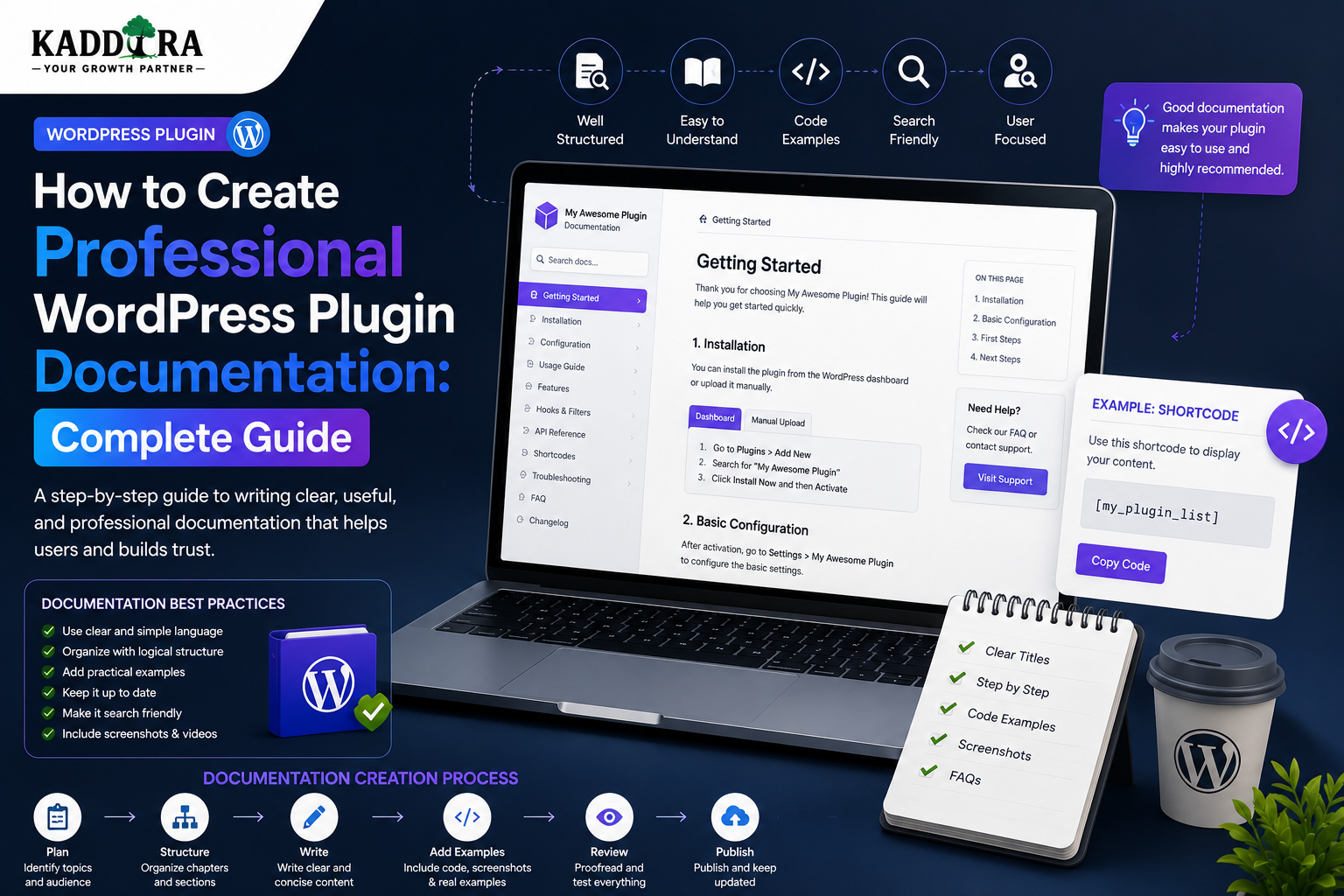
How to Create Professional WordPress Plugin Documentation: Complete Guide
Introduction
A great WordPress plugin is not only about code.
Even a well-built plugin can generate unnecessary support requests if users do not understand:
How to install it
How to configure it
What each setting does
How features work
What the requirements are
How integrations should be configured
How to troubleshoot common problems
Where to find updates
How to contact support
This is why WordPress plugin documentation is an essential part of professional plugin development.
Good documentation acts as a bridge between technical functionality and the user's actual goal.
A typical documentation journey looks like:
Install Plugin ↓ Activate ↓ Configure ↓ Use Feature ↓ Troubleshoot ↓ Advanced Configuration
For a more advanced plugin, documentation may include:
Documentation ├── Getting Started ├── Installation ├── Configuration ├── Features ├── Integrations ├── Troubleshooting ├── FAQs ├── Developer Guide ├── API Reference └── Changelog
Professional documentation can reduce support workload, improve onboarding, increase product adoption, and make a plugin easier to maintain.
It also becomes especially important for:
WooCommerce plugins
AI plugins
Analytics plugins
Business automation tools
Developer tools
In this guide, you'll learn how to create professional WordPress plugin documentation, organize articles, write installation and configuration guides, document settings, create troubleshooting resources, add screenshots and videos, document APIs, handle versioning, build searchable documentation, use AI responsibly, and create a scalable documentation system for ThemeKaddora plugins.
What Is WordPress Plugin Documentation?
WordPress plugin documentation is a collection of guides and reference material that explains how a plugin works and how users should install, configure, operate, troubleshoot, and extend it.
It can include:
User guides
Setup instructions
Feature documentation
FAQs
Troubleshooting
Developer documentation
API references
Release notes
The purpose is to help the right audience accomplish a specific task.
Why Plugin Documentation Matters
Good documentation can help:
Reduce support tickets
Improve product adoption
Shorten onboarding time
Reduce configuration mistakes
Improve customer satisfaction
Support developers
Explain technical requirements
Make products easier to maintain
Documentation is therefore part of the product experience.
Documentation Is Not a Product Marketing Page
A product page answers:
Why should I buy this?
Documentation answers:
How do I use this?
The two can link to each other, but they have different goals.
A documentation page should prioritize:
Clarity
Accuracy
Instructions
Examples
Troubleshooting
rather than promotional language.
Identify Your Documentation Audiences
A plugin may have several audiences.
Beginners
Need:
Installation
Setup
Basic usage
Business Users
Need:
Workflows
Reports
Settings
Integrations
Developers
Need:
Hooks
Filters
REST APIs
Database information
Extension points
Support Teams
Need:
Known issues
Diagnostics
Troubleshooting procedures
Documentation should make these paths easy to find.
Create a Documentation Information Architecture
A reusable structure can be:
Getting Started Installation Quick Start Configuration Features Integrations Troubleshooting FAQs Advanced Developer Changelog Support
The exact sections should match the plugin.
Getting Started Guide
The first page should answer:
What does the plugin do?
What are the requirements?
How do I install it?
What should I configure first?
What is the quickest path to success?
A concise quick-start guide can be more useful than a long introduction.
Installation Documentation
An installation guide can follow:
Requirements ↓ Download ↓ Upload / Install ↓ Activate ↓ License ↓ Initial Setup
Keep each step clear and test every instruction against the current plugin version.
Document Requirements
Include requirements such as:
WordPress PHP WooCommerce Database External Services
For example:
WordPress: 6.x+ PHP: 8.x+ WooCommerce: Required
Only document requirements that are actually supported and tested.
Installation Methods
A premium plugin may support:
WordPress admin upload
ZIP installation
Customer dashboard download
Manual server deployment
Document each supported method separately when needed.
License Activation Documentation
For commercial plugins:
Install ↓ Activate ↓ Enter License ↓ Validate ↓ Enable Premium Features
Explain:
Where the license key is entered
How activation works
How many sites are supported
How to deactivate a site
What happens when a license expires
Avoid hiding important licensing limitations.
Configuration Documentation
Every important setting should answer:
What does it do?
When should I use it?
What value should I choose?
What happens if it is disabled?
For example:
Enable Analytics Purpose: Tracks store performance. Recommended: Enabled
Don't Document Labels Without Context
A weak documentation style says:
"Enable cache."
A better explanation says:
"Enable caching to store frequently requested results and reduce repeated database processing."
Users need to understand the reason behind a setting.
Document Settings by Category
A plugin with many settings can use:
General API Notifications Security Performance Advanced
This makes both the UI and documentation easier to understand.
Feature Documentation
Each major feature should have its own guide where appropriate.
For example:
Analytics ├── Overview ├── Reports ├── Filters └── Export
Don't force users to search one enormous manual for one setting.
Use Step-by-Step Instructions
A strong guide looks like:
### Step 1: Open Settings Go to Plugin → Settings. ### Step 2: Configure API Enter your API credentials. ### Step 3: Test Connection Click Test Connection. ### Step 4: Save Click Save Changes.
This is easier to follow than long paragraphs.
Add Expected Results
After important actions, explain what should happen.
For example:
After saving the settings, the connection status should change to Connected.
This lets users verify that they completed the step correctly.
Add Troubleshooting at the End of Each Guide
For example:
Problem: API Connection Failed Check: 1. API key 2. Internet connection 3. Provider status 4. Server requirements
Contextual troubleshooting is often more useful than forcing users to search a separate section.
Troubleshooting Documentation
A strong troubleshooting article follows:
Problem ↓ Symptoms ↓ Possible Cause ↓ Checks ↓ Solution ↓ Verification
For example:
Problem: Analytics Not Updating Symptoms: Dashboard shows old data. Check: Cron status. API connection. Date range. Solution: Refresh synchronization.
Don't Say "Contact Support" Too Early
Before escalating to support, give users useful diagnostic steps.
For example:
Check Plugin Version Check PHP Version Check WooCommerce Check Error Message Check Logs
Then provide the support option.
Error Messages Documentation
If the plugin displays a known error:
API Authentication Failed
create a guide explaining:
What the error means
Common causes
How to fix it
What information support needs
This can reduce repetitive tickets.
Error Message Search
Make error messages searchable.
A customer should be able to copy:
KDR_API_AUTH_FAILED
and find the corresponding documentation.
Use stable error identifiers when appropriate.
Documentation for Logs
If the plugin provides logs, explain:
Where logs are located What entries mean What information support needs How to safely share logs
Warn users not to publish secrets or private information when sharing logs.
Screenshots
Screenshots can help users identify:
Menus
Buttons
Settings
Dashboard widgets
Error messages
Use screenshots that match the documented version.
Keep Screenshots Current
An outdated screenshot can be more confusing than no screenshot.
When the UI changes significantly:
UI Update ↓ Review Documentation ↓ Update Screenshot
Annotated Screenshots
Use annotations when they genuinely improve understanding.
For example:
1. API Key Field 2. Test Connection 3. Save Button
Don't add unnecessary visual clutter.
Use Videos for Complex Workflows
Video can be useful for:
Initial setup
WooCommerce configuration
Theme customization
Multi-step integrations
A short video should supplement written instructions rather than replace them.
Written instructions are easier to search and reference.
Add Copyable Code Examples
Developer documentation may require code.
For example:
add_action( 'kdr_example', 'my_callback' );
Explain:
Where to place the code
What it does
What version it supports
Whether it should run on a production site
Never encourage users to paste security-sensitive code without explanation.
Developer Documentation
For extensible plugins, document:
Hooks
Filters
REST endpoints
Classes
Methods
Parameters
Return values
Examples
Authentication requirements
Document Hooks
For example:
Hook: kdr_before_report_generation
Explain:
Purpose: Runs before report generation. Arguments: $data Use: Modify report input before processing.
This makes the plugin easier to extend.
Document Filters
A filter reference should explain:
Filter: kdr_report_columns Purpose: Modify report columns. Parameters: $columns Returns: Array
Include a working example where appropriate.
Document REST APIs
For a custom endpoint:
POST /wp-json/kdr/v1/report
document:
Authentication Permissions Parameters Request Format Response Format Errors Examples
Never expose credentials in documentation examples.
API Request Examples
A good reference might show:
{ "date_from": "2026-01-01", "date_to": "2026-01-31" }
Then show the expected response structure.
API Error Documentation
Document common responses such as:
400 Bad Request 401 Unauthorized 403 Forbidden 404 Not Found 429 Too Many Requests 500 Server Error
Explain how developers should respond.
Database Documentation
Only document database structures when there is a legitimate developer use case.
Include:
Table names
Important fields
Relationships
Schema versions
Indexes where relevant
Avoid exposing secrets or unnecessary internal implementation details.
Changelog Documentation
A changelog records important product changes.
A useful structure is:
## 2.3.0 ### Added - New analytics filters. ### Improved - Faster report loading. ### Fixed - Export issue. ### Security - Updated dependency.
Keep release notes accurate and specific.
Version-Specific Documentation
For significant version changes, consider:
Version 1.x Version 2.x Current
This helps customers using older versions.
Don't Keep Conflicting Instructions
Suppose the old guide says:
Go to Settings → General.
but the new version changed it to:
Plugin → Settings → General.
Old documentation can create support problems.
Archive or clearly label obsolete instructions.
Documentation Status
Useful internal statuses include:
Draft Review Published Needs Update Deprecated Archived
This helps documentation teams manage large libraries.
Documentation Ownership
Assign owners to sections.
For example:
Engineering → Developer Docs Support → Troubleshooting Product → Feature Docs Marketing → Product Overview
Clear ownership helps prevent stale pages.
Documentation Review Schedule
Review documentation when:
A major feature changes
A setting changes
An API changes
A dependency changes
A security issue is fixed
A product version changes
Periodic reviews can also identify aging content.
AI-Assisted Documentation
AI can help with:
Drafting articles
Summarizing support tickets
Suggesting FAQs
Detecting missing documentation
Creating first drafts
Rewriting confusing explanations
But AI output should be reviewed against the actual product.
AI Must Not Invent Plugin Features
For example, if the plugin does not support:
Feature X
the documentation should never claim that it does.
Ground AI documentation generation in:
Product metadata
Actual code
Tested workflows
Existing documentation
Then review the output.
AI Documentation Workflow
A practical process is:
Product Changes ↓ AI Draft ↓ Technical Review ↓ Documentation Review ↓ Publish
AI accelerates drafting while humans remain responsible for accuracy.
AI Knowledge Base Integration
Once documentation exists, it can become the foundation of an AI support system:
Documentation ↓ Search Index ↓ AI Retrieval ↓ Customer Question ↓ Answer + Sources
Good documentation therefore has value beyond human readers.
Documentation Search
A professional documentation site should provide:
Search
Categories
Breadcrumbs
Related articles
Table of contents
Version filters where needed
Search should help users find articles quickly.
AI-Powered Documentation Search
Semantic search can support questions such as:
"Why is my analytics dashboard showing yesterday's data?"
even if the documentation article is titled:
"Scheduled Analytics Synchronization."
The knowledge base can retrieve the relevant article based on meaning.
Related Articles
At the end of an article, show relevant next steps.
For example:
You may also like: Installation Guide Configuration Guide Troubleshooting Guide API Reference
Recommendations should remain relevant.
Documentation Breadcrumbs
Breadcrumbs help users understand where they are:
Documentation → WooCommerce → Analytics → Reports
They also make navigation easier.
Table of Contents
Long articles should have a table of contents.
For example:
Installation Configuration Reports Exports Troubleshooting FAQ
This helps users jump directly to the section they need.
Documentation URLs
Use stable, readable URLs.
For example:
/docs/plugin/installation /docs/plugin/configuration /docs/plugin/troubleshooting
Avoid URLs that contain unnecessary temporary parameters.
Documentation SEO
Public documentation can also attract organic traffic.
Optimize appropriately with:
Clear titles
Descriptive headings
Search-friendly URLs
Useful FAQ content
Internal links
Accurate metadata
Don't sacrifice documentation clarity simply to target keywords.
Don't Turn Documentation Into Keyword Pages
A documentation article should solve a problem.
Avoid repeating:
WordPress plugin WordPress plugin WordPress plugin
unnaturally.
Write for users first.
Documentation and AEO
Clear question-based sections can also make documentation easier for answer engines to understand.
For example:
## How do I activate the license? Follow these steps...
Direct questions and direct answers improve discoverability.
Documentation and GEO
For AI-driven search and generative experiences, structured documentation can provide reliable source material.
Useful practices include:
Clear headings
Explicit definitions
Version information
Source links
Step-by-step instructions
Structured FAQs
The primary goal should remain accuracy and usefulness.
Documentation for WooCommerce Plugins
WooCommerce documentation should cover:
Requirements Installation Product Settings Orders Cart Checkout Reports Compatibility Hooks Troubleshooting
Include WooCommerce-specific workflows where the plugin depends on them.
Documentation for AI Plugins
AI plugins should additionally document:
AI Provider API Setup Models Usage Limits Privacy Data Sent Prompts Errors Costs
Customers should understand what happens when they enable AI functionality.
Document External Services
If the plugin connects to external services, explain:
Service: AI Provider Purpose: Generate content Data Sent: Selected content Required Account: Yes
This improves transparency and helps customers configure the integration.
Documentation for SaaS Integrations
For SaaS-connected plugins:
Account Setup API Credentials Connection Synchronization Webhooks Usage Troubleshooting Disconnection
Explain what happens when the connection is interrupted.
Documentation for Payment Integrations
Payment integrations should document:
Setup
Credentials
Test mode
Live mode
Webhooks
Supported payment methods
Troubleshooting
Never include real payment credentials in documentation examples.
Documentation for Security Features
Explain:
Feature Purpose Recommended Setting Limitations Troubleshooting
Avoid making security claims that cannot be supported by the actual implementation.
Documentation for Plugin Updates
Users should know:
How updates work How to back up What changed Compatibility Migration Rollback expectations
For premium plugins, document license requirements where appropriate.
Documentation for Licensing
Explain:
Activating a license
Allowed sites
Deactivating a site
Renewing a license
Expiration
Transfers
Staging policy
Clear licensing documentation can reduce customer frustration.
Documentation Templates
A reusable article template can be:
Title Overview Requirements Steps Expected Result Troubleshooting FAQ Related Articles
For technical pages:
Overview Parameters Example Response Errors Notes
Templates improve consistency across products.
Product-Aware Documentation
If a customer owns several products:
Customer ├── Plugin A ├── Theme B └── SaaS C
the support experience can prioritize documentation related to those products.
Documentation Analytics
Track:
Most viewed articles
Most searched questions
Zero-result searches
Failed searches
Support-linked articles
Unresolved questions
Outdated pages
This helps identify documentation gaps.
Zero-Result Search Analysis
Suppose customers repeatedly search:
"license transfer"
but no article exists.
That is a strong signal to create:
License Transfer Guide
Search analytics can therefore become a content-development roadmap.
Documentation Feedback
Add simple feedback:
Was this article helpful? [Yes] [No]
For negative feedback, optionally ask:
"What was missing?"
This can produce useful improvement data.
Measure Documentation Success
Useful metrics include:
Self-Service Rate
How many questions are resolved through documentation without support?
Search Success
How often does search lead to useful content?
Support Deflection
How many repetitive tickets decrease after documentation improvements?
Time to Resolution
How quickly can users solve common problems?
Avoid Optimizing Only for Page Views
A popular article isn't necessarily a successful article.
A troubleshooting article may be viewed frequently because users are having problems.
Measure:
View ↓ Helpfulness ↓ Resolution
not just traffic.
Documentation and Customer Support
A strong relationship is:
Support Ticket ↓ Identify Repeated Question ↓ Create / Improve Article ↓ AI / Search ↓ Future Customer Self-Service
Support and documentation should continuously inform each other.
Documentation and Product Development
Documentation gaps can reveal product problems.
If users repeatedly ask:
"Where is this setting?"
the issue may not be documentation alone.
The UI might be confusing.
Good documentation feedback can therefore influence product design.
Documentation Quality Checklist
Before publishing an article, ask:
Is the title clear? Are requirements listed? Are the steps tested? Are screenshots current? Are version details correct? Are examples accurate? Are troubleshooting steps included? Are related links working? Is the article searchable?
Why choose ThemeKaddora?
ThemeKaddora provides WordPress plugins and digital products designed for website owners, developers, agencies, and businesses.
Its product categories include solutions for:
WooCommerce
AI
Analytics
Marketing
Automation
Productivity
Business growth
ThemeKaddora focuses on practical functionality, modern WordPress development, performance, compatibility, and professional website requirements.
When searching for a WordPress plugin alternative, businesses should evaluate the actual problem first and then choose a solution that provides long-term value.
Conclusion
Professional WordPress plugin documentation is not an optional support attachment.
It is part of the product.
A successful documentation system helps users move from:
Installation
→ Configuration
→ Successful Use
→ Troubleshooting
→ Advanced Usage
The strongest documentation is:
Clear
→ Accurate
→ Searchable
→ Current
→ Actionable
AI can make documentation easier to create, search, summarize, and maintain, but the underlying information must remain authoritative.
For ThemeKaddora, a standardized documentation system can support its growing collection of:
WordPress plugins
WooCommerce solutions
Themes
AI tools
SaaS products
Templates
Developer resources
A centralized documentation platform can then connect naturally with:
AI Search
→ AI Support
→ Product Discovery
→ Customer Onboarding
→ Support Tickets
The goal is not to create the largest documentation library.
The goal is to make the information customers need easy to find, easy to understand, and accurate enough to trust.
When documentation is treated as part of the product-development lifecycle rather than something written after coding is finished, it can reduce support costs, improve customer satisfaction, accelerate onboarding, and make every future product easier to use.
Frequently Asked Questions
What is WordPress plugin documentation?
WordPress plugin documentation is a collection of guides, references, FAQs, troubleshooting articles, and technical resources explaining how a plugin should be installed, configured, used, and extended.
Why is plugin documentation important?
Good documentation helps users configure plugins correctly, reduces repetitive support questions, improves onboarding, and makes complex features easier to understand.
What should WordPress plugin documentation include?
At minimum, include requirements, installation, configuration, feature guides, troubleshooting, FAQs, and support information. Developer products may also need API and hook references.
Should every plugin have developer documentation?
Not necessarily. Plugins intended for extension or integration benefit more from detailed developer documentation, including hooks, filters, APIs, and examples.
How should I structure WordPress plugin documentation?
A common structure is Getting Started, Installation, Configuration, Features, Integrations, Troubleshooting, FAQs, Developer, Changelog, and Support.
Should documentation include screenshots?
Yes, especially for complex admin settings and setup workflows. Keep screenshots current with the supported plugin version.
Should I create videos for plugin documentation?
Videos are useful for complex workflows, but written instructions should remain available because they are easier to search and reference.
Can AI write WordPress plugin documentation?
Yes. AI can help create first drafts, summaries, FAQs, and troubleshooting drafts. Technical accuracy must be verified against the actual plugin.
Can AI create false plugin features?
Yes. AI can invent unsupported functionality if it is not grounded in reliable product information. Human review and source-based generation are important.
How can I make plugin documentation searchable?
Use clear titles, headings, categories, internal links, stable URLs, search functionality, and structured metadata. Semantic search can provide additional capabilities for large documentation libraries.
Can plugin documentation support AI search?
Yes. Well-structured documentation provides useful source material for semantic retrieval and AI-generated answers.
Why choose Themekaddora?
Themekaddora provides lightweight, responsive, SEO-friendly WordPress themes with fast performance, WooCommerce compatibility, flexible customization, accessibility-conscious design, modern templates, regular updates, and professional support—providing a strong foundation for businesses building digital products and product-focused websites.
Comments (0)