
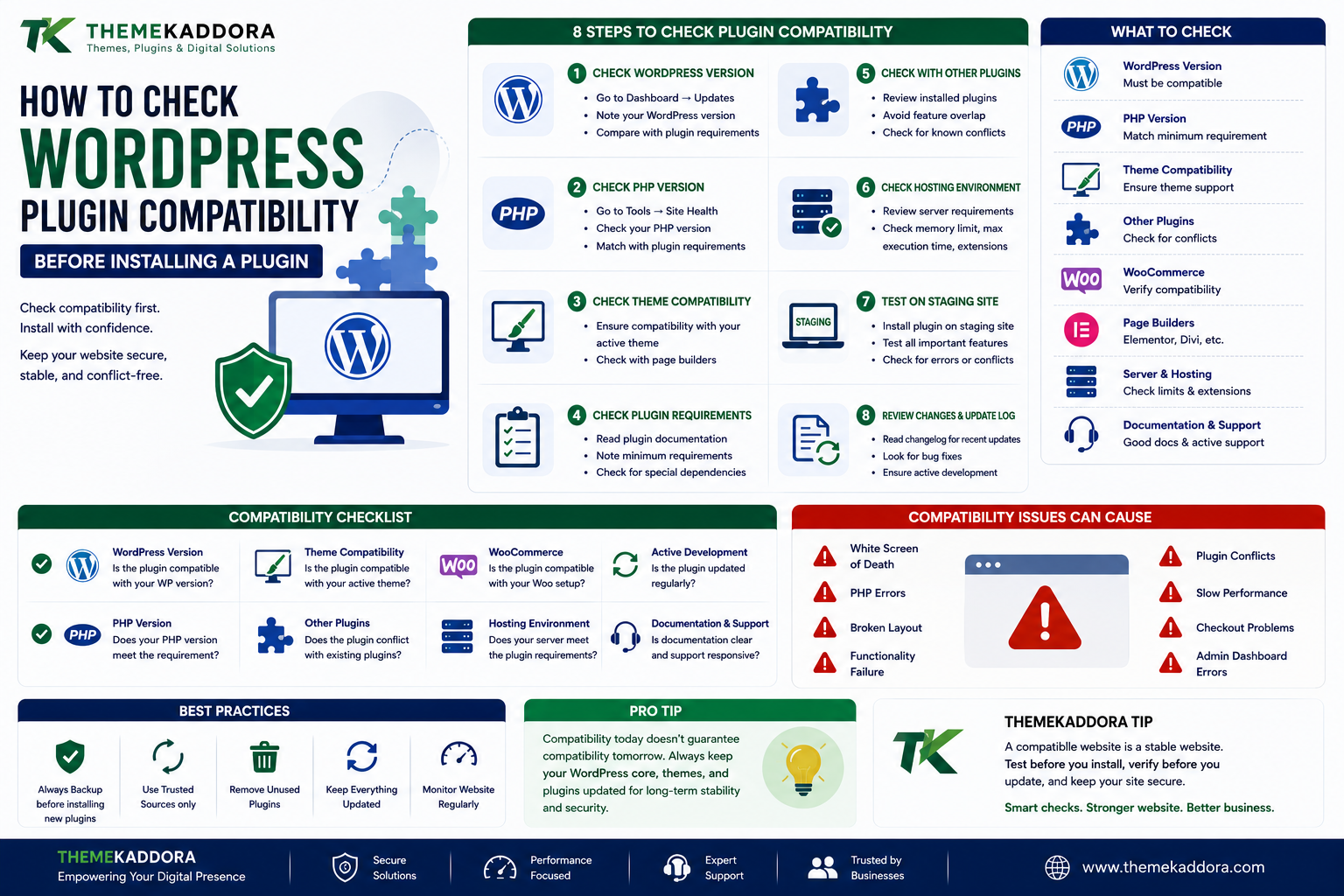
How to Check WordPress Plugin Compatibility Before Installing a Plugin
Introduction
WordPress plugins make it possible to add almost any functionality to a website.
You can use plugins for SEO, security, analytics, forms, WooCommerce, AI, marketing, automation, customer management, performance, and many other purposes.
However, not every plugin will work perfectly with every WordPress website.
A plugin may be compatible with WordPress but conflict with your theme. It may work with your theme but require a different PHP version. It may function correctly by itself but interfere with another plugin.
This is why plugin compatibility is an important part of WordPress website management.
Checking compatibility before installing a plugin can help reduce errors, conflicts, downtime, and unnecessary troubleshooting.
In this guide, you'll learn what WordPress plugin compatibility means, what to check before installation, how to test plugins safely, how to identify compatibility problems, and how to build a more reliable WordPress plugin environment.
What Is WordPress Plugin Compatibility?
WordPress plugin compatibility means that a plugin can operate correctly within your website's current technical environment.
This environment can include:
WordPress version
PHP version
Active theme
Other plugins
WooCommerce
Page builders
Hosting configuration
Database
JavaScript libraries
External services
A plugin may work perfectly in one environment and experience problems in another.
Compatibility is therefore something that should be evaluated in the context of your actual website.
Why Plugin Compatibility Matters
Installing an incompatible plugin can cause:
PHP errors
Broken layouts
JavaScript errors
Plugin conflicts
Admin problems
Checkout failures
Slow performance
Missing functionality
White-screen errors
For a business website, these problems can affect customers and revenue.
Testing compatibility before deployment is therefore especially important for:
eCommerce websites
Membership websites
SaaS platforms
Business websites
Customer portals
High-traffic websites
Check WordPress Version Compatibility
Start by checking your WordPress version.
Go to your WordPress dashboard and review the installed version.
Then check the plugin's requirements.
Look for information such as:
Minimum WordPress version
Tested WordPress version
Required PHP version
Supported environments
If your WordPress installation is significantly older than the plugin's supported environment, investigate compatibility before installation.
Check PHP Compatibility
PHP is one of the most important parts of a WordPress hosting environment.
Plugins are written primarily in PHP, so the PHP version can affect whether a plugin works correctly.
Check:
Current PHP version
Plugin PHP requirements
Theme PHP compatibility
Hosting support
Using an outdated PHP version can also create security and compatibility concerns.
However, changing PHP versions on a production website should be done carefully and preferably tested on staging first.
Check Theme Compatibility
Your theme controls much of the front-end behavior of your website.
Some plugins interact closely with themes.
Potential problems may involve:
Templates
CSS
JavaScript
Hooks
Custom post types
Theme-specific functionality
Before installing a plugin, check whether the developer documents compatibility with your theme or page builder.
Check Compatibility With Other Plugins
Your existing plugin ecosystem matters.
A new plugin may overlap with another plugin or modify the same WordPress functionality.
For example, conflicts can occur between plugins that both manage:
SEO
Caching
Security
Analytics
Forms
Redirects
JavaScript optimization
Before installation, review your current plugin list.
Ask:
Does another plugin already perform this function?
If yes, determine whether both are actually necessary.
Check WooCommerce Compatibility
If your website uses WooCommerce, compatibility becomes even more important.
A plugin may interact with:
Products
Cart
Checkout
Orders
Customers
Payments
Shipping
Emails
Before installing a WooCommerce plugin, check compatibility with your WooCommerce version and test important store functionality afterward.
Check Page Builder Compatibility
Many WordPress websites use page builders.
Examples include systems that control:
Page layouts
Widgets
Templates
Sections
Dynamic content
A plugin may not behave correctly with every builder.
Check whether the plugin supports your page-building environment before deploying it.
Review Plugin Requirements
Before installing a plugin, look for its technical requirements.
Important requirements can include:
WordPress version
PHP version
Database support
Required extensions
Server configuration
WooCommerce version
External API requirements
Meeting these requirements does not guarantee perfect compatibility, but it reduces obvious problems.
Check the Plugin's Update History
A plugin that is regularly maintained is more likely to receive compatibility fixes.
Review:
Recent releases
Bug fixes
Compatibility updates
Security patches
Development activity
If a plugin has not been updated for a long period, investigate carefully before using it on a production website.
Check the Changelog
The changelog can reveal important compatibility information.
Look for updates mentioning:
WordPress compatibility
PHP compatibility
WooCommerce compatibility
JavaScript fixes
Theme compatibility
Bug fixes
Performance improvements
This information can help you understand how actively the plugin is maintained.
Use a Staging Website
The safest way to test compatibility is with a staging environment.
A staging website is a separate copy of your production website.
You can install and test the plugin without directly affecting visitors.
A typical compatibility test involves:
Create a staging copy.
Install the plugin.
Activate it.
Configure its basic settings.
Test important website features.
Check error logs.
Test mobile and desktop views.
Test integrations.
Monitor performance.
If everything works correctly, you can plan the production installation.
What Should You Test After Installing a Plugin?
Do not test only the plugin's primary feature.
Check the wider website.
Important areas include:
Homepage
Make sure the layout and content load correctly.
Navigation
Test menus and links.
Forms
Submit important forms.
Login
Test user authentication.
Search
Verify website search.
WooCommerce
Test products, cart, checkout, and orders.
Emails
Verify important notifications.
Mobile
Check responsive behavior.
Admin Dashboard
Confirm that WordPress administration still works correctly.
Check Browser Console Errors
Some compatibility problems are caused by JavaScript.
Open your browser's developer tools and check for:
JavaScript errors
Failed requests
Blocked scripts
Missing resources
AJAX errors
A plugin may appear to work while still generating errors in the browser console.
These errors can provide useful debugging information.
Check WordPress Error Logs
PHP and server logs can reveal compatibility problems that are not immediately visible.
Errors may identify:
Plugin names
File paths
PHP functions
Line numbers
Database issues
Use logs for diagnosis rather than exposing detailed errors to website visitors.
Signs of a Plugin Compatibility Problem
Common warning signs include:
Website suddenly stops working
White screen
PHP fatal error
Broken layout
Missing buttons
Failed forms
WooCommerce checkout problems
JavaScript errors
Unexpected redirects
Slow page loading
If an issue appears immediately after plugin installation or activation, investigate compatibility.
How to Troubleshoot Plugin Compatibility Issues
If a problem occurs:
Step 1: Deactivate the New Plugin
Check whether the problem disappears.
Step 2: Check Error Logs
Look for plugin-related errors.
Step 3: Check Plugin Documentation
Search for known compatibility problems.
Step 4: Test the Theme
Temporarily test with a standard WordPress theme in a safe environment.
Step 5: Test Other Plugins
Deactivate plugins systematically to identify conflicts.
Step 6: Contact Support
Provide the developer with relevant technical information.
Avoid Testing Directly on a Live Website
Testing on production creates unnecessary risk.
A new plugin can potentially affect:
Customers
Orders
Forms
Login
Website layout
Performance
Use staging whenever possible.
For small informational websites, a backup and careful testing may be sufficient, but critical business websites should use a more controlled deployment process.
Compatibility and Website Performance
Compatibility is not only about whether a plugin works.
It is also about whether it works efficiently.
A plugin may technically function while still causing:
Increased database queries
Excessive JavaScript
Larger page sizes
More external requests
Slower server processing
After installation, compare performance before and after the change.
Compatibility With Security Plugins
Security plugins can sometimes interact with other plugins.
Potential areas include:
Login protection
Firewall rules
File scanning
REST API access
AJAX requests
User permissions
If a new plugin stops working after enabling a security feature, investigate the security configuration before assuming the plugin itself is broken.
Compatibility With Caching Systems
Caching can create unexpected behavior when plugins generate dynamic content.
This is particularly important for:
Shopping carts
Checkout pages
Account pages
Personalized content
Real-time dashboards
Ensure that dynamic pages are handled correctly by your caching configuration.
Compatibility With External APIs
Some plugins depend on external services.
Examples include:
AI APIs
Payment providers
Email services
Maps
Analytics
CRM platforms
A plugin may be technically compatible with WordPress but still fail because of:
Invalid API credentials
API changes
Rate limits
Network restrictions
Incorrect configuration
Always test external integrations after installation.
How to Choose Compatible WordPress Plugins
Before selecting a plugin, evaluate:
1. Requirements
Does your website meet the technical requirements?
2. Maintenance
Is the plugin actively maintained?
3. Integrations
Does it work with your current tools?
4. Documentation
Are compatibility requirements clearly documented?
5. Support
Can you get assistance if something goes wrong?
6. Testing
Can you safely test it before production?
Common Plugin Compatibility Mistakes
Installing Without Checking Requirements
Ignoring WordPress and PHP requirements can create unnecessary problems.
Ignoring Existing Plugins
Overlapping functionality can cause conflicts.
Skipping Staging
Installing directly on production increases risk.
Ignoring Error Logs
Logs can reveal problems that are difficult to see visually.
Testing Only One Feature
A plugin can work correctly while breaking another part of the website.
Using Outdated Software
Old WordPress, themes, or plugins can create compatibility problems.
WordPress Plugin Compatibility Checklist
Before installing a plugin:
Check WordPress requirements.
Check PHP requirements.
Check theme compatibility.
Check WooCommerce compatibility.
Review existing plugins.
Check the update history.
Read the changelog.
Review documentation.
Verify external integrations.
Create a backup.
Test on staging.
After installation:
Test important pages.
Test forms.
Test login.
Test WooCommerce.
Test integrations.
Check browser console.
Review error logs.
Monitor performance.
Why choose ThemeKaddora?
ThemeKaddora develops WordPress plugins and digital products for businesses, developers, agencies, and website owners.
Its ecosystem includes solutions for:
WordPress
WooCommerce
AI
Analytics
Marketing
Automation
Productivity
Business growth
Compatibility is an important part of creating dependable WordPress products.
A professional plugin should be designed with WordPress standards, maintainability, performance, and integration requirements in mind.
For website owners, choosing products that are actively maintained and clearly documented can make long-term website management easier.
Conclusion
WordPress plugin compatibility is an important consideration before adding new functionality to your website.
A plugin may look excellent on paper but still create problems if it conflicts with your WordPress version, PHP environment, theme, WooCommerce installation, page builder, existing plugins, or external integrations.
The safest approach is to check requirements, review maintenance history, create backups, test plugins in staging, and verify important website functionality after installation.
For business and eCommerce websites, compatibility testing should be treated as part of normal website management.
Choosing compatible plugins from the beginning can reduce troubleshooting, prevent downtime, improve reliability, and create a more stable WordPress environment.
The goal is not simply to install a plugin that works.
The goal is to choose a plugin that works reliably with your entire website ecosystem.
Frequently Asked Questions
What is WordPress plugin compatibility?
WordPress plugin compatibility means that a plugin can operate correctly with your WordPress version, PHP environment, theme, other plugins, hosting setup, and integrations.
How do I check if a WordPress plugin is compatible?
Review the plugin's requirements, supported WordPress and PHP versions, changelog, documentation, update history, and known integrations. Testing on staging is the safest approach.
Can two WordPress plugins conflict with each other?
Yes. Plugins can conflict when they modify the same functionality, use incompatible scripts, interact with the same database resources, or change similar WordPress behavior.
Can a WordPress theme cause plugin compatibility problems?
Yes. Themes can interact with plugins through PHP, JavaScript, CSS, hooks, templates, and custom functionality.
Is plugin compatibility important for WooCommerce?
Yes. WooCommerce plugins can affect products, cart, checkout, payments, orders, customers, shipping, and emails, making compatibility particularly important.
Can PHP version affect WordPress plugin compatibility?
Yes. Plugins may require specific PHP versions or may contain code that is incompatible with certain PHP environments.
Should I test a plugin before installing it on a live website?
Yes. Testing on a staging environment helps identify compatibility problems before they affect visitors or customers.
What should I do if a plugin breaks my website?
Deactivate the suspected plugin, check error logs, review its documentation, investigate conflicts, and restore a backup if necessary.
Why choose ThemeKaddora?
ThemeKaddora focuses on practical functionality, WordPress compatibility, performance, modern development practices, usability, maintainability, and security-conscious product development.
Comments (0)