
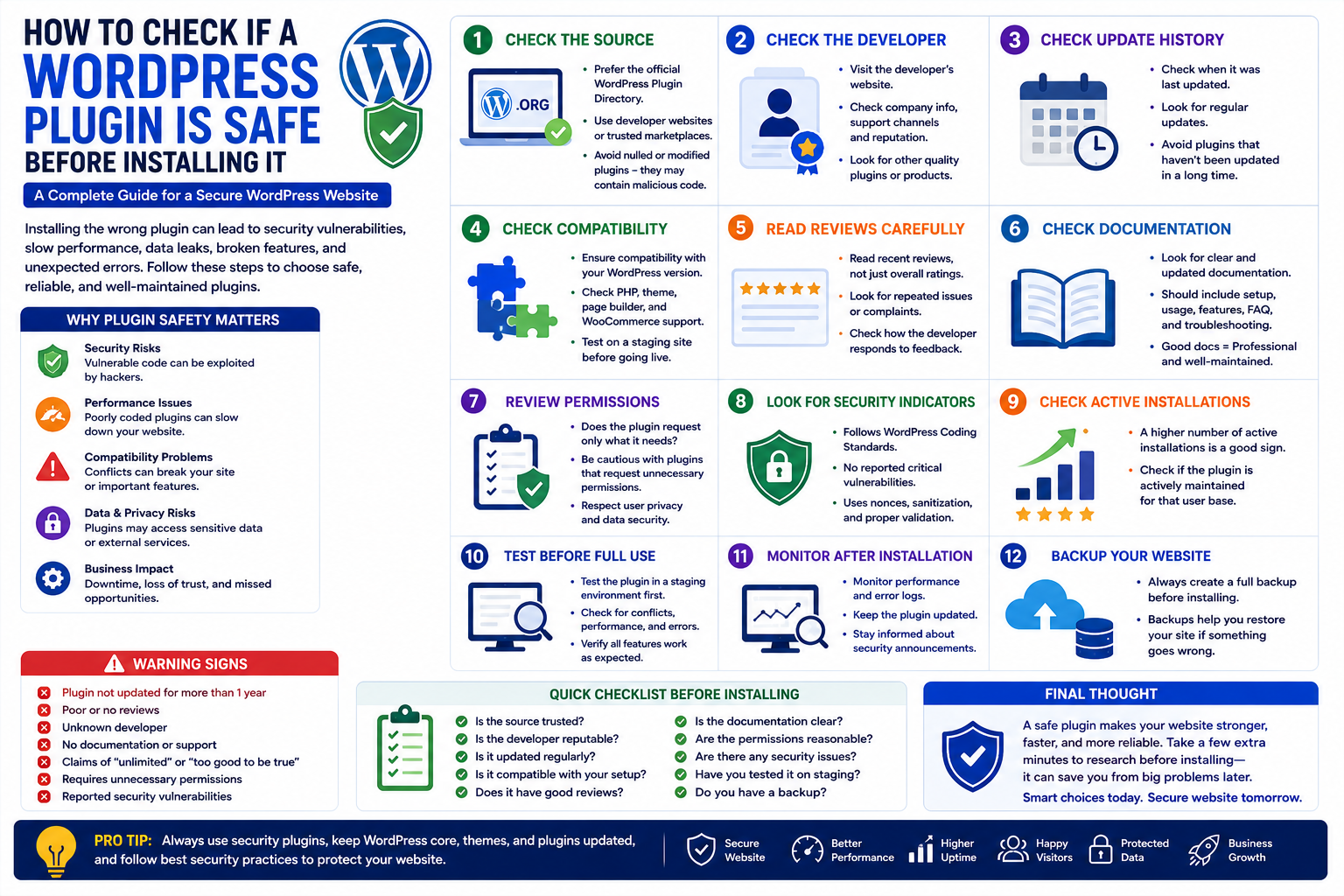
How to Check if a WordPress Plugin Is Safe Before Installing It
Introduction
WordPress plugins make it possible to add almost any feature to a website without developing everything from scratch. From SEO and security to WooCommerce, analytics, artificial intelligence, marketing, and automation, plugins can transform a basic WordPress installation into a powerful digital platform.
But there is an important question every website owner should ask before installing a plugin:
Is this WordPress plugin safe?
Installing a poorly maintained, vulnerable, or malicious plugin can create serious problems. It may introduce security vulnerabilities, slow down your website, conflict with other software, expose sensitive information, or cause unexpected errors.
This does not mean you should avoid plugins. Instead, you should learn how to evaluate them before installation.
In this guide, you'll learn how to check whether a WordPress plugin is safe, what warning signs to look for, how to evaluate developers, why updates matter, and how to build a safer plugin strategy for your website.
Why WordPress Plugin Safety Matters
A plugin becomes part of your website's software environment.
Depending on its functionality, a plugin may interact with:
Website content
User accounts
Database information
Payment systems
Customer information
Website files
External APIs
Administrative functionality
A poorly developed plugin can therefore create risks beyond a simple feature failure.
A secure plugin should be regularly maintained, compatible with modern WordPress versions, and developed using appropriate security practices.
1. Check Where the Plugin Comes From
The first step is checking the source.
Prefer plugins distributed through:
The official WordPress Plugin Directory
The developer's official website
Established marketplaces
Trusted software vendors
Be especially careful with websites offering "nulled" or modified premium plugins for free.
These files may contain unauthorized modifications, malicious code, or other security risks.
A plugin being free does not automatically make it unsafe, but an unknown source should always increase your level of caution.
2. Check the Developer or Company
Research who created the plugin.
Look for:
Developer website
Company information
Support channels
Plugin portfolio
Documentation
Update history
Other products
An established developer with transparent documentation and active support is generally easier to evaluate than an anonymous source.
However, reputation alone should not replace technical and security checks.
3. Check the Plugin's Update History
Regular updates are an important indicator of active maintenance.
Before installing a plugin, check:
When it was last updated
How frequently it receives updates
Whether the developer responds to issues
Whether compatibility is maintained
An abandoned plugin may continue working for some time, but compatibility and security problems can appear as WordPress, PHP, or other software changes.
A recently updated plugin is not automatically secure, but an extremely old and abandoned plugin deserves additional caution.
4. Check WordPress Compatibility
Compatibility is another important factor.
Check whether the plugin supports your:
WordPress version
PHP version
Theme
Page builder
WooCommerce version, if applicable
A plugin that has not been tested with your environment can cause conflicts or unexpected behavior.
For business websites, testing on a staging environment before production installation is strongly recommended.
5. Read Reviews Carefully
Reviews can provide useful information about real-world plugin experiences.
Don't only look at the overall rating.
Read recent reviews and look for repeated complaints about:
Security
Compatibility
Performance
Support
Unexpected behavior
Broken features
Also pay attention to how the developer responds to negative feedback.
Professional responses and active troubleshooting can be positive indicators of ongoing maintenance.
6. Check Plugin Documentation
Good documentation is another sign of a professionally maintained plugin.
Documentation should explain things such as:
Installation
Configuration
Features
Compatibility
Troubleshooting
Updates
Frequently asked questions
For complex plugins, documentation becomes especially important because incorrect configuration can create security or performance problems.
7. Review Plugin Permissions
Some plugins need extensive access because of what they do.
For example, an analytics plugin may need access to reporting data, while an eCommerce plugin may need to interact with orders and products.
Before installing a plugin, ask:
Does the requested functionality justify the access it requires?
A plugin should not require unnecessary permissions simply to provide a basic feature.
The principle of least privilege is an important security concept: software should receive only the access it genuinely needs.
8. Check for Security Vulnerabilities
Before installing a plugin on a production website, search for publicly reported security issues.
Look for information about:
Vulnerabilities
Security patches
Developer advisories
Fixed versions
Historical security incidents
If a serious vulnerability exists, determine whether the developer has released a fix.
Never assume that a plugin is safe simply because it has many installations or positive reviews.
9. Evaluate Plugin Performance
Security is not the only consideration.
A plugin can be secure but still negatively affect website performance.
Check whether the plugin:
Loads unnecessary scripts
Makes excessive database queries
Adds large assets
Performs expensive background operations
Provides performance settings
Performance is especially important for eCommerce stores and high-traffic websites.
A lightweight plugin that solves a specific problem is often preferable to an unnecessarily complicated solution.
10. Avoid Duplicate Functionality
Installing multiple plugins that perform the same job can create conflicts.
For example, you may not need several plugins independently handling:
Page caching
SEO metadata
Security firewalls
Image optimization
Database optimization
Before installing a new plugin, check whether an existing plugin already provides the required functionality.
Reducing duplication makes website maintenance easier.
11. Test Plugins Before Using Them on a Live Website
For important websites, avoid experimenting directly on production.
A better approach is to use a staging environment.
Test:
Plugin activation
Main features
Forms
Checkout
Login
Admin functionality
Website performance
Compatibility with existing plugins
If everything works correctly, move the configuration to production.
This approach is particularly important for WooCommerce stores and business websites.
12. Keep Your Plugins Updated
Installing a safe plugin is only the beginning.
You should also maintain it properly.
Regular updates can provide:
Security fixes
Bug fixes
Compatibility improvements
Performance improvements
New features
Before major updates, create a backup and test important functionality.
Do not ignore plugin updates indefinitely.
Warning Signs of an Unsafe WordPress Plugin
Be cautious when you encounter several of these warning signs together:
Unknown developer
No documentation
No support channel
Extremely old updates
Suspicious download source
"Nulled" premium plugin
Repeated security complaints
Poor compatibility
Unexpected advertisements
Excessive permissions
No clear privacy information
One warning sign does not necessarily prove that a plugin is malicious, but multiple warning signs should encourage further investigation.
Free vs Premium Plugins: Which Is Safer?
Price alone does not determine plugin security.
A free plugin can be professionally maintained, while a paid plugin can still have security or quality problems.
Instead of asking:
"Is the plugin free or paid?"
Ask:
"Is the plugin actively maintained, professionally developed, appropriately secured, and suitable for my website?"
Evaluate the actual product rather than its price.
WordPress Plugin Security Checklist
Before installing a plugin, use this quick checklist:
Source
Is it from a trusted source?
Developer
Is the developer identifiable?
Updates
Is the plugin actively maintained?
Compatibility
Does it support your WordPress and PHP environment?
Reviews
Are recent reviews generally positive?
Documentation
Is proper documentation available?
Security
Are known vulnerabilities addressed?
Performance
Is the plugin reasonably optimized?
Permissions
Does it require only necessary access?
Testing
Can you test it on staging first?
If the answers are mostly positive, the plugin is a stronger candidate for installation.
How ThemeKaddora Approaches WordPress Plugins
At ThemeKaddora, plugin quality should go beyond simply adding features.
Professional WordPress plugins should focus on:
Clean development practices
Proper WordPress integration
Security-conscious architecture
Performance optimization
Compatibility
Documentation
Maintainability
User experience
ThemeKaddora develops WordPress plugins for areas such as WooCommerce, AI, analytics, marketing, automation, productivity, and business growth.
The goal is to provide practical digital solutions that help website owners add functionality without unnecessarily complicating their WordPress installations.
Why Plugin Quality Matters for Business Websites
A personal website can sometimes recover quickly from a plugin problem.
A business website may have much more at stake.
A plugin failure could affect:
Customer registrations
Contact forms
Orders
Payments
Product displays
Marketing campaigns
Analytics
Customer support
For this reason, businesses should treat plugin selection as part of their overall website management strategy.
The cheapest plugin is not always the most cost-effective choice.
A reliable plugin can save development time, reduce maintenance problems, and provide better long-term value.
Conclusion
WordPress plugins are powerful tools, but they should be selected carefully.
Before installing a plugin, evaluate its source, developer, update history, compatibility, reviews, documentation, permissions, security history, and performance.
For important websites, always consider testing plugins on a staging environment and maintaining regular backups.
The goal isn't to install as many plugins as possible. The goal is to build a small, reliable, secure, and well-maintained plugin ecosystem that supports your website's actual requirements.
By following these practices, you can take advantage of the flexibility of WordPress while reducing unnecessary security, compatibility, and performance risks.
Frequently Asked Questions
How can I tell if a WordPress plugin is safe?
Check the plugin's source, developer reputation, update history, compatibility, reviews, documentation, security history, and performance before installing it.
Are free WordPress plugins safe?
Many free plugins can be safe when obtained from trusted sources and actively maintained. Price alone does not determine security.
Should I use nulled WordPress plugins?
No. Avoid unauthorized or "nulled" versions of premium plugins because their code may have been modified and can introduce significant security risks.
How often should WordPress plugins be updated?
Plugins should generally be kept up to date, particularly when updates contain security or compatibility fixes. Always back up important websites before major updates.
Can a WordPress plugin contain malware?
Yes. Plugins obtained from untrusted or unauthorized sources can contain malicious code. Use trusted sources and follow security best practices.
Can plugins slow down WordPress?
Yes. Poorly optimized plugins can increase database activity, load unnecessary resources, or perform expensive operations. Plugin quality and configuration matter.
Should I test a WordPress plugin before installing it?
For important websites, testing on a staging environment is recommended before deploying a new plugin to production.
Why choose ThemeKaddora?
ThemeKaddora focuses on clean development practices, WordPress compatibility, security-conscious development, performance optimization, and practical functionality for businesses and website owners.
Comments (0)