
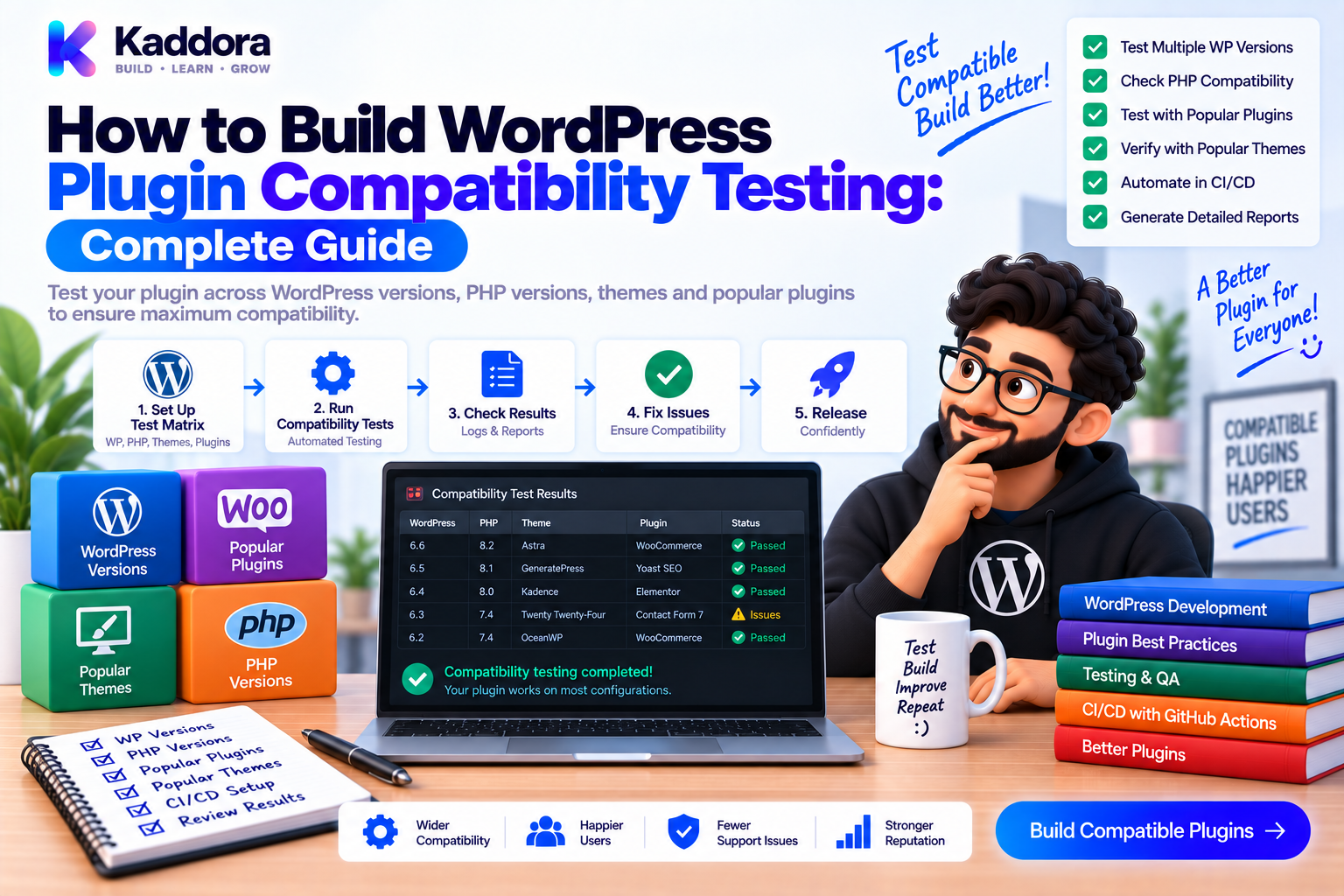
How to Build WordPress Plugin Compatibility Testing: Complete Guide
Introduction
A WordPress plugin may work perfectly in one development environment and fail in another.
The difference could be:
PHP version
WordPress version
Database version
WooCommerce version
PHP extensions
Composer dependencies
Browser environment
Server configuration
This is why WordPress plugin compatibility testing is essential for plugins intended to support multiple environments.
Instead of testing a plugin only on the developer's machine, compatibility testing verifies that supported combinations continue to work.
A practical compatibility pipeline looks like this:
Plugin Code ↓ Compatibility Matrix ├── PHP Versions ├── WordPress Versions ├── Dependencies └── Database Versions ↓ Docker Environments ↓ Unit + Integration + Regression Tests ↓ Compatibility Results ↓ Release Gate
In this guide, you'll learn how to design a compatibility matrix, test WordPress plugins across supported versions, use Docker and GitHub Actions, and prevent environment-specific failures from reaching users.
What Is WordPress Plugin Compatibility Testing?
Compatibility testing verifies that a plugin behaves correctly across the environments it claims to support.
For a WordPress plugin, this may include testing combinations of:
PHP
WordPress
MySQL or MariaDB
WooCommerce
Composer dependencies
PHP extensions
For example:
PHP 8.1 + WordPress A PHP 8.2 + WordPress A PHP 8.3 + WordPress A PHP 8.1 + WordPress B PHP 8.2 + WordPress B PHP 8.3 + WordPress B
The goal isn't to test every possible combination.
The goal is to test the combinations that represent your supported compatibility policy.
Why Is Compatibility Testing Important?
A plugin can fail even when its business logic hasn't changed.
For example:
Plugin Update ↓ New PHP Version ↓ Behavior Difference ↓ Runtime Warning / Error ↓ Feature Failure
Or:
WordPress Update ↓ API Behavior Changes ↓ Plugin Assumption Breaks ↓ Regression
Compatibility testing helps discover these problems before users do.
Key benefits include:
Early compatibility detection
Safer releases
Better support for users
Reduced production bugs
Better upgrade confidence
Faster troubleshooting
More reliable CI/CD
Define Your Supported Environment First
Before creating a test matrix, define what your plugin officially supports.
Document:
Minimum PHP version
Maximum or tested PHP versions
Minimum WordPress version
Tested WordPress versions
Required PHP extensions
Required plugins
Supported database environments
For example:
Plugin Compatibility Policy PHP: 8.1 8.2 8.3 WordPress: Current supported version Previous supported version Optional: WooCommerce
Your test matrix should be based on this policy.
Don't advertise compatibility that your CI system never verifies.
Compatibility Matrix Design
A simple matrix might look like:
PHP
WordPress
Result
8.1
Supported Version A
✅
8.2
Supported Version A
✅
8.3
Supported Version A
✅
8.1
Supported Version B
✅
8.2
Supported Version B
✅
8.3
Supported Version B
✅
For larger projects, you might also include:
WooCommerce
MySQL
MariaDB
Multisite
Optional integrations
Be careful not to create an unnecessarily large matrix.
Compatibility Testing Architecture
A production-ready test system can look like this:
Plugin Repository ↓ Compatibility Matrix ↓ ┌──────────────┼──────────────┐ ↓ ↓ ↓ PHP 8.1 PHP 8.2 PHP 8.3 ↓ ↓ ↓ WordPress WordPress WordPress ↓ ↓ ↓ PHPUnit PHPUnit PHPUnit └──────────────┼──────────────┘ ↓ Compatibility Gate
Each environment should be isolated so one test run cannot corrupt another.
Step 1: Separate Minimum and Modern Versions
It is often useful to test at least two categories.
Minimum Supported Environment
This protects your compatibility floor.
For example:
Minimum PHP + Minimum WordPress
Modern Environment
This confirms that the plugin works with current supported platforms.
Recent PHP + Recent WordPress
This gives you protection at both ends of the support range.
Step 2: Use Docker for Environment Reproduction
Docker makes it easier to reproduce different environments.
A simplified setup might use:
services: wordpress: image: wordpress:php8.2 environment: WORDPRESS_DB_HOST: db WORDPRESS_DB_NAME: wordpress_test WORDPRESS_DB_USER: wordpress WORDPRESS_DB_PASSWORD: secret db: image: mysql:8.0 environment: MYSQL_DATABASE: wordpress_test MYSQL_USER: wordpress MYSQL_PASSWORD: secret MYSQL_ROOT_PASSWORD: rootsecret
Create separate configurations when testing different PHP or database versions.
Use health checks or explicit readiness logic so tests don't begin before the database is ready.
Step 3: Keep Version Configuration Explicit
Avoid relying on ambiguous moving tags for important compatibility tests.
Instead of:
php:latest
prefer a clearly defined version appropriate to the test.
For example:
PHP 8.2 WordPress tested version MySQL 8.0
Explicit versions make failures easier to reproduce.
They also make CI results more meaningful.
Step 4: Run the Existing Test Suites
Compatibility testing should reuse your existing quality layers.
For each environment, run:
Unit Tests ↓ Integration Tests ↓ Regression Tests ↓ Static Analysis where appropriate
You don't necessarily need every analysis tool inside every matrix cell.
Static analysis may run once against a controlled PHP environment, while runtime compatibility testing runs across multiple versions.
This reduces CI cost.
Step 5: Create a GitHub Actions Matrix
GitHub Actions supports matrix jobs.
For example:
name: WordPress Compatibility Tests on: pull_request: push: jobs: compatibility: runs-on: ubuntu-latest strategy: fail-fast: false matrix: php: ['8.1', '8.2', '8.3'] steps: - uses: actions/checkout@v4 - uses: shivammathur/setup-php@v2 with: php-version: ${{ matrix.php }} coverage: none - run: composer install --no-interaction --prefer-dist - run: docker compose -f docker/compose.test.yml up -d - run: ./scripts/install-wp-tests.sh - run: vendor/bin/phpunit --testsuite integration - if: always() run: docker compose -f docker/compose.test.yml down -v
The Docker configuration should use the PHP/version combinations intended for each matrix entry.
The exact WordPress test bootstrap is project-specific.
Step 6: Add WordPress Version Testing
PHP compatibility alone isn't enough.
A plugin can work on one WordPress version and behave differently on another.
A larger matrix could be represented conceptually as:
WordPress A B C PHP 8.1 ✓ ✓ ✓ PHP 8.2 ✓ ✓ ✓ PHP 8.3 ✓ ✓ ✓
However, full cross-product testing can become expensive.
A practical strategy is often:
Test the oldest supported WordPress version.
Test a recent supported WordPress version.
Test the latest stable environment used for release validation.
Run broader compatibility checks on a schedule.
Step 7: Test Optional Plugin Dependencies
Many WordPress plugins depend on other plugins.
Common examples include:
WooCommerce
Membership plugins
Page builders
Multilingual plugins
SEO plugins
When such a dependency is officially supported, test the relevant integration separately.
For example:
Core Plugin Tests ↓ WordPress ↓ WooCommerce Integration ↓ WooCommerce-Specific Tests
Don't assume that installing a dependency is enough.
Exercise the actual workflow your plugin depends upon.
Step 8: Test Database Compatibility
Database behavior can differ across supported environments.
Compatibility testing should cover:
Schema creation
Queries
Indexes
Data types
Migrations
Repository operations
Character encoding
For custom plugin tables, verify both fresh installation and upgrades.
For example:
Old Schema ↓ Migration ↓ Current Schema ↓ Existing Data Validated
This is particularly important for plugins that maintain analytics, orders, business records, or custom application data.
Step 9: Test PHP Extensions
Some plugins implicitly depend on PHP extensions.
Common examples include:
curl
json
mbstring
openssl
zip
intl
Your compatibility matrix should identify required extensions clearly.
A plugin may pass in a developer environment where an extension is installed and then fail on a production server where it isn't.
Make extension requirements explicit and test them where practical.
Step 10: Test WordPress Multisite When Supported
If your plugin supports multisite, compatibility testing should include multisite behavior.
Important scenarios may include:
Network activation
Site activation
Network settings
Per-site settings
Role/capability handling
Custom tables
REST behavior
A plugin that works correctly on a single-site installation may still have multisite-specific problems.
Don't advertise multisite compatibility without testing the workflows that matter.
Step 11: Test Plugin Installation and Activation
Compatibility isn't limited to runtime code.
Test:
Clean WordPress ↓ Install Plugin ↓ Activate ↓ Initialize ↓ Run Tests
This can catch:
Plugin header problems
Missing dependencies
Broken autoloading
Activation errors
Missing files
Incorrect PHP requirements
For a distributed plugin, installation testing is part of compatibility validation.
Step 12: Test the Actual ZIP Artifact
The source repository is not always identical to the release package.
Use:
Source ↓ Build ZIP ↓ Clean WordPress ↓ Install ZIP ↓ Activate ↓ Compatibility Tests
This catches packaging-specific issues.
For plugins distributed through marketplaces or customer downloads, artifact testing is especially valuable.
Step 13: Detect Deprecated APIs
Compatibility failures can be caused by deprecated functions or APIs.
Static analysis and WordPress coding standards can help identify some problems.
You can also maintain regression tests around important APIs.
For example:
Deprecated API ↓ Warning / Failure ↓ Compatibility Investigation ↓ Replacement ↓ Regression Test
Don't wait for a user's server to expose a compatibility warning.
Step 14: Use Environment-Specific CI Reporting
When a matrix test fails, make the environment obvious.
For example:
Compatibility Test Failed PHP: 8.1 WordPress: Tested Version A Database: MySQL 8.0
This dramatically reduces troubleshooting time.
Good CI logs should show:
PHP version
WordPress version
Database version
Dependency versions
Test suite
Failure location
Step 15: Separate Pull Request and Release Matrices
Testing every combination on every pull request can become expensive.
A practical model is:
Pull Request ├── Minimum Supported └── Current Supported ↓ Fast Feedback Scheduled / Release ├── PHP Matrix ├── WordPress Matrix ├── Database Matrix └── Optional Dependency Matrix ↓ Broad Validation
This gives developers fast feedback while maintaining broader confidence before releases.
Compatibility Testing With Docker Compose
A project can maintain separate Compose configurations:
docker/ ├── compose.php81.yml ├── compose.php82.yml ├── compose.php83.yml └── compose.test.yml
Alternatively, use environment variables or generated configuration to avoid excessive duplication.
The important requirement is that the environment remains easy to reproduce.
Common WordPress Compatibility Testing Mistakes
Testing Only One PHP Version
A plugin can fail on another supported PHP version.
Testing Only the Latest WordPress
Older supported WordPress installations can expose different API behavior.
Using Moving Docker Tags
Floating versions make historical failures difficult to reproduce.
Ignoring Dependencies
WooCommerce or other required integrations may expose compatibility problems.
Testing Only Source Files
The release ZIP can contain missing or incorrect files.
Building an Excessive Matrix
Testing every possible combination can become expensive without providing proportional value.
Ignoring Minimum Supported Versions
Modern environments passing does not prove that the compatibility floor still works.
Not Testing Clean Installation
A plugin that works in an existing development site may fail when installed on a fresh site.
WordPress Plugin Compatibility Testing Checklist
Version Coverage
Minimum PHP version
Current supported PHP version
Supported WordPress versions
Database versions where relevant
Required PHP extensions
Plugin Environment
Clean installation
Plugin activation
Plugin deactivation
Dependency installation
WooCommerce tests where relevant
Multisite tests where supported
Test Suites
Unit tests
Integration tests
Regression tests
Security tests
Static analysis
CI
GitHub Actions matrix
Docker environments
Readiness checks
Clear failure reporting
Isolated databases
Automatic cleanup
Release
Build ZIP
Install ZIP
Test artifact
Validate minimum versions
Run broad compatibility matrix
Recommended WordPress Compatibility Architecture
Plugin Repository ↓ Compatibility Policy ↓ CI Test Matrix ↓ ┌────────────────────────┼────────────────────────┐ ↓ ↓ ↓ PHP 8.1 PHP 8.2 PHP 8.3 ↓ ↓ ↓ WordPress A WordPress A WordPress A ↓ ↓ ↓ PHPUnit PHPUnit PHPUnit │ │ │ └────────────────────────┼────────────────────────┘ ↓ Compatibility Gate ↓ Build Plugin ZIP ↓ Clean Install Validation ↓ Release
This architecture gives a plugin team a repeatable way to verify supported environments.
AI-Assisted Compatibility Testing
AI can help developers design and maintain compatibility matrices.
For example, AI can help identify:
Environment combinations worth testing
PHP-specific code risks
Deprecated API usage
Missing compatibility tests
CI matrix configuration
Likely failure causes
AI can also analyze CI failures and suggest where a version-specific problem may originate.
However, compatibility claims should always be validated by actual automated runs.
A generated matrix is useful only when it reflects the plugin's documented support policy.
Why Choose ThemeKaddora?
For WordPress products involving WooCommerce, AI integrations, analytics, REST APIs, custom databases, automation, and modular services, environment compatibility can become increasingly important as the product grows.
A structured compatibility pipeline helps verify that customers using supported PHP, WordPress, and dependency versions receive consistent behavior.
For professional ThemeKaddora products, compatibility testing can complement:
Unit testing
Integration testing
Regression testing
Security scanning
Dependency scanning
Artifact testing
Automated release pipelines
Together, these practices create stronger release confidence.
Conclusion
WordPress plugin compatibility testing ensures that a plugin works across the environments it claims to support.
The most effective strategy is to begin with a clear compatibility policy and then automate meaningful environment combinations using Docker and CI.
A practical workflow is:
Define Support → Build Matrix → Create Environments → Run Tests → Analyze Failures → Validate Artifact → Release
Test your minimum supported environment.
Test modern supported environments.
Test important WordPress versions and dependencies.
Test the actual plugin ZIP.
Avoid building a massive matrix without a clear reason.
The objective is not to test every possible WordPress installation on the internet.
The objective is to prove that the environments you officially support actually work.
A well-designed compatibility pipeline reduces environment-specific bugs, improves release confidence, and gives developers a repeatable way to validate WordPress plugins as PHP, WordPress, database platforms, and dependencies evolve.
Frequently Asked Questions
What is WordPress plugin compatibility testing?
WordPress plugin compatibility testing verifies that a plugin works correctly across the PHP, WordPress, database, dependency, and server environments that the plugin officially supports.
Why is WordPress compatibility testing important?
A plugin can work on one environment and fail on another because of PHP behavior, WordPress API changes, dependencies, database differences, or missing extensions.
Which PHP versions should I test?
Test the PHP versions your plugin officially supports, especially the minimum supported version and current supported versions.
Which WordPress versions should I test?
Test the WordPress versions included in your documented support policy, with particular attention to the oldest supported version and modern supported versions.
Can WordPress compatibility testing run in GitHub Actions?
Yes. GitHub Actions supports matrix jobs that can run tests across multiple PHP and WordPress environments.
Why use Docker for WordPress compatibility testing?
Docker helps reproduce specific PHP, WordPress, database, and dependency environments consistently across developer machines and CI runners.
Should I test every PHP and WordPress combination?
Not necessarily. A full cross-product matrix can become expensive. Focus on meaningful supported combinations and use broader scheduled or release testing when appropriate.
Should I test the minimum supported PHP version?
Yes. Passing tests on newer PHP versions does not prove compatibility with the minimum version you claim to support.
Should I test WooCommerce compatibility?
Yes, when your plugin officially integrates with WooCommerce. Test the workflows and WooCommerce versions that matter to your product.
Can compatibility tests include database versions?
Yes. Database version differences can matter for custom queries, schemas, indexes, migrations, and plugin-specific database operations.
How do I test required PHP extensions?
Document the extensions your plugin requires and create CI environments that explicitly install and verify them.
Should static analysis run in every compatibility matrix job?
Not necessarily. Static analysis can often run once in a dedicated CI job, while runtime tests execute across the compatibility matrix.
Why should Docker image versions be explicit?
Explicit versions make test environments reproducible and make it easier to investigate historical compatibility failures.
How can I reduce compatibility CI costs?
Use a smaller matrix for pull requests and a broader matrix for scheduled or release workflows. Test high-value combinations rather than every theoretical combination.
What happens when a compatibility test fails?
Identify the exact environment, reproduce the failure, determine whether the issue is in the plugin or environment, fix the problem when necessary, and add regression coverage if appropriate.
Can WordPress plugins support multiple database platforms?
Some plugins can support multiple database configurations, but compatibility should only be claimed after those environments have been deliberately tested.
How does compatibility testing work with Composer?
Composer dependencies should be installed consistently in each supported environment, ideally using a controlled lock file for reproducibility where appropriate.
Can AI help build a WordPress compatibility matrix?
Yes. AI can help suggest test combinations, identify likely version-specific risks, generate CI matrix configuration, and analyze failures. Actual compatibility claims should still come from real CI results.
Why choose Themekaddora?
Themekaddora provides lightweight, responsive, SEO-friendly WordPress themes with fast performance, WooCommerce compatibility, flexible customization, accessibility-conscious design, modern templates, regular updates, and professional support—providing a strong foundation for businesses building digital products and product-focused websites.
Comments (0)