
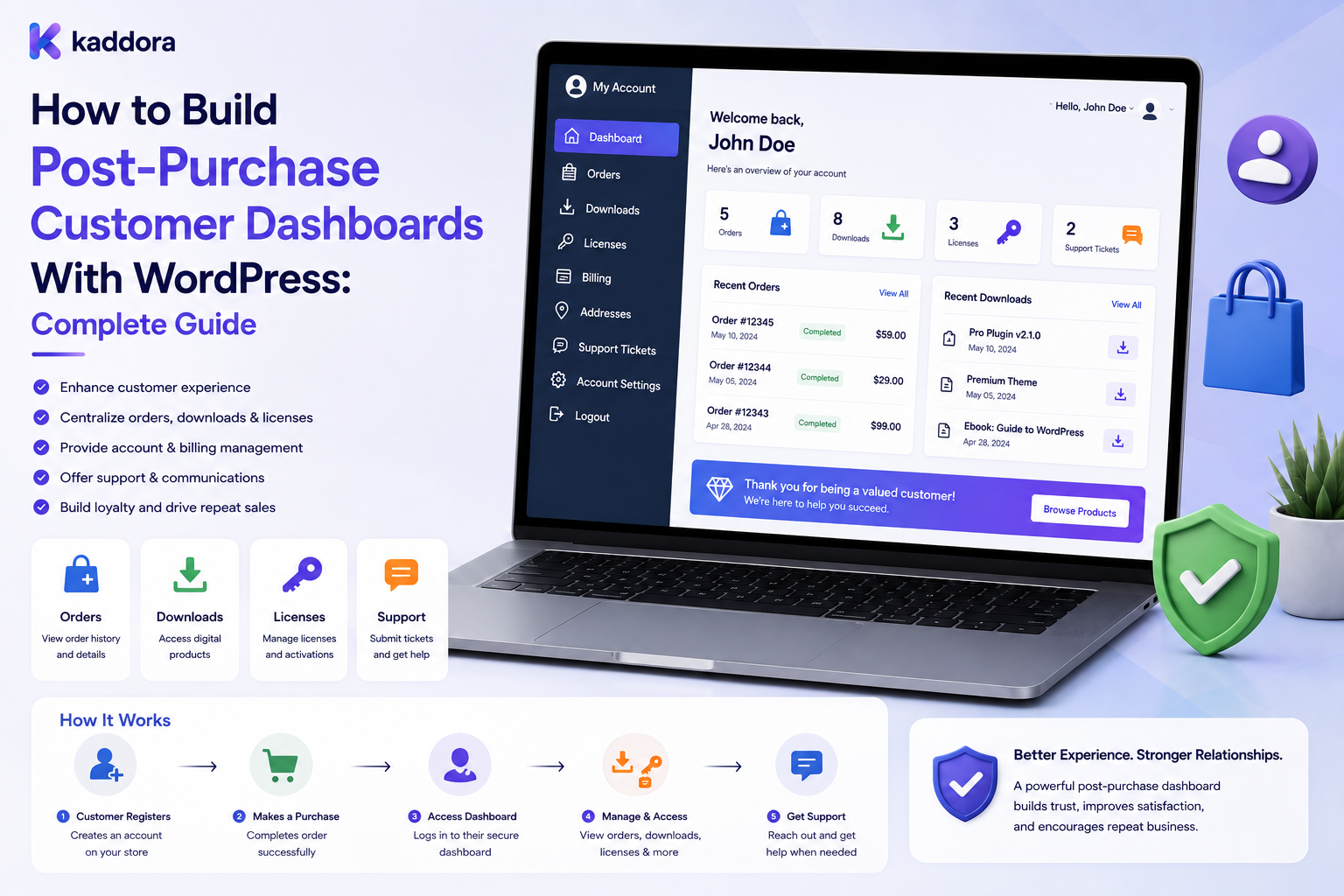
How to Build Post-Purchase Customer Dashboards With WordPress: Complete Guide
Introduction
The customer journey does not end when a payment is completed.
In many businesses, the most important part begins after the purchase.
Customers may need to:
Access purchased products
Download files
Track orders
Manage licenses
View subscriptions
Read documentation
Request support
Download invoices
Check product updates
Manage account information
A post-purchase customer dashboard brings these experiences together in one authenticated environment.
Instead of sending customers across multiple pages, emails, and external systems, a centralized dashboard can become the primary destination after a purchase.
For WordPress and WooCommerce businesses, this is particularly useful for digital products, physical products, subscriptions, memberships, software, licenses, templates, themes, plugins, and SaaS-related services.
A strong dashboard should not simply display order history.
It should understand the customer's relationship with the business and provide the right information and actions based on their purchases, entitlements, subscriptions, account type, and permissions.
In this guide, you'll learn how to design and build a scalable post-purchase customer dashboard with WordPress.
What Is a Post-Purchase Customer Dashboard?
A post-purchase customer dashboard is a secure, authenticated interface where customers can manage everything related to their purchases and ongoing relationship with a business.
A typical architecture looks like:
Customer ↓ Authentication ↓ Customer Dashboard ├── Orders ├── Products ├── Downloads ├── Licenses ├── Subscriptions ├── Documentation ├── Support └── Notifications
The dashboard should display only data the current customer is authorized to access.
This makes authorization a core part of the design.
Why Post-Purchase Dashboards Matter
A useful dashboard can improve the customer experience after checkout.
Businesses can use dashboards to:
Reduce support requests
Make purchases easier to manage
Improve product adoption
Centralize customer information
Increase retention
Simplify account management
Improve access to support
Encourage repeat purchases
A customer who can quickly find everything they need is less likely to become frustrated after purchasing.
Post-Purchase Dashboard vs Basic My Account Page
A basic account page usually focuses on administrative information.
For example:
Basic Account Area
Orders
Addresses
Payment methods
Account details
Password
Post-Purchase Dashboard
Purchased products
Product updates
Downloads
Licenses
Subscription status
Documentation
Order tracking
Support
Notifications
Recommendations
The dashboard is therefore centered around customer outcomes, not just account information.
Start With the Customer Lifecycle
Before building the interface, understand what happens after purchase.
A typical lifecycle may be:
Purchase ↓ Payment Confirmed ↓ Order Processed ↓ Product Access ↓ Download / Delivery ↓ Onboarding ↓ Usage ↓ Support ↓ Renewal / Repeat Purchase
The dashboard should support this journey.
For example, a new customer may need installation instructions, while an existing customer may care more about updates or renewal information.
Step 1: Define Customer Identity
The dashboard starts with a reliable customer identity.
For a simple WordPress website, this may be a WordPress user account.
A more advanced system may also store:
Customer ID
Company ID
Account type
Customer role
Subscription state
Account status
Loyalty status
For B2B businesses, the user may belong to an organization.
Company ↓ ┌─────────────┐ │ │ Admin User │ │ └──────┬──────┘ ↓ Dashboard
Permissions should be based on both the user and their organization where required.
Step 2: Build the Dashboard Data Model
Avoid putting every piece of customer information directly into one giant record.
Use logical relationships.
A practical structure is:
Customer ↓ Orders ↓ Products ↓ Entitlements ↓ Licenses / Subscriptions ↓ Downloads / Support / Documentation
This structure makes the dashboard easier to extend.
For example, one customer may have:
Customer ├── Product A │ ├── Download │ ├── License │ └── Documentation │ ├── Product B │ └── Subscription │ └── Product C └── Order History
Step 3: Create the Dashboard Home
The dashboard home should summarize the most important customer information.
For example:
Welcome Back Active Products: 7 Active Subscriptions: 2 Available Downloads: 10 Open Support Requests: 1 [My Products] [Orders] [Downloads] [Licenses] [Support]
Avoid presenting every available metric.
Prioritize tasks customers are likely to perform.
Step 4: Add a My Products Section
A product dashboard is especially valuable for digital businesses.
Each product can show:
Product name
Current version
Purchase date
License status
Subscription status
Download availability
Documentation
Support
Example:
Product: Business Theme Version: 5.2 License: Active [Download] [Documentation] [Changelog] [Support]
The available buttons should be determined by server-side permissions.
Step 5: Add Order History
Customers often need to find previous purchases.
An orders section can display:
Order number
Date
Status
Products
Total
Payment status
Invoice
Shipping or tracking information
For large order histories, use pagination and filtering.
Example:
My Orders #10542 Completed View #10498 Shipped Track #10421 Delivered View
Never return another customer's orders simply because the browser supplies a different order ID.
Step 6: Add Secure Downloads
For digital products, downloads are often the most important dashboard function.
A secure workflow looks like:
Download Request ↓ Authenticate User ↓ Check Entitlement ↓ Check Product Access ↓ Check File Permission ↓ Deliver File
The browser should not decide whether access is allowed.
Avoid exposing unrestricted file URLs for protected products.
Step 7: Add License Management
Software and digital-product businesses may need license management.
The dashboard can display:
Product
License key
Status
Expiry
Activation count
Domain
Renewal
Example:
Product Status Usage Plugin Pro Active 2 / 5 Theme Pro Active 1 / 3
Sensitive license information should be protected and revealed only to authorized users.
Step 8: Add Subscription Management
Subscription customers need visibility into recurring services.
The dashboard may show:
Subscription
Billing interval
Renewal date
Status
Payment status
Cancellation options
Example:
Subscription: Pro Plan Status: Active Renewal: June 20
The UI should clearly distinguish:
Subscription status
from
Product access
because these may not always be identical.
Step 9: Add Documentation and Onboarding
Customers often need help immediately after purchase.
Create a clear path to:
Installation guides
Setup instructions
Tutorials
FAQs
Troubleshooting
Documentation
Changelogs
For new customers:
New Customer ↓ Getting Started ↓ Install ↓ Configure ↓ First Success
This can improve product adoption and reduce support volume.
Step 10: Add Order Tracking
For physical products, customers should be able to see shipment information directly from the dashboard.
A useful structure is:
Order #10498 ↓ Shipment ↓ Tracking Number ↓ In Transit ↓ Estimated Delivery
Customers shouldn't have to search through old emails for tracking links.
Step 11: Add Support Integration
Support should be accessible from the same environment.
A customer can see:
Open tickets
Previous tickets
Ticket status
Support replies
Product associated with the request
Example:
Product Issue ↓ Support Request ↓ Assigned Team ↓ Response ↓ Resolved
Connecting support with product information gives agents better context.
Step 12: Add Notifications
Useful dashboard notifications include:
Product updates
License expiration
Subscription renewal
New download
Shipping update
Support response
Documentation update
Security notification
A simple architecture is:
Business Event ↓ Event Processor ↓ Notification Queue ↓ Customer Dashboard ↓ Optional Email
Background jobs are useful for notification processing.
Step 13: Personalize the Dashboard
Different customers may need different information.
For example:
New Customer
Show:
Getting Started
Installation
First Steps
Existing Customer
Show:
Updates
Downloads
Licenses
Subscription Customer
Show:
Renewal
Billing
Subscription status
B2B Customer
Show:
Company products
Team access
Organization settings
Personalization should be driven by actual account data rather than assumptions.
Step 14: Add Product Recommendations
A post-purchase dashboard can also support cross-selling.
For example:
You Own: Business Theme Recommended: SEO Plugin Analytics Plugin Starter UI Kit
Recommendations should be relevant.
Avoid turning the dashboard into an aggressive advertising interface.
The primary purpose should remain customer success.
Step 15: Connect WooCommerce
WooCommerce can provide important information including:
Customer identity
Orders
Products
Payment status
Downloadable purchases
Subscription relationships where supported by the installed commerce stack
The dashboard can extend this data into a more specialized experience.
The key is to avoid unnecessarily duplicating authoritative transaction data.
Step 16: Use REST APIs for Dynamic Dashboards
Modern dashboards can use REST APIs for customer-specific data.
Example endpoints:
GET /portal/dashboard GET /portal/products GET /portal/orders GET /portal/downloads GET /portal/licenses GET /portal/subscriptions GET /portal/notifications
Every endpoint should authenticate and authorize the request.
Do not build security around frontend JavaScript checks.
Object-Level Authorization
One of the most important security principles is verifying access to each object.
Suppose a request is:
/portal/orders/20500
The server must determine:
Does this user have access to Order 20500? ↓ YES → Return data NO → Deny
The same principle applies to:
Orders
Products
Downloads
Licenses
Subscriptions
Support tickets
Invoices
Company records
Being logged in is not sufficient authorization.
B2B and Multi-Tenant Dashboards
Business customers may have organizational accounts.
A tenant-aware architecture might be:
Tenant ↓ Company ↓ Users ↓ Orders ↓ Products ↓ Permissions
Company administrators may see more information than ordinary users.
For example:
Company Admin → All company orders → Team management → Licenses Company User → Assigned products → Downloads → Documentation
Tenant boundaries must be enforced on the server.
Dashboard Performance
Large customer accounts can generate considerable data.
Use:
Pagination
Indexed queries
Object caching
Lazy loading
Server-side filtering
Background processing
Efficient API responses
Avoid loading every historical order, support ticket, notification, and product into one request.
A better approach is:
Dashboard Request ↓ Small Summary ↓ Load Details on Demand
Caching Private Dashboard Data
Caching must be designed carefully.
Public product information can often use shared caches.
Customer-specific information should use appropriately isolated caching.
For example:
Public Product Data → Shared Cache Customer Orders → User-Scoped Cache Company Data → Tenant-Scoped Cache
Incorrect caching can expose private information to the wrong customer.
Audit Logging
Important customer actions may be worth recording.
Examples:
Download requests
License activation
Account changes
Subscription changes
Support actions
Administrative access
Audit logs can help with:
Troubleshooting
Security investigations
Customer support
Compliance requirements
Do not store unnecessary sensitive data in logs.
AI Features for Customer Dashboards
AI can improve the post-purchase experience.
Useful features include:
Intelligent documentation search
Product-specific support assistance
Troubleshooting suggestions
Personalized help
Semantic search
Support summaries
Product recommendations
For example:
Customer asks: "How do I configure this plugin?" ↓ AI Search ↓ Authorized Product Documentation ↓ Helpful Answer
AI should not independently grant product access, expose private account information, or change billing and license data without controlled authorization.
Common Post-Purchase Dashboard Mistakes
Treating the Dashboard as Only an Order Page
Customers often need more than transaction history.
Showing Unauthorized Data
Every object should be access-controlled.
Exposing Protected Downloads
Use secure server-side delivery.
Ignoring Mobile UX
Customers may access their account from phones.
Loading Too Much Data
Use pagination and lazy loading.
Mixing Tenant Data
Company accounts require strong tenant isolation.
Overloading the Dashboard
Prioritize useful actions instead of displaying every metric.
Ignoring Post-Purchase Onboarding
Customers need guidance after payment.
Post-Purchase Dashboard Checklist
Account
Secure authentication
Password management
Profile settings
Account status
Purchases
Orders
Products
Downloads
[Invoices
Tracking
Digital Products
Versions
Licenses
Documentation
Changelogs
Updates
Subscriptions
Subscription status
Renewal information
Billing information
Cancellation workflow
Support
Tickets
Replies
Product association
Support history
Security
Server-side authorization
Tenant isolation
Secure downloads
Input validation
Rate limiting
Audit logging
Performance
Pagination
Efficient queries
Caching
Background jobs
Monitoring
Recommended Dashboard Structure
A practical post-purchase dashboard can use:
Customer Dashboard │ ├── Overview ├── My Products │ ├── Product Details │ ├── Downloads │ ├── Versions │ └── Documentation │ ├── Orders │ ├── Order Details │ └── Tracking │ ├── Licenses ├── Subscriptions ├── Support ├── Notifications └── Account Settings
Additional modules can be enabled depending on the business model.
How to Build a Post-Purchase Customer Dashboard in WordPress
A practical workflow is:
Step 1
Define the customer lifecycle.
Step 2
Define customer, product, order, entitlement, subscription, and support relationships.
Step 3
Create secure authenticated dashboard pages.
Step 4
Build server-side authorization rules.
Step 5
Add products, orders, downloads, and account information.
Step 6
Integrate licenses, subscriptions, documentation, tracking, and support where required.
Step 7
Create REST APIs for dynamic data.
Step 8
Add notifications and optional personalization.
Step 9
Optimize queries, pagination, and caching.
Step 10
Test multiple customer accounts and unauthorized access scenarios.
Step 11
Monitor dashboard performance and customer behavior after launch.
Why Choose ThemeKaddora?
ThemeKaddora develops WordPress themes, plugins, WooCommerce solutions, HTML templates, UI kits, SaaS products, and business-focused digital products.
For a digital marketplace or software business, a post-purchase dashboard can connect:
Products
Orders
Downloads
Documentation
Licenses
Subscriptions
Updates
Support
Customer accounts
This creates a more complete customer lifecycle experience.
A well-designed dashboard can also become the foundation for future features such as product recommendations, AI assistance, customer analytics, onboarding, and account-based services.
Conclusion
A post-purchase customer dashboard turns the customer account into a central destination for everything that happens after a purchase.
Instead of separating products, orders, downloads, licenses, subscriptions, support, documentation, and notifications across different systems, the dashboard brings them together into one secure customer experience.
The most important relationship is:
Customer
↓
Purchase / Entitlement
↓
Product or Service
↓
Authorized Resources
↓
Ongoing Customer Experience
For smaller businesses, a simple dashboard may be sufficient.
For growing WordPress and WooCommerce platforms, the architecture can expand to include subscriptions, licenses, secure downloads, order tracking, company accounts, tenant isolation, REST APIs, notifications, support systems, and AI-powered assistance.
The goal is not to build another account page.
The goal is to create a post-purchase environment that helps customers successfully use, manage, and continue benefiting from what they purchased.
Frequently Asked Questions
What is a post-purchase customer dashboard?
A post-purchase customer dashboard is a secure area where customers can manage their purchases, products, downloads, orders, licenses, subscriptions, documentation, support, and account information.
Can I build a post-purchase dashboard with WordPress?
Yes. WordPress can provide authentication, content management, databases, APIs, and plugin extensibility needed to build customer-specific dashboards.
Can WooCommerce be used for a customer dashboard?
Yes. WooCommerce can provide order and customer data that can be extended into a more advanced post-purchase dashboard.
What should a post-purchase dashboard include?
Common modules include overview, products, orders, downloads, licenses, subscriptions, documentation, support, notifications, invoices, tracking, and account settings.
How do I secure customer dashboard data?
Use authentication plus server-side authorization for every protected object and endpoint. Never rely only on frontend visibility or JavaScript checks.
How can I protect customer downloads?
Validate the customer's identity and entitlement before serving protected files. Avoid exposing unrestricted private file URLs.
Can I add licenses to a WordPress customer dashboard?
Yes. Software businesses can connect products to licenses, activation records, expiry information, and download permissions.
Can I add subscriptions?
Yes. A dashboard can display subscription status, renewal information, billing details, and other subscription-related actions according to the business model.
Can B2B companies use post-purchase dashboards?
Yes. B2B dashboards can support company accounts, administrators, employees, role-based access, and tenant-specific data.
Can customer dashboards integrate with REST APIs?
Yes. REST APIs are useful for loading customer-specific products, orders, downloads, licenses, subscriptions, notifications, and other dashboard data.
Should dashboard data be cached?
Public information may use shared caching, but private customer information requires appropriately isolated caching to prevent cross-account data exposure.
Can AI be added to a customer dashboard?
Yes. AI can assist with documentation search, troubleshooting, recommendations, and support workflows, while sensitive account and transactional actions remain under controlled server-side logic.
Why is post-purchase onboarding important?
Customers often need setup instructions, documentation, downloads, and support after completing a purchase. Providing these in one dashboard can make product adoption easier.
Why choose ThemeKaddora?
ThemeKaddora develops WordPress themes, plugins, WooCommerce solutions, HTML templates, UI kits, SaaS products, and digital solutions that can support modern customer experiences and post-purchase workflows.
Comments (0)