
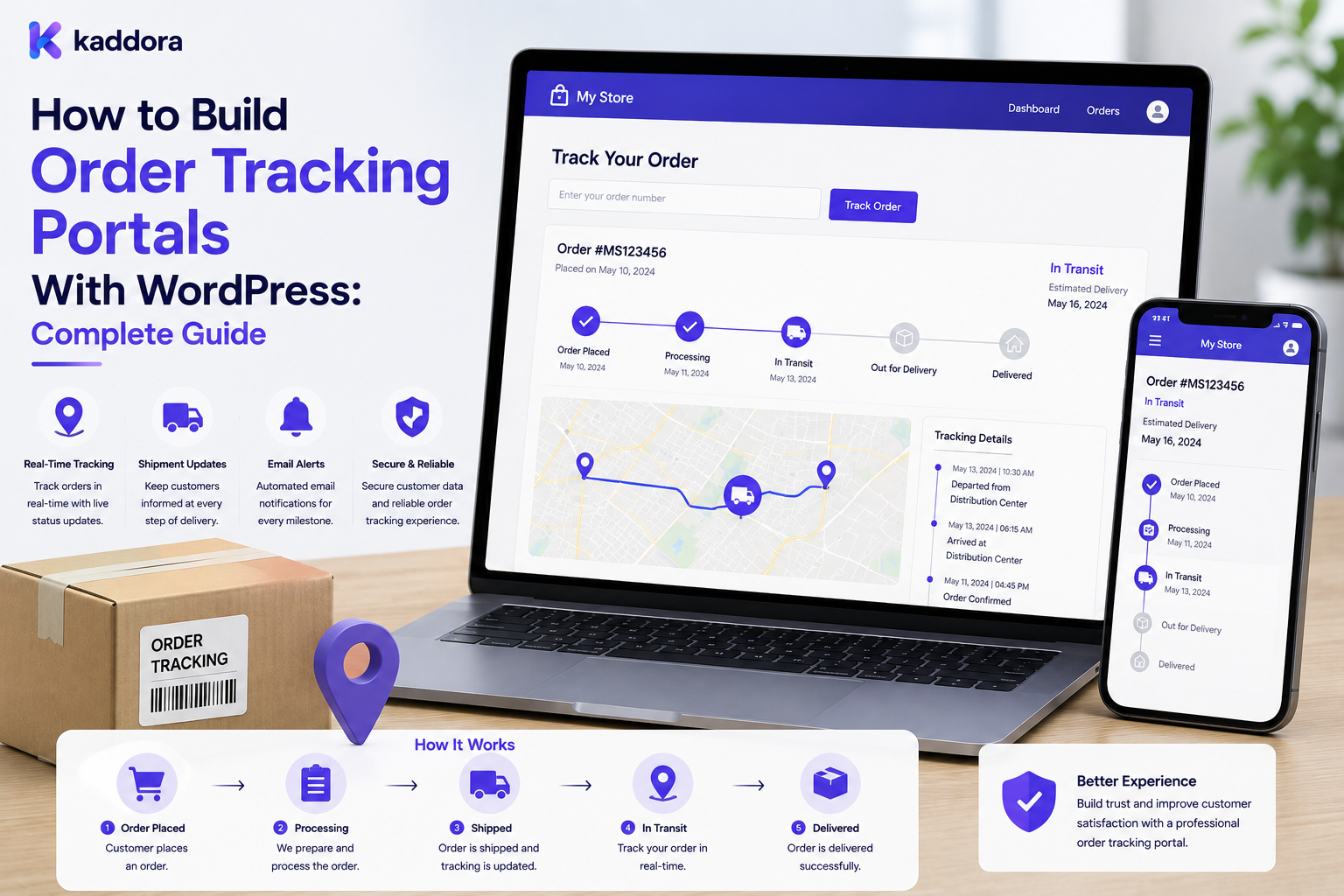
How to Build Order Tracking Portals With WordPress: Complete Guide
Introduction
After placing an order, customers want one thing above all:
Visibility.
They want to know whether their order has been received, processed, shipped, delivered, or delayed.
Basic order confirmation emails are often not enough.
A modern order tracking portal gives customers a centralized place where they can view order information and follow the progress of their purchases.
For WordPress and WooCommerce websites, an order tracking portal can provide:
Order status
Shipment information
Tracking numbers
Delivery progress
Product details
Billing information
Shipping information
Estimated delivery information
Notifications
Support options
A good tracking portal does more than display an order number.
It connects the customer's order with fulfillment systems, shipping providers, warehouse workflows, notifications, and customer support.
This creates a better post-purchase experience while reducing repetitive questions such as:
"Where is my order?"
In this guide, you'll learn how to design and build a secure, scalable order tracking portal with WordPress.
What Is an Order Tracking Portal?
An order tracking portal is an authenticated customer-facing interface that allows users to view and monitor the progress of their orders.
A simplified structure looks like this:
Customer ↓ Authentication ↓ Order Portal ↓ Order ├── Products ├── Payment ├── Shipping ├── Fulfillment └── Tracking
The customer should only see orders they are authorized to access.
This distinction is important because order information can contain sensitive business and customer data.
Why Build an Order Tracking Portal?
A centralized tracking experience provides several benefits.
Businesses can use a portal to:
Improve customer experience
Reduce support requests
Provide real-time order visibility
Centralize tracking information
Improve post-purchase communication
Support multiple carriers
Connect fulfillment systems
Reduce manual updates
Build customer trust
For growing eCommerce businesses, tracking can become an important part of the overall customer journey.
Order Tracking Portal vs Basic Order Page
A standard WooCommerce order page usually provides basic order information.
A dedicated portal can provide a much richer experience.
Basic Order Page
May show:
Order number
Products
Total
Payment status
Basic order status
Advanced Tracking Portal
Can include:
Order timeline
Shipping carrier
Tracking number
Shipment events
Fulfillment status
Delivery estimates
Multiple packages
Notifications
Invoices
Support
Return options
The goal is to make order status understandable without forcing customers to contact support.
Order Tracking Architecture
A scalable tracking system can be structured like this:
Customer ↓ Order ↓ Fulfillment ↓ Shipment ↓ Carrier ↓ Tracking Events ↓ Customer Portal
This separation becomes important when one order contains multiple products or shipments.
For example:
Order #10025 │ ├── Shipment A │ ├── Product 1 │ └── Product 2 │ └── Shipment B └── Product 3
The customer should be able to understand this relationship clearly.
Step 1: Define Order States
Before building the portal, define a consistent order lifecycle.
For example:
Pending ↓ Paid ↓ Processing ↓ Packed ↓ Shipped ↓ In Transit ↓ Out for Delivery ↓ Delivered
You may also need exceptional states such as:
Cancelled
Failed
On hold
Delayed
Returned
Refunded
Partially shipped
A clearly defined state model prevents inconsistent customer experiences.
Step 2: Separate Order and Shipment Status
Order status and shipment status are not always the same.
For example:
Order: Processing Shipment: Shipped
An order may contain multiple shipments with different states.
Therefore, avoid treating one status field as the source of truth for every fulfillment event.
A better model is:
Order ↓ Fulfillment ↓ Shipment ↓ Tracking Events
Step 3: Connect WooCommerce Orders
For WooCommerce stores, the portal can use order data as the starting point.
Typical order information includes:
Order ID
Customer
Products
Quantity
Total
Payment state
Billing information
Shipping information
Created date
The portal should retrieve only the authenticated customer's authorized orders.
Never expose another customer's order simply because a user knows an order number.
Step 4: Create a Customer Orders Dashboard
The dashboard can provide a summary of recent activity.
Example:
My Orders Order #10245 Status: In Transit Tracking: Available Expected: View Tracking Order #10210 Status: Delivered Tracking: Completed
Useful filters include:
All orders
Processing
Shipped
In transit
Delivered
Cancelled
Returned
Pagination should be used when the customer has many orders.
Step 5: Build the Order Details Page
A customer should be able to open an individual order.
A useful order page can display:
Order #10245 Products ──────────── Product A × 2 Product B × 1 Payment ──────────── Paid Shipping ──────────── Carrier: Example Carrier Tracking: TRK123456 Status ──────────── In Transit
The interface should prioritize information customers actually need.
Step 6: Build an Order Timeline
A visual timeline makes tracking easier to understand.
Example:
✓ Order Placed │ ✓ Payment Confirmed │ ✓ Order Packed │ ✓ Shipped │ ● In Transit │ ○ Out for Delivery │ ○ Delivered
This is often easier for customers to understand than raw carrier messages.
Step 7: Add Tracking Numbers
A tracking number can connect the order to a carrier's tracking system.
The portal can display:
Carrier
Tracking number
Shipment status
Last update
Tracking events
Provide a direct carrier tracking link only when it is safe and appropriate.
Do not assume every carrier uses the same tracking format.
Step 8: Integrate Shipping APIs
Large stores often need external shipping systems.
The architecture may look like:
WooCommerce ↓ Order ↓ Shipping Integration ↓ Carrier API ↓ Tracking Events ↓ WordPress ↓ Customer Portal
External APIs can provide:
Shipment creation
Tracking numbers
Shipment status
Delivery events
Exceptions
Delivery confirmation
API communication should be handled on the server.
Credentials should never be exposed in frontend JavaScript.
Step 9: Use Webhooks for Tracking Updates
Polling a carrier API repeatedly can be inefficient.
When supported, webhooks can notify your system when shipment events occur.
Example:
Carrier ↓ Webhook ↓ WordPress Endpoint ↓ Validate Event ↓ Update Shipment ↓ Create Notification ↓ Customer Portal
Webhook endpoints should validate authentication, signatures where available, payload structure, and event type.
Do not automatically trust incoming data.
Step 10: Handle Multiple Shipments
An order may be fulfilled through multiple shipments.
For example:
Order #10350 Shipment 1 Status: Delivered Shipment 2 Status: In Transit
The portal should clearly separate these shipments.
Otherwise, customers may incorrectly assume the entire order has been delivered.
Step 11: Add Delivery Estimates
Where reliable data is available, the portal can display estimated delivery information.
Example:
Current Status: In Transit Estimated Delivery: Friday Last Update: Today, 10:30 AM
Estimated delivery should be clearly labeled as an estimate.
Do not present uncertain carrier predictions as guaranteed delivery dates.
Step 12: Add Customer Notifications
Customers can receive notifications when important events occur.
Examples include:
Order confirmed
Order packed
Shipment created
Order shipped
Shipment delayed
Out for delivery
Delivered
Return received
A notification workflow can look like:
Shipment Event ↓ Event Processor ↓ Notification Queue ↓ Portal Notification ↓ Email / SMS / Other Channel
Background jobs are useful for processing notifications without slowing down customer requests.
Step 13: Build Secure Order Authorization
This is one of the most important security requirements.
Never assume that knowing an order ID grants access.
For example:
/orders/10500
The server should verify:
Authenticated User ↓ Owns Order 10500? ↓ YES → Return Order NO → Deny Access
For B2B accounts, also verify company or tenant membership.
Authorization must happen server-side.
Step 14: Support Guest Order Tracking Carefully
Some businesses allow customers to track orders without creating accounts.
A guest tracking workflow might use:
Order number
Email address
Tracking token
However, avoid using predictable order IDs alone.
A secure guest tracking link should use an unguessable, time-limited token where appropriate.
This reduces the risk of exposing order information.
Step 15: Add Returns and Support
Order tracking can become more useful when customers can take the next action directly.
For example:
Order Delivered ↓ [View Invoice] [Return Product] [Contact Support] [Buy Again]
The available actions should depend on business rules and order state.
REST API Architecture for Order Tracking
A modern portal can use REST APIs such as:
GET /portal/orders GET /portal/orders/{id} GET /portal/orders/{id}/shipments GET /portal/shipments/{id}/tracking
The server should:
Authenticate the user.
Authorize access.
Retrieve only permitted data.
Return a controlled response.
Never return a complete database object simply because the browser requested it.
Performance Considerations
Large stores can contain millions of order and tracking records.
Use:
Pagination
Indexed queries
Efficient joins
Object caching
Background processing
Incremental synchronization
Server-side filtering
Avoid loading every historical order into the customer's browser.
A better design is:
Customer Requests Orders ↓ Server Filters ↓ Pagination ↓ 20 Results
Caching Order Data
Caching can improve portal performance, but private data requires careful cache isolation.
Public information such as carrier metadata may be broadly cacheable.
Customer-specific information should remain appropriately scoped.
For example:
Carrier Information → Shared Cache Customer Order → User-Scoped Cache
Never allow one customer's cached order response to be delivered to another customer.
ERP and Warehouse Integration
Enterprise stores may need to connect order tracking with:
ERP systems
Warehouse management systems
Shipping systems
Inventory platforms
CRM systems
Accounting software
A broader architecture may be:
WooCommerce ↓ ERP ↓ Warehouse ↓ Shipping Provider ↓ Tracking Events ↓ Customer Portal
The portal becomes the customer-facing layer while operational systems manage fulfillment.
AI Features for Order Tracking
AI can enhance order tracking without controlling critical fulfillment operations.
Useful features include:
Natural-language order search
Delivery-status explanations
Support response suggestions
Shipment-delay summaries
FAQ assistance
Intelligent support routing
For example:
"Where is my order?" ↓ AI Retrieval ↓ Authorized Order Data ↓ Clear Status Explanation
AI should not invent tracking events or expose another customer's information.
Critical order state should continue to come from trusted transactional systems.
Common Order Tracking Portal Mistakes
Exposing Orders by ID
Order IDs should never be treated as authorization credentials.
Mixing Order and Shipment Status
One order can contain multiple shipments.
Trusting Webhooks
Incoming events must be validated.
Exposing API Keys
Shipping and ERP credentials belong on the server.
Polling APIs Excessively
Use webhooks where appropriate.
Showing Unclear Status Messages
Translate technical carrier events into customer-friendly language.
Ignoring Failed Deliveries
Delivery exceptions should be visible and actionable.
Caching Private Data Incorrectly
Customer-specific data must remain isolated.
Order Tracking Portal Checklist
Customer Experience
Order dashboard
Order details
Shipment timeline
Tracking information
Delivery estimate
Notifications
Support access
Security
Authentication
Server-side authorization
Secure guest tokens
HTTPS
Input validation
Rate limiting
Audit logging
Integrations
WooCommerce
Shipping APIs
Webhooks
ERP integration
Warehouse integration
CRM integration
Performance
Pagination
Efficient queries
Appropriate indexes
Caching
Background jobs
Monitoring
Best Practices for Building an Order Tracking Portal
Design around customer questions.
Customers usually want to know what happened, where the shipment is, and what happens next.
Separate transactional data from presentation.
Keep order, fulfillment, shipment, and tracking data logically distinct.
Enforce access server-side.
Never trust customer-supplied IDs or frontend permission checks.
Make statuses understandable.
Turn technical carrier events into simple customer-facing language.
Use event-driven synchronization when possible.
Webhooks and background jobs can reduce unnecessary API traffic.
Design for multiple shipments.
Don't assume one order always equals one package.
Keep private data isolated.
Orders, addresses, tracking information, invoices, and customer information should never leak across accounts.
Recommended Portal Structure
A practical order tracking portal can use:
Order Tracking Portal │ ├── Dashboard ├── My Orders │ └── Order Details │ ├── Products │ ├── Payment │ ├── Shipping │ ├── Shipments │ └── Tracking Timeline │ ├── Returns ├── Invoices ├── Notifications ├── Support └── Account Settings
For B2B businesses, add company-level access and role-based permissions.
How to Build an Order Tracking Portal in WordPress
A practical implementation workflow is:
Step 1
Define order, fulfillment, shipment, and tracking states.
Step 2
Connect customer identities with authorized orders.
Step 3
Create the order dashboard.
Step 4
Build order detail pages.
Step 5
Add shipment and tracking relationships.
Step 6
Integrate carrier APIs or tracking services.
Step 7
Implement secure webhook processing.
Step 8
Add notifications and delivery updates.
Step 9
Implement server-side authorization.
Step 10
Add pagination, caching, and background processing.
Step 11
Test multiple shipments, failed deliveries, returns, and unauthorized access.
Step 12
Monitor synchronization, errors, and customer activity after launch.
Why Choose ThemeKaddora?
ThemeKaddora develops WordPress themes, plugins, WooCommerce solutions, HTML templates, UI kits, SaaS products, and business-focused digital solutions.
For eCommerce businesses, modern digital products can support workflows involving:
WooCommerce orders
Customer portals
Product systems
APIs
ERP integrations
Shipping integrations
Notifications
Documentation
Customer support
An order tracking portal can therefore become an important part of a broader customer experience platform.
Conclusion
An order tracking portal transforms order visibility from a collection of emails and carrier links into a centralized customer experience.
The strongest implementations connect:
Customer
↓
Order
↓
Fulfillment
↓
Shipment
↓
Tracking Events
↓
Customer Portal
This architecture allows businesses to support multiple shipments, external shipping providers, ERP systems, notifications, returns, and customer support without turning the portal into a disconnected system.
For smaller stores, a simple order dashboard may be sufficient.
For larger WooCommerce and enterprise commerce platforms, the system may require APIs, webhooks, background jobs, caching, tenant-aware authorization, ERP integration, warehouse synchronization, and advanced tracking workflows.
The goal is not simply to show a tracking number.
The goal is to give customers a clear, secure, and reliable view of their entire post-purchase journey.
Frequently Asked Questions
What is an order tracking portal?
An order tracking portal is a secure customer-facing interface that allows users to view orders, shipment status, tracking information, delivery events, and related post-purchase services.
Can I build an order tracking portal with WordPress?
Yes. WordPress and WooCommerce provide a strong foundation that can be extended with custom plugins, APIs, shipping integrations, and customer-specific dashboards.
Can WooCommerce provide order tracking?
WooCommerce can provide core order information, while additional integrations or custom functionality can extend this into advanced shipment and carrier tracking.
Should order status and shipment status be separate?
Yes. One order can contain multiple shipments, and each shipment may have a different status.
How can I protect customer orders?
Use authentication and server-side authorization to verify that the current user is allowed to access the requested order.
Can customers track orders without logging in?
Yes. Guest tracking can be implemented with secure, unguessable tokens and additional verification instead of exposing orders through predictable IDs.
Can shipping APIs be connected to WordPress?
Yes. WordPress can communicate with external shipping services through APIs, provided credentials are stored securely and requests are validated.
Should I use webhooks for shipment updates?
When supported by the provider, webhooks can provide efficient event-driven updates without constantly polling an external API.
Can one order have multiple tracking numbers?
Yes. Orders may be split into multiple shipments, each with its own tracking information.
Can I add delivery notifications?
Yes. The portal can trigger notifications for important events such as shipment creation, dispatch, delays, out-for-delivery status, and delivery confirmation.
Can an order tracking portal integrate with an ERP?
Yes. ERP, warehouse, shipping, CRM, and WooCommerce systems can be connected so that operational updates flow into the customer-facing portal.
Can AI improve order tracking?
AI can help customers understand authorized order information, summarize shipment events, answer tracking questions, and route support requests. It should not invent transaction data or bypass authorization.
Why choose ThemeKaddora?
ThemeKaddora develops WordPress themes, plugins, WooCommerce solutions, templates, UI kits, SaaS products, and digital solutions designed to support modern eCommerce and business workflows.
Comments (0)