
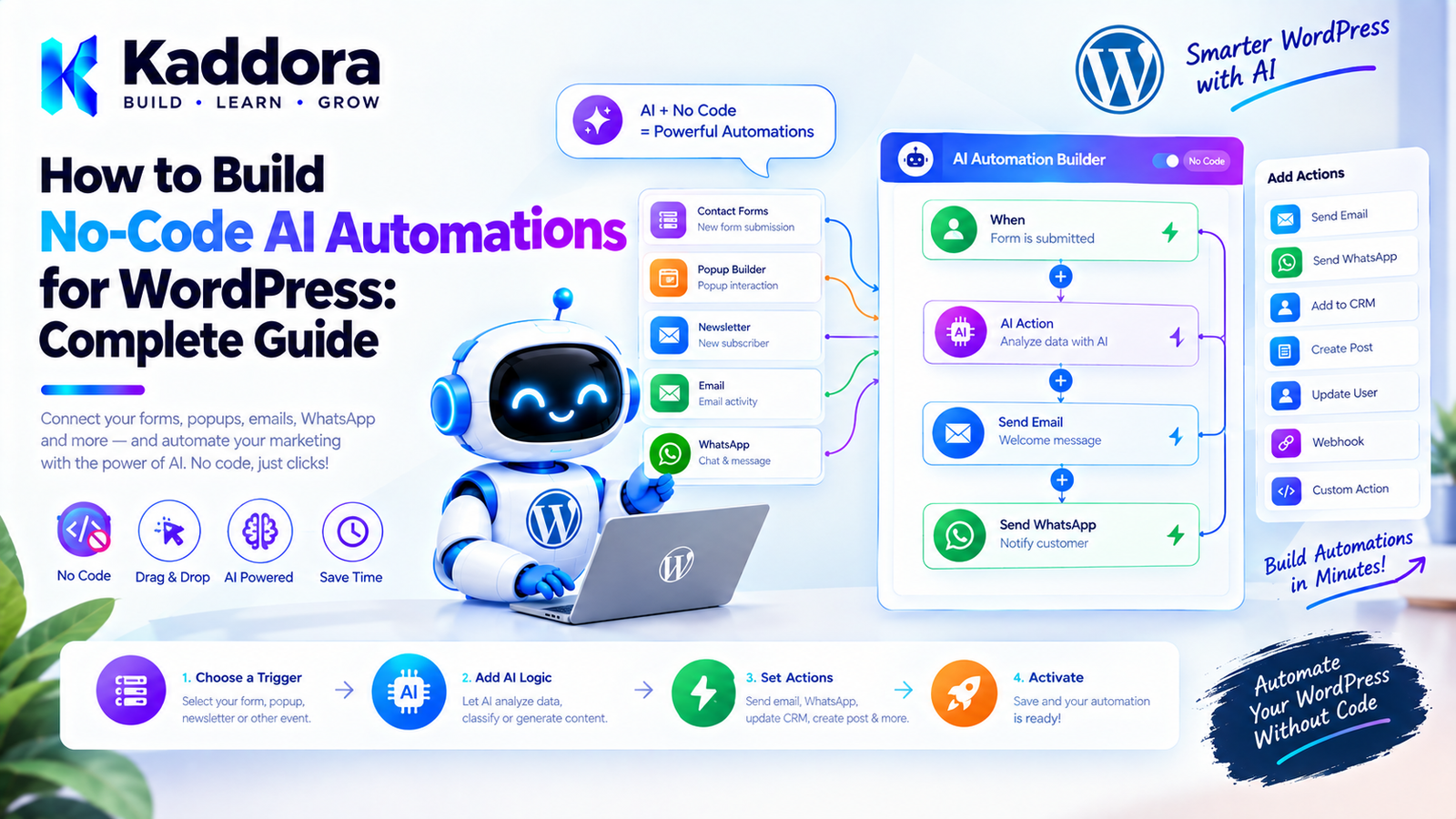
How to Build No-Code AI Automations for WordPress: Complete Guide
Introduction
WordPress automation traditionally requires developers to write PHP code, register hooks, create scheduled tasks, connect APIs, and build custom workflows.
That works well when a developer is available, but it creates a problem for site administrators and business owners who want to automate everyday tasks without writing code.
No-code AI automation for WordPress solves this problem by providing a visual interface where users can build workflows from triggers, conditions, AI steps, and actions.
For example:
New Product Created ↓ Generate Product Description ↓ Check Content Length ↓ Save Draft ↓ Notify Administrator
A user could create this workflow by selecting options in an automation builder instead of writing PHP.
No-code AI automation can be useful for:
Content management
WooCommerce
Lead processing
Customer support
SEO workflows
Email automation
Product management
Internal administration
Data classification
Summarization
Translation
Recommendations
Business workflows
The important part is that no-code should not mean uncontrolled automation.
A good WordPress AI automation system should provide visual workflow creation, validation, permissions, monitoring, error handling, and human control.
What Is No-Code AI Automation in WordPress?
No-code AI automation allows administrators to create automated workflows through a visual interface rather than writing application code.
A typical workflow contains:
Trigger ↓ Condition ↓ AI Action ↓ Condition ↓ WordPress Action
For example:
When a new WooCommerce product is created ↓ Generate an SEO description ↓ If description is acceptable ↓ Save as draft ↓ Notify administrator
The user configures the workflow.
The plugin executes it.
Why Use No-Code AI Automation?
Traditional automation often requires a developer to create custom functionality for every workflow.
For example:
add_action( 'save_post_product', 'process_product' );
Then additional code is needed for:
API communication
conditions
data transformation
error handling
scheduling
notifications
logging
A no-code automation builder can turn these concepts into configurable components.
This allows non-developers to create useful workflows while developers maintain the underlying automation engine.
No-Code Automation vs Traditional Automation
Traditional WordPress automation:
Business Requirement ↓ Developer ↓ PHP Code ↓ Testing ↓ Deployment ↓ Automation
No-code automation:
Business Requirement ↓ Visual Builder ↓ Configure Workflow ↓ Test ↓ Activate
This can dramatically reduce the time required to create simple and repetitive workflows.
No-Code Automation vs AI Agents
These concepts are related but different.
A traditional automation might follow:
Trigger ↓ Action ↓ Action ↓ Finish
An AI-powered automation can include:
Trigger ↓ AI Classification ↓ Condition ↓ AI Generation ↓ WordPress Action
An autonomous AI agent may have much greater freedom to determine which tools or steps it should use.
A no-code automation builder should generally provide controlled workflows rather than giving an AI unrestricted access to WordPress.
This makes automation easier to understand and safer to operate.
Core Architecture of a No-Code AI Automation Builder
A practical system can look like:
Visual Automation Builder ↓ Workflow Definition ↓ Validation ↓ Automation Engine ↓ Triggers → Conditions → AI Steps → Actions ↓ Queue / Scheduler ↓ Execution ↓ Logs / Monitoring
The administrator interacts with the visual builder.
The backend converts that configuration into a structured workflow definition.
The automation engine executes the definition.
Step 1: Define the Automation Goal
Before creating a workflow, define exactly what should happen.
For example:
Whenever a new product is published, generate an AI summary and save it as a draft note for the store manager.
The workflow becomes:
Product Published ↓ Get Product Information ↓ Generate Summary ↓ Save Summary ↓ Notify Manager
Start with the business outcome rather than the available AI features.
Step 2: Choose a Trigger
A trigger determines when the workflow starts.
A WordPress automation plugin could provide triggers such as:
WordPress Triggers
Post published
Post updated
User registered
Comment submitted
Media uploaded
Page created
WooCommerce Triggers
Order created
Order paid
Order completed
Product created
Product updated
Review submitted
Scheduled Triggers
Every hour Daily Weekly Specific date Delayed execution
Manual Triggers
An administrator could also run a workflow manually.
For example:
[Run Automation]
Step 3: Add an AI Action
Once the trigger is selected, add an AI step.
A visual builder could provide:
AI Actions [ Generate Text ] [ Summarize ] [ Classify ] [ Extract Data ] [ Translate ] [ Rewrite ] [ Analyze Sentiment ] [ Recommend ]
For example:
Product Updated ↓ Generate Product Summary
The AI step can receive information from the triggering WordPress object.
Step 4: Map WordPress Data Into the AI Step
No-code automation needs a way to insert dynamic data.
For example:
Product Title: {{product.title}} Product Description: {{product.description}} Product Price: {{product.price}}
The automation engine resolves these variables when the workflow executes.
For example:
{{product.title}}
could become:
Wireless Bluetooth Headphones
This allows one workflow to operate on thousands of products without manually changing the prompt.
Step 5: Create Conditions
Conditions allow the workflow to make decisions.
For example:
Product Created ↓ Is Product in "Electronics"? ↓ Yes ↓ Generate AI Description
Another example:
Order Created ↓ Order Total > ₹5,000? / \ Yes No ↓ ↓ VIP Workflow Standard Workflow
Conditions are one of the most important parts of a no-code automation builder.
Step 6: Add WordPress Actions
After an AI step, the automation can perform controlled WordPress actions.
Examples include:
Update post
Create draft
Add taxonomy
Add metadata
Update product description
Send email
Add user note
Create comment
Trigger another approved workflow
For example:
New Product ↓ AI Description ↓ Save Description as Draft
The action should use predefined application capabilities rather than arbitrary PHP.
Step 7: Build the Workflow Visually
A visual interface might look conceptually like:
┌─────────────────────┐ │ Product Published │ └──────────┬──────────┘ ↓ ┌─────────────────────┐ │ Generate Summary │ │ AI │ └──────────┬──────────┘ ↓ ┌─────────────────────┐ │ Length > 100 words? │ └───────┬───────┬─────┘ Yes No ↓ ↓ ┌────────────┐ ┌──────────────┐ │ Save Draft │ │ Generate │ └────────────┘ │ Again │ └──────────────┘
The user should be able to connect nodes without writing code.
Step 8: Test the Automation
Never activate an important automation without testing it.
A builder can provide:
[ Test Workflow ]
The system can execute the workflow using sample or selected data.
For example:
Test Product: Wireless Headphones Trigger: Product Published AI Output: Generated summary... Action: Would update product draft Status: Simulation successful
A dry-run mode is especially useful for workflows that modify data.
Step 9: Activate the Workflow
After testing:
Draft ↓ Tested ↓ Approved ↓ Active
A workflow should have an explicit activation state.
For example:
Status: Active
or:
Status: Paused
Administrators should be able to disable an automation without deleting its configuration.
Building a No-Code Workflow Data Model
Although the user sees a visual builder, the plugin needs a structured representation behind it.
For example:
$workflow = array( 'id' => 'product-summary', 'version' => 1, 'trigger' => array( 'type' => 'product_created', ), 'steps' => array( array( 'id' => 'generate_summary', 'type' => 'ai_generate', ), array( 'id' => 'save_summary', 'type' => 'update_product', ), ), );
The database should store structured workflow definitions rather than generated PHP code.
Use Versioned Workflow Definitions
Automation definitions can change over time.
For example:
'version' => 2,
can identify the workflow schema.
This allows future plugin updates to migrate older workflow definitions safely.
Conceptually:
Workflow v1 ↓ Migration ↓ Workflow v2
This becomes important when a plugin has many customer-created workflows.
Create a Trigger Registry
Instead of hardcoding every trigger into the automation engine, a plugin can maintain a controlled registry.
For example:
$triggers = array( 'post_published' => array( 'label' => 'Post Published', ), 'product_created' => array( 'label' => 'Product Created', ), );
The visual builder can use this registry to display available triggers.
The execution engine can use the same definitions to understand how workflows start.
Create an Action Registry
Actions can follow the same pattern.
For example:
WordPress Actions Update Post Create Draft Add Metadata Send Email Add Taxonomy
And:
AI Actions Generate Text Summarize Classify Extract Translate
This makes the system extensible.
New actions can be added without redesigning the entire builder.
AI Actions for No-Code Workflows
A useful no-code AI plugin could provide several predefined AI operations.
Generate
Create content from supplied context.
Summarize
Reduce a large text into a concise summary.
Classify
Assign categories such as:
Urgent Normal Low Priority
Extract
Extract structured information:
Name Email Company Phone
Translate
Convert content into another language.
Rewrite
Change tone or style.
Sentiment Analysis
Classify text as:
Positive Neutral Negative
The key is to provide controlled AI operations instead of exposing raw model capabilities unnecessarily.
Use AI Output Validation
AI output should not automatically be considered valid.
Suppose an automation asks AI to return:
{ "priority": "high" }
The application should validate the result.
For example:
Allowed: high medium low Invalid: urgent-super-high
The automation engine should reject or retry invalid output.
Add Human Approval
Some workflows should stop before making important changes.
For example:
AI Generates Product Description ↓ Human Approval ↓ Update Product
The workflow could create an approval task:
AI Automation Approval Product: Wireless Headphones Suggested Description: ... [Approve] [Edit] [Reject]
This is particularly useful for:
Public content
Customer communication
Pricing
Product changes
SEO metadata
Sensitive workflows
Build Reusable Automation Templates
No-code systems become much more useful when they provide templates.
Examples:
AI Product Description
Product Created ↓ Generate Description ↓ Save as Draft
Lead Classification
Form Submitted ↓ AI Classify Lead ↓ High Value? ↓ Notify Sales
Support Classification
Support Request ↓ AI Classify ↓ Assign Category ↓ Notify Team
Users can install or duplicate a template and customize it.
Scheduling AI Automations
Not every automation starts immediately.
A visual builder could provide:
Run: Immediately After: 30 minutes Schedule: Every day at 9:00 AM
For example:
Every morning ↓ Find products missing descriptions ↓ Generate suggestions ↓ Create review tasks
Scheduled workflows should use WordPress-compatible scheduling mechanisms and background processing when appropriate.
Background Processing
AI requests can take longer than ordinary WordPress operations.
Do not perform hundreds of AI requests inside a single page request.
Instead:
Workflow ↓ Queue ↓ Background Worker ↓ AI Request ↓ Save Result
For large WooCommerce stores, this can make the difference between a reliable automation system and a system that times out.
Retry Failed Steps
External APIs can fail.
A workflow engine should distinguish between:
Success Temporary Failure Permanent Failure Waiting Cancelled
For temporary failures:
Attempt 1 ↓ Failed ↓ Wait ↓ Attempt 2
Retries should have limits.
Do not retry an operation forever.
Prevent Duplicate Actions
Imagine a workflow triggered by a product update.
If the same event is processed twice, it could generate two AI requests or send two emails.
Use execution identifiers or idempotency controls.
Conceptually:
Event ID ↓ Already Processed? ↓ Yes → Skip No → Execute
This is particularly important for:
Emails
Orders
Payments
External API actions
Notifications
Add Workflow Execution Logs
Administrators need to know what happened.
A useful log could show:
Automation: Product Description Started: 10:30 AM Trigger: Product Created Step 1: AI Generate — Success Step 2: Validation — Success Step 3: Save Draft — Success Completed: 10:31 AM
For failures:
Step: AI Generate Status: Failed Reason: External service timeout Retry: Scheduled
Logs make automation systems much easier to troubleshoot.
Add Automation Permissions
Not every administrator should necessarily be able to create or activate every automation.
Use WordPress capabilities.
For example:
if ( ! current_user_can( 'manage_options' ) ) { return new WP_Error( 'kaddora_ai_automation_forbidden', 'You are not allowed to manage automations.' ); }
Use capabilities appropriate to the plugin's actual security model.
Secure the Automation Builder
A no-code interface should not mean users can execute arbitrary code.
Avoid providing nodes such as:
Execute PHP Execute SQL Execute Shell Command Run Arbitrary JavaScript
unless there is an exceptionally controlled and trusted environment—and even then, such functionality introduces major security risks.
A safer model is:
Approved Trigger ↓ Approved Action ↓ Validated Parameters ↓ Execution
Keep AI Credentials Server-Side
If an automation uses an external AI provider, credentials should remain server-side.
The browser should communicate with WordPress:
Browser ↓ WordPress ↓ AI Provider
not:
Browser ↓ Secret API Key ↓ AI Provider
Never expose private API credentials in JavaScript, HTML, or workflow definitions sent to visitors.
Add External Service Disclosure
If workflows send content or user information to an external AI service, the plugin should clearly communicate:
Which service is used
What information may be transmitted
Why it is transmitted
How administrators can disable the integration
Relevant privacy information
External processing should not happen silently.
For sensitive workflows, administrators may also need explicit consent or configuration before data is transmitted.
Control AI Costs
No-code automation can make it easy to create expensive workflows.
For example:
10,000 Products ↓ AI Request Per Product ↓ 10,000 API Calls
Before activating such a workflow, provide controls such as:
Maximum executions
Daily limits
Per-workflow quotas
Input length limits
Output length limits
Model selection where supported
Manual approval
Batch processing
A useful dashboard might show:
Today's AI Requests: 420 Monthly Requests: 8,920 Estimated Usage: ...
Create Workflow Variables
Variables make workflows reusable.
For example:
{{post.title}} {{post.content}} {{product.name}} {{product.price}} {{customer.email}} {{ai.output}}
One step can produce data used by another:
AI Classification ↓ {{ai.category}} ↓ Add Product Category
Variables should be validated and scoped to the workflow execution.
Support Branching
More advanced workflows can support branches.
For example:
New Lead ↓ AI Classification ↓ ┌───────────────┐ │ Lead Score │ └───────┬───────┘ / \ High Low ↓ ↓ Notify Archive Sales
Branching allows one automation to handle multiple outcomes without creating separate workflows for every scenario.
Example: AI Content Automation
Consider a blog publishing workflow.
New Draft ↓ AI Generate Summary ↓ AI Generate Meta Description ↓ Check Length ↓ Create Review Task ↓ Human Approval ↓ Publish
The AI assists with the workflow, while the administrator retains control over publishing.
Example: WooCommerce Product Automation
A store can create:
Product Created ↓ Check Description ↓ Description Missing? / \ Yes No ↓ ↓ AI Generate Continue ↓ Save as Draft ↓ Notify Admin
This reduces repetitive product-management work.
Example: Lead Qualification
A lead automation could be:
Form Submitted ↓ Validate Email ↓ AI Classify Lead ↓ High Value? / \ Yes No ↓ ↓ Notify Add Sales Follow-up Tag
The workflow handles classification while keeping business actions explicitly defined.
Example: Customer Support
A support workflow might be:
Support Form Submitted ↓ AI Classify Request ↓ ┌───────────────┐ │ Category │ └───────┬───────┘ / | \ Billing Technical General ↓ ↓ ↓ Team A Team B Team C
The AI performs classification while WordPress controls routing.
No-Code Automation and WooCommerce
WooCommerce provides many useful automation events.
A plugin could expose triggers for:
Product creation
Product updates
Orders
Customers
Reviews
Coupons
Stock changes
The automation system should use WooCommerce's APIs and hooks rather than directly manipulating database tables unnecessarily.
This keeps the integration closer to WooCommerce's supported architecture.
No-Code Automation and WordPress Content
Content workflows can automate:
Draft creation
Summaries
Taxonomy suggestions
Excerpts
Metadata
Translation
Editorial review
Content classification
However, AI-generated content should not automatically become trusted content simply because the workflow completed successfully.
A successful automation means:
The configured steps executed successfully.
It does not necessarily mean:
The generated content is factually correct.
Build a Dry-Run Mode
A dry-run mode allows administrators to see what would happen without changing production data.
For example:
DRY RUN Trigger: Product Updated Would perform: 1. Generate AI description 2. Update product draft 3. Send administrator notification No changes were made.
This is particularly useful before activating workflows across large catalogs.
Add Workflow Import and Export
Advanced no-code builders can allow workflows to be exported.
For example:
Export Workflow ↓ JSON
Another site can then import it:
JSON ↓ Validate ↓ Import ↓ Review ↓ Activate
Imported workflows should always be validated before activation.
Do not blindly trust workflow definitions supplied by external sources.
Recommended Plugin Structure
A practical no-code AI automation plugin might use:
kaddora-ai-automation/ │ ├── kaddora-ai-automation.php │ ├── includes/ │ ├── class-automation-engine.php │ ├── class-workflow-validator.php │ ├── class-trigger-registry.php │ ├── class-action-registry.php │ ├── class-execution-manager.php │ ├── class-queue-manager.php │ ├── class-scheduler.php │ └── class-logger.php │ ├── admin/ │ ├── class-admin.php │ ├── class-workflow-editor.php │ └── views/ │ ├── integrations/ │ ├── class-wordpress-triggers.php │ ├── class-woocommerce-triggers.php │ └── class-ai-provider.php │ ├── assets/ │ ├── css/ │ └── js/ │ └── uninstall.php
The exact structure can be simplified for smaller plugins.
Common No-Code AI Automation Mistakes
1. Giving AI Unlimited Control
AI should not receive unrestricted access to WordPress.
2. Allowing Arbitrary Code Execution
Avoid arbitrary PHP, SQL, shell, and JavaScript execution.
3. No Approval System
Important actions should be reviewable.
4. No Rate Limits
Automation can unintentionally generate thousands of AI requests.
5. No Execution Logs
Without logs, troubleshooting becomes difficult.
6. No Retry Strategy
Temporary API failures should be handled deliberately.
7. No Duplicate Protection
The same event can trigger an action more than once.
8. Running Large Workflows During Web Requests
Use queues or background processing for expensive operations.
9. Overwriting Existing Data Automatically
Use drafts, previews, or approval workflows where appropriate.
10. Making the Builder Too Complicated
No-code means the interface should be understandable.
Best Practices for No-Code AI Automation in WordPress
Start with simple workflow templates.
Keep triggers and actions clearly defined.
Use controlled AI operations.
Validate workflow definitions before execution.
Keep API credentials server-side.
Never expose arbitrary code execution.
Add dry-run testing.
Provide execution logs.
Support retries for temporary failures.
Prevent duplicate executions.
Add human approval for sensitive actions.
Use queues for large workflows.
Add AI usage limits.
Respect privacy requirements.
Preserve WordPress and WooCommerce as the source of truth.
Keep workflow versions compatible across plugin updates.
Make workflows easy to pause.
Provide useful templates.
Validate AI output before using it.
Keep the visual builder simple.
No-Code AI Automation Checklist
Before releasing a WordPress automation builder, verify:
Builder
Visual workflow creation works.
Triggers are clearly defined.
Actions are clearly defined.
Conditions support branching.
Variables can be mapped safely.
Templates are available.
Workflows can be tested.
AI
AI credentials remain server-side.
AI input is controlled.
AI output is validated.
AI usage can be limited.
External AI processing is documented.
Security
Capability checks are implemented.
Nonces protect administrative actions.
REST permissions are enforced.
Arbitrary PHP is not executed.
Arbitrary SQL is not executed.
Arbitrary shell commands are not executed.
Sensitive actions require appropriate authorization.
Reliability
Failed executions are logged.
Retries have limits.
Duplicate executions are prevented.
Background processing is used for expensive jobs.
Workflows can be paused.
Administration
Workflow status is visible.
Execution history is available.
Dry-run mode is supported.
Human approval is available where needed.
Existing data is protected from accidental overwrites.
Why Choose Kaddora?
No-code AI automation can make WordPress much more powerful, but a useful automation platform needs more than a visual interface.
It needs:
Reliable WordPress integration
Controlled AI execution
Secure workflow definitions
WooCommerce support
Background processing
Error recovery
Logging
Permissions
Human approval
Cost controls
Privacy controls
Kaddora focuses on practical WordPress development and AI-powered plugin architecture that connects automation with real business workflows.
A well-designed Kaddora automation solution can help administrators create workflows without requiring developers to write custom code for every repetitive task.
The goal is not to make WordPress autonomous without boundaries.
The goal is to make WordPress more productive while keeping administrators in control.
Conclusion
No-code AI automation can turn WordPress from a content management system into a configurable workflow platform.
Instead of requiring custom PHP for every automation, administrators can create workflows using:
Triggers ↓ Conditions ↓ AI Actions ↓ WordPress Actions ↓ Approvals ↓ Scheduling ↓ Monitoring
The most effective approach combines the simplicity of no-code tools with the reliability of proper WordPress engineering.
AI should perform useful tasks such as classification, summarization, generation, extraction, and recommendation.
WordPress should remain responsible for permissions, data integrity, business rules, and actual actions.
For larger workflows, queues, scheduling, retries, duplicate protection, execution logs, and cost controls become essential.
The objective is not to remove developers completely.
Instead, no-code AI automation allows developers to build a reliable automation framework while enabling administrators and business users to configure workflows themselves.
When designed correctly, this creates a powerful combination:
Developers build the automation platform. Business users build the workflows. AI handles the intelligent steps. WordPress remains in control.
Frequently Asked Questions
What is no-code AI automation in WordPress?
No-code AI automation allows WordPress administrators to create automated workflows using visual triggers, conditions, AI actions, and WordPress actions without writing PHP code for each workflow.
Can non-developers build AI automations in WordPress?
Yes. A properly designed visual automation builder can allow non-developers to create workflows by selecting triggers, actions, conditions, AI steps, and variables.
What can I automate with AI in WordPress?
You can automate content classification, summaries, product descriptions, lead qualification, customer-support routing, translations, metadata generation, recommendations, notifications, and many other controlled workflows.
How can I prevent duplicate AI automation actions?
Use execution identifiers, event IDs, idempotency checks, or other duplicate-detection mechanisms before performing actions that should happen only once.
Can WordPress AI automations run in the background?
Yes. Larger or slower workflows should use queues, scheduled tasks, or background processing rather than keeping a normal browser request open for a long time.
Can I create conditional AI workflows?
Yes. Conditions can route an automation based on values such as AI classifications, product attributes, order totals, user information, or WordPress content.
What are workflow variables?
Workflow variables allow dynamic data to move between automation steps. Examples include product titles, post content, customer information, trigger data, and AI-generated results.
Can I create reusable AI automation templates?
Yes. Templates can provide ready-made workflows for common tasks such as product descriptions, lead qualification, support classification, and content summaries.
Should no-code AI workflows have approval steps?
For sensitive or customer-facing actions, approval steps are highly useful. They allow AI to prepare an action while a human decides whether it should actually happen.
How do I control AI costs in a no-code automation plugin?
Use execution limits, daily quotas, input/output limits, batching, caching where appropriate, and workflow-level usage controls. Administrators should be able to understand which workflows are consuming AI resources.
Is no-code AI automation secure?
It can be secure when the platform uses WordPress capabilities, nonces, validated workflow definitions, restricted actions, server-side credentials, input validation, output validation, and strong execution controls.
Can no-code AI automation use external AI services?
Yes. However, the plugin should clearly disclose what information is transmitted, why it is transmitted, and which external service processes it. Sensitive data should not be transmitted unnecessarily.
Why choose Themekaddora?
Themekaddora provides lightweight, responsive, SEO-friendly WordPress themes with fast performance, WooCommerce compatibility, flexible customization, accessibility-conscious design, modern templates, regular updates, and professional support—providing a strong foundation for businesses building digital products and product-focused websites.
Comments (0)