
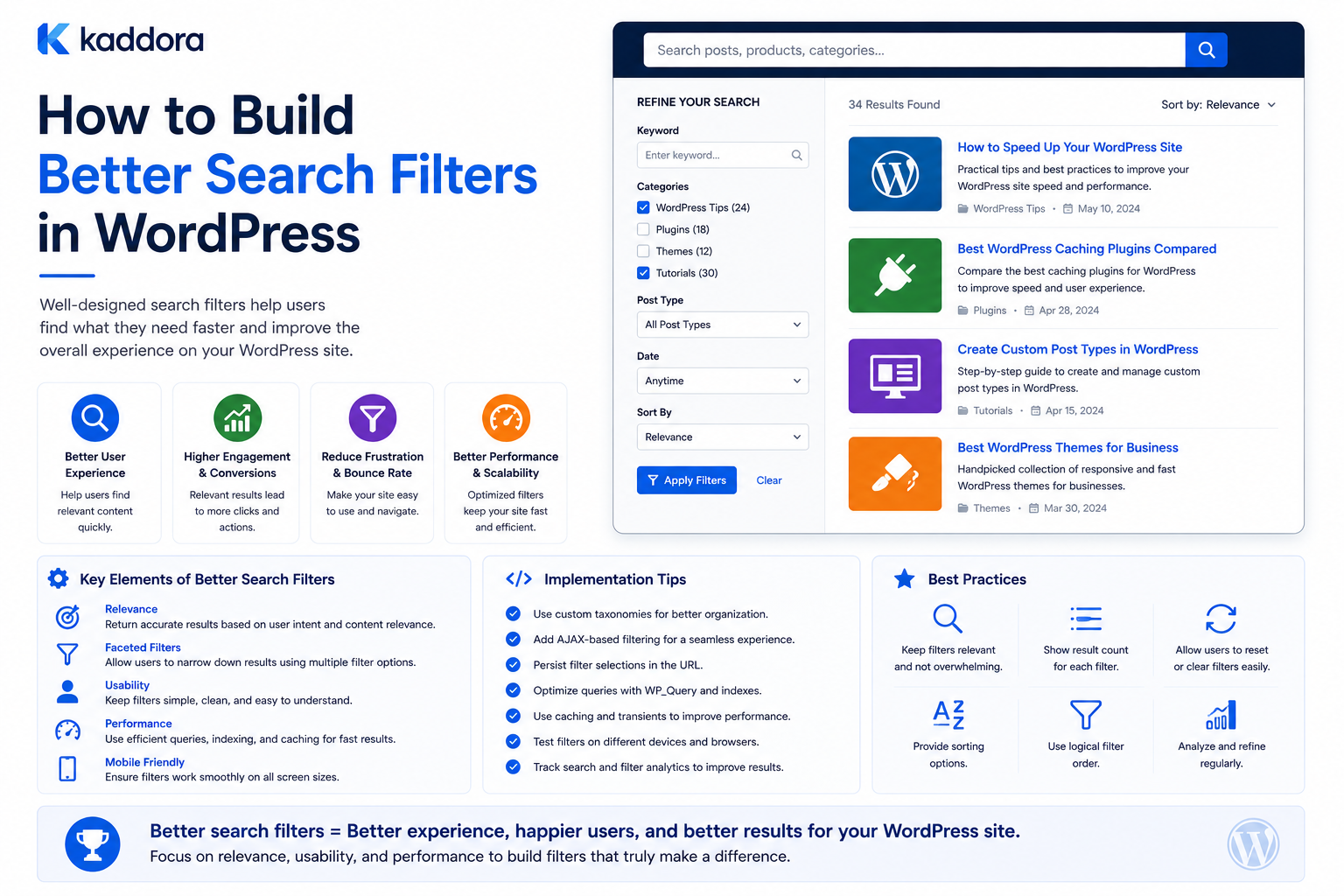
How to Build Better Search Filters in WordPress
Introduction
A search box is useful, but sometimes users need more control over the results.
Consider a website with:
Products Articles Documentation Templates FAQs Reviews
A visitor searches for:
and receives hundreds of results.
The next question is:
How can I narrow these results?
Useful filters might include:
Content Type Topic Technology Compatibility Industry Difficulty Price
This is where WordPress search filters become important.
A good filtering system allows users to narrow a large result set without forcing them to perform multiple unrelated searches.
A basic flow is:
Search Query ↓ Candidate Results ↓ Filters ↓ Refined Results
A more advanced system can combine:
Keyword + Taxonomy + Custom Fields + Relationships + Range Filters + Sort Options
The key principle is:
Build search filters around the decisions users actually need to make, not around every field stored in the database.
What Are WordPress Search Filters?
Search filters allow users to narrow search results based on structured attributes.
For example:
Search: WooCommerce Filters: Category = Plugins Technology = PHP Compatibility = WooCommerce
The result set becomes more focused.
Why Search Filters Matter
Filters can help users:
Find relevant products faster
Narrow large content collections
Compare options
Discover documentation
Explore related topics
Reduce search frustration
They are especially useful when a website contains many similar records.
Search Filter vs Search Query
A search query asks:
What am I looking for?
A filter asks:
How should I narrow the matching results?
For example:
Query: WordPress Filter: Content Type = Documentation
Both should work together.
Search Filter vs Taxonomy
A taxonomy is the underlying classification.
A filter is the interface that lets users use that classification.
For example:
Taxonomy: Technology Terms: WordPress Laravel React
The frontend can display:
Technology ☐ WordPress ☐ Laravel ☐ React
Search Filters and Custom Fields
Custom fields can provide additional filtering dimensions.
For example:
Product Price Version License Compatibility
Users might filter:
Price < $100 Compatibility = WooCommerce
However, custom-field filtering can become expensive when implemented through complex WordPress metadata queries at large scale.
Start With User Questions
Before creating a filter, ask:
What decision does this filter help the user make?
For example:
Compatibility → Will this product work with my platform? Technology → What technology does it use? Content Type → What kind of resource am I looking for?
If a filter does not answer a useful question, it probably does not belong in the interface.
Avoid Too Many Filters
A common mistake is showing every possible field.
For example:
Color Size Version Author Internal ID Created Date Updated Date Owner Status Source
Users may become overwhelmed.
Start with the smallest useful filter set.
Identify the Most Important Dimensions
For a product marketplace, the most useful filters may be:
Category Technology Compatibility Industry Price
For articles:
Topic Technology Difficulty Content Type
For documentation:
Product Version Section Feature
Different content types need different filters.
Filter Content Types
Cross-content search can begin with:
All Articles Products Documentation FAQs Templates
This is often one of the simplest and most valuable filters.
Taxonomy-Based Filters
Taxonomies are a natural fit for categorical filtering.
For example:
Topic ├── APIs ├── Security ├── SEO └── Performance
Users can select one or more terms.
Hierarchical Taxonomy Filters
A hierarchy can be displayed as:
Technology └── Web Development ├── WordPress ├── PHP └── JavaScript
Use hierarchy only when it makes sense to users.
Multi-Select Filters
Some filters should allow multiple selections.
For example:
Technology: ☑ WordPress ☑ PHP
Depending on the intended logic, this could mean:
OR
Content matching either technology.
AND
Content matching both technologies.
The interface should communicate the behavior clearly.
OR vs AND Filtering
Suppose the user selects:
WordPress PHP
OR
Results can match either:
WordPress OR PHP
AND
Results must match both:
WordPress AND PHP
Both are useful in different search experiences.
Combining Multiple Filter Groups
Consider:
Technology: WordPress OR PHP AND Compatibility: WooCommerce
This is more complex than simply filtering one taxonomy.
Define the logic explicitly.
Filter State in URLs
Search filters can be represented in the URL:
/search/?q=api&technology=wordpress&content_type=documentation
Benefits include:
Shareable searches
Browser history
Bookmarking
Easier debugging
Validate and sanitize all filter parameters.
Keep URLs Manageable
Avoid generating enormous URLs containing dozens of unnecessary parameters.
Only include meaningful active filters.
Filter State in AJAX
For live filtering:
User Changes Filter ↓ AJAX / REST Request ↓ Updated Results
The server still needs to validate every parameter.
AJAX Does Not Solve Slow Queries
If the underlying query takes:
2.5 seconds
AJAX simply hides the page refresh.
It does not make the database query faster.
Optimization still needs to happen at the retrieval layer.
Debounce Filter Changes
If a user changes several filters quickly:
Category Technology Compatibility
sending a request after every click may create unnecessary traffic.
A short debounce can reduce repeated requests.
Apply Filters Before Expensive Ranking
Where possible:
Query ↓ Permission Filter ↓ Tenant Filter ↓ Content Type ↓ Taxonomy ↓ Candidate Ranking
Filtering early can reduce the candidate set that expensive ranking logic needs to process.
Search Filters and Permissions
A user should never see:
Private Documentation
just because a filter matches it.
Permission rules must be applied as part of the search query.
Multi-Tenant Filtering
For SaaS:
User Query ↓ Tenant Scope ↓ Filters ↓ Results
Tenant filtering should be enforced as early as practical.
Never rely solely on frontend filtering.
Search Filters and Custom Post Types
A filter system can search multiple content types:
post product documentation faq template
Each content type may have different searchable fields.
The filter layer should normalize these differences.
Normalize Search Documents
A search index can represent different content types with a common structure:
id type title content taxonomies attributes relationships status updated_at
This makes filtering across content types easier.
Product Search Filters
For a marketplace, useful product filters can include:
Category Technology Compatibility Industry License Price Range
These allow visitors to narrow a large catalog quickly.
Price Range Filters
Price is different from a simple taxonomy.
It is a numerical range:
$0–$25 $25–$50 $50–$100 $100+
A dedicated numeric field or search index is generally more appropriate than representing every price range as a taxonomy term.
Date Range Filters
Content websites may allow:
Published: Last 30 Days Last 6 Months Custom Date Range
Use date-aware queries or a search index designed for range filtering.
Numeric Filters
Examples include:
Price Rating Version Download Count Duration
Numeric data should remain numeric.
Do not store numeric values only as arbitrary strings if they need range filtering.
Rating Filters
For example:
Rating: 4+ Stars
The search system can filter by a numeric rating value.
The source and meaning of the rating should be clear.
Compatibility Filters
For digital products:
Compatible With: WordPress WooCommerce Elementor PHP 8.2+
These classifications can be extremely useful for product discovery.
Technology Filters
For developer products:
Technology: PHP Laravel React JavaScript WordPress
Users can quickly narrow results by their preferred stack.
Industry Filters
Business-oriented content may use:
Industry: eCommerce Education Healthcare Finance SaaS
This helps users discover solutions relevant to their use case.
Difficulty Filters
Educational content can use:
Difficulty: Beginner Intermediate Advanced
This is more useful when content consistently applies the classification.
Filter Counts
A good faceted search interface can show:
WordPress (120) WooCommerce (75) PHP (42)
The numbers tell users how many matching results remain.
For large search systems, calculating exact counts for every facet can be expensive.
Facet Counts and Performance
If a search produces:
100,000 Results
calculating counts across dozens of facets may become expensive.
Dedicated search engines are often well suited to this kind of workload.
Hide Empty Filters
If a current search has no results for:
Laravel
there is little value in prominently displaying that option unless the UX intentionally allows broadening the search.
Dynamic facet visibility can reduce clutter.
Disable vs Hide Filters
There are two common approaches.
Disabled
Show the filter but make it unavailable.
Hidden
Remove options that have no valid results.
Choose based on usability and the amount of context users need.
Reset Filters
A good filtering interface should make it easy to return to the original search:
Clear All
Users should not need to remove 10 filters individually.
Show Active Filters
Display selected filters clearly:
Active: WordPress × WooCommerce × Advanced ×
This helps users understand why results are limited.
Filter Breadcrumbs
For complex catalogs, an interface may also show:
Search > WordPress > WooCommerce > Plugins
Keep the visual hierarchy simple.
Sort Options
Filtering answers:
Which results qualify?
Sorting answers:
In what order should qualifying results appear?
Possible sorting options include:
Relevance Newest Price Low to High Price High to Low Popularity Rating
Relevance should generally remain the default for keyword search.
Filtering + Ranking
A strong architecture separates:
Filtering + Ranking + Sorting
For example:
Query: analytics Filters: WooCommerce Sort: Relevance
First identify valid candidates, then rank them.
Search Filters and Relevance
Filters should not accidentally destroy relevance.
For example:
Query: WooCommerce analytics
then:
Filter: PHP
The results should still be ranked by relevance to the original query.
Filter Presets
For common searches, provide presets:
Popular: WooCommerce Plugins AI Tools WordPress Themes Developer Templates
These can reduce interaction friction.
Saved Searches
Authenticated users may benefit from saving filter combinations:
WooCommerce + Analytics + Premium
The implementation should respect user privacy and account permissions.
Shareable Filter URLs
A URL such as:
/products/?technology=wordpress&compatibility=woocommerce
allows users to share a specific filtered view.
Validate every query parameter server-side.
SEO and Filter URLs
Not every combination of filters should be indexed by search engines.
A site with:
10 filters × 20 options
can create a huge number of possible URL combinations.
Use a deliberate indexing strategy.
Some filter combinations may be valuable landing pages, while others should remain non-indexable.
Prevent Filter URL Explosion
Avoid generating thousands of unnecessary indexable URLs.
Consider:
Canonicalization
Robots directives
Controlled landing pages
Noindex strategies where appropriate
SEO rules should reflect the site's search architecture.
WordPress Database Filtering
Native WordPress filtering often relies on:
tax_query
meta_query
date_query
post_type
Search terms
For example:
$query = new WP_Query( array( 'post_type' => 'kdr_product', 'tax_query' => array( array( 'taxonomy' => 'technology', 'field' => 'slug', 'terms' => 'wordpress', ), ), ) );
The actual query should match the site's data model.
Combining Taxonomy and Metadata Queries
A complex query may combine:
Taxonomy + Meta + Search Term
This can be useful for smaller datasets.
At larger scale, however, multiple joins and filters may become expensive.
Avoid Giant meta_query Structures
If every filter becomes another metadata condition, the query can become increasingly expensive.
If filtering is central to the product, consider a dedicated search index or normalized filter data.
Search Index for Advanced Filters
A search document can contain:
type title topics technology compatibility industry price rating updated_at
A search engine can then filter and rank these fields efficiently.
External Search Engines
For large-scale filtering, technologies such as:
Elasticsearch
OpenSearch
Algolia
can provide advanced faceting and filtering capabilities.
The correct choice depends on infrastructure, budget, operational requirements, and search complexity.
Keep WordPress as Source of Truth
A common architecture is:
WordPress ↓ Indexer ↓ Search Index ↓ Filter API ↓ Frontend
WordPress maintains the original content.
The search system handles fast retrieval and filtering.
Incremental Indexing
When a product changes:
Product Updated ↓ Index One Product
Do not rebuild the complete catalog.
Bulk Reindexing
A full reindex can be necessary after:
Search schema changes
New filter fields
Data migration
Search-engine migration
Use:
Queue + Batches + Checkpoint
for large catalogs.
Search Filter Performance
Track:
Filter Request Count P50 P95 P99 Error Rate Zero Results
Also monitor the most expensive filter combinations.
Detect Slow Filter Combinations
For example:
Category + Technology: 180 ms Category + Technology + Price: 420 ms Category + Technology + Price + Rating: 1.9 sec
This can reveal where filtering architecture needs improvement.
Cache Popular Filter Combinations
Frequently used combinations can be cached:
products:wordpress:woocommerce
Normalize and scope cache keys carefully.
Do Not Cache Everything
A site with thousands of possible combinations can create a huge cache.
Cache:
Popular queries
Common filters
Expensive stable results
rather than every unique combination indefinitely.
AJAX Filter Architecture
A typical architecture is:
Filter Change ↓ Debounce ↓ AJAX / REST ↓ Validate ↓ Build Search Query ↓ Filter + Rank ↓ Return Results
Do not trust filter values from the browser.
REST Endpoint for Filters
A custom endpoint may accept:
q content_type technology compatibility price_min price_max page
Validate all parameters before using them in queries.
Filter Security
Protect against:
Unauthorized content access
Invalid taxonomies
SQL injection in custom SQL
Cross-tenant access
Excessive query complexity
Use WordPress APIs and prepared statements where custom SQL is necessary.
Search Filters and Permissions
Consider the same query with two users:
Admin: 20 results Customer: 15 results
The search layer must enforce the appropriate visibility rules.
Multi-Tenant Search Filters
For SaaS:
Tenant + Search Query + Filters
must all be applied together.
Do not apply tenant filtering only after a large unrestricted search.
Filter Analytics
Track:
Most Used Filters Filter Combinations Zero-Result Filters Filter Abandonment Conversions
This reveals what users actually care about.
Identify Unused Filters
If:
Technology: 0.2% usage
while:
Compatibility: 42% usage
the interface may benefit from prioritizing compatibility.
Do not remove a filter solely based on usage without considering strategic importance.
Filter Analytics for Product Strategy
Suppose users repeatedly choose:
WooCommerce + AI
This may indicate demand for products combining those capabilities.
Search filters can therefore provide useful marketplace insights.
Filter Analytics for Content Strategy
If visitors frequently filter:
WordPress + Security
content teams may want to ensure strong security resources exist.
Personalized Filters
Different audiences may need different defaults.
For example:
Developer: Technology Difficulty Compatibility Business User: Industry Use Case Pricing
Personalization should remain understandable and optional.
Mobile Search Filters
Mobile interfaces often have limited screen space.
Use patterns such as:
Filter
opening a dedicated panel.
Display active selections clearly.
Avoid Excessive Filter Interactions
On mobile, dozens of checkboxes can become frustrating.
Prioritize the most useful filter dimensions and group related options.
Empty Filter Results
When filters produce no results:
No matching products. Try removing: Advanced or: Clear all filters
This helps users recover without restarting the search.
Filter Recommendations
The interface can suggest filters based on the current query.
For example:
Search: WooCommerce analytics Suggested Filters: Product Type → Plugin Compatibility → WooCommerce Topic → Analytics
This can make filtering easier.
Search Filters and Recommendations
Filtering and recommendation systems can work together.
For example:
Search + Filters ↓ No Exact Match ↓ Related Recommendations
The recommendation layer can provide alternatives without changing the user's selected filters.
Testing Search Filters
Test:
Single Filter Multiple Filters OR Logic AND Logic Sort Pagination Empty Results Permissions Tenant Isolation Caching
Also test unusual combinations.
Test Filter Performance
Create realistic test datasets:
1,000 Products 10,000 Products 100,000 Products
Measure search and filter latency at each scale.
A filter that works well with 1,000 products may behave differently with 100,000.
Test Filter State
Verify that:
URL Browser History Back Button Refresh Shared Link
preserve filter state correctly where intended.
Test Search Index Consistency
After a product changes:
WordPress: Updated Search Index: Updated Filter: Immediately Reflects Change
or clearly reflect the expected indexing delay.
Common WordPress Search Filter Mistakes
Filtering Every Database Field
Creates unnecessary complexity.
No Clear AND/OR Behavior
Users cannot predict the result set.
Too Many Filters
Creates interface overload.
Expensive Metadata Queries
Can slow large searches.
No URL State
Users cannot share or revisit filtered searches.
No Empty-State Handling
Users get stuck with zero results.
No Filter Analytics
You don't know which filters users value.
No Permission Filtering
Restricted content can leak.
Building Filters Before Modeling Content
A weak data model creates a weak filtering system.
Best Practices for WordPress Search Filters
A professional filter system should:
Start with real user decisions.
Keep the filter set focused.
Use taxonomies for reusable classifications.
Use numeric fields for numeric ranges.
Use relationships for entity-specific connections.
Define clear AND/OR behavior.
Display active filter state clearly.
Provide easy reset controls.
Preserve shareable filter URLs where useful.
Use AJAX without assuming it fixes database performance.
Apply permission and tenant filtering early.
Cache expensive, frequently used combinations.
Monitor filter usage and performance.
Use a dedicated search index when complex filtering exceeds native database capabilities.
Test the system at realistic content volumes.
Why choose ThemeKaddora?
ThemeKaddora provides WordPress plugins and digital products designed for website owners, developers, agencies, and businesses.
Its product categories include solutions for:
WooCommerce
AI
Analytics
Marketing
Automation
Productivity
Business growth
ThemeKaddora focuses on practical functionality, modern WordPress development, performance, compatibility, and professional website requirements.
When searching for a WordPress plugin alternative, businesses should evaluate the actual problem first and then choose a solution that provides long-term value.
Conclusion
Search filters transform a broad search experience into a focused discovery system.
A basic search asks:
What am I looking for?
Filters help answer:
Which type? Which technology? Which compatibility? Which category? Which price range? Which audience?
The first principle is design filters around real user decisions.
Do not expose database fields simply because they exist.
The second principle is choose the correct data structure.
Use:
Taxonomies for Classification Custom Fields for Attributes Relationships for Entity Connections
The third principle is define filter logic clearly.
Users need to understand whether multiple selected values mean:
AND
or:
OR
The fourth principle is separate filtering from ranking.
Filtering determines which results qualify.
Ranking determines which qualifying results appear first.
The fifth principle is optimize the underlying retrieval layer.
AJAX improves interaction but does not automatically make complex database queries faster.
The sixth principle is protect access boundaries.
Apply:
Permissions + Tenant Scope + Content Visibility
before returning search results.
The seventh principle is measure filter usage.
Track:
Popular Filters Filter Combinations Zero-Result Filters Conversions
This reveals which dimensions genuinely help users.
The eighth principle is optimize for scale.
For small sites, WP_Query with carefully designed taxonomy and field filters may be sufficient.
For large catalogs, a dedicated search index may provide better faceting and performance.
The ninth principle is make empty results recoverable.
When a filter combination returns nothing, let users remove filters or broaden the search rather than presenting a dead end.
The tenth principle is keep the architecture maintainable.
A strong implementation separates:
Filter UI ↓ Search API ↓ Validation ↓ Candidate Retrieval ↓ Filtering ↓ Ranking ↓ Results
For ThemeKaddora, a powerful marketplace search can combine:
Products Articles Documentation FAQs Templates
with filters for:
Category Technology Compatibility Industry Difficulty Price
This creates a discovery experience where users can move from a broad query to a precise result without repeatedly reformulating their search.
The most important principle is:
Build search filters around meaningful user decisions and implement them on a structured, scalable search layer rather than simply exposing every field in the WordPress database.
A professional WordPress filtering system should be:
Useful
→ Predictable
→ Fast
→ Structured
→ Filterable
→ Permission-Aware
→ Tenant-Aware
→ Analytics-Driven
→ Scalable
→ Maintainable
When these principles are applied, search filters can turn a large WordPress content library or product catalog into a much easier and more efficient discovery experience.
Frequently Asked Questions
What are WordPress search filters?
Search filters allow users to narrow search results based on structured attributes such as content type, taxonomy, technology, compatibility, price, topic, or other meaningful fields.
Should I use taxonomies for search filters?
Taxonomies are a good choice when a filter represents a reusable classification shared across many content items.
When should I use custom fields?
Use custom fields for attributes such as price, version, date, rating, or other values that belong to an individual content entity.
What is the difference between AND and OR filters?
OR means a result can match any selected value. AND means the result must satisfy all selected conditions. The interface should make this behavior clear.
Can I build search filters with WP_Query?
Yes. Taxonomy, metadata, post-type, date, and search arguments can be combined in WordPress queries. Complex filters may become expensive at large scale.
Does AJAX make filtering faster?
AJAX improves the interface by avoiding full page reloads, but it does not inherently make the underlying search query faster.
Should I show every possible filter?
No. Start with the filters that help users make meaningful decisions and add more only when analytics and user needs justify them.
How can I improve performance with many filters?
Use structured searchable fields, efficient queries, appropriate indexes, caching, precomputed data, and eventually a dedicated search index when native database filtering becomes a bottleneck.
Should filtered URLs be indexed by search engines?
Not automatically. Large combinations of filters can create URL and indexing problems. Decide deliberately which filtered pages provide valuable standalone content.
How should filters work in a multi-tenant WordPress SaaS?
Tenant scope and permissions should be applied before or during candidate retrieval so users cannot access another tenant's content through filters.
Why choose Themekaddora?
Themekaddora provides lightweight, responsive, SEO-friendly WordPress themes with fast performance, WooCommerce compatibility, flexible customization, accessibility-conscious design, modern templates, regular updates, and professional support—providing a strong foundation for businesses building digital products and product-focused websites.
Comments (0)