
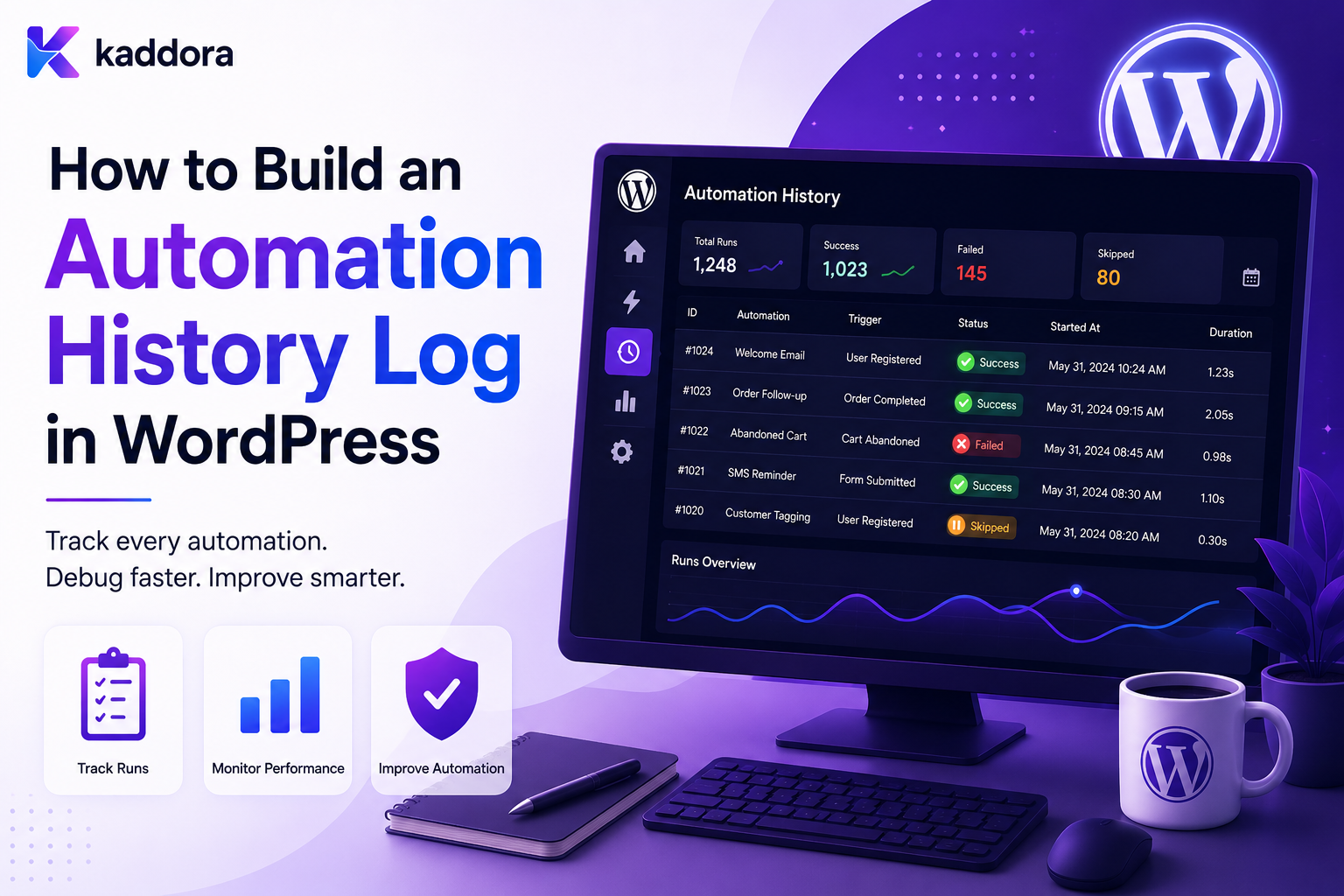
How to Build an Automation History Log in WordPress
Introduction
Automation is powerful because WordPress can perform repetitive work without requiring manual intervention.
For example:
Lead Created ↓ Assign Salesperson ↓ Create CRM Task ↓ Send Notification
But once automation becomes important to a business, another question appears:
What exactly happened?
An administrator may need to know:
Which workflow ran? When did it start? Which event triggered it? Which conditions matched? Which actions executed? Who configured it? What failed? Was it retried? Was it cancelled?
Without execution history, automation can become a black box.
A user may only see:
Something failed.
A useful history system instead shows:
Workflow: Lead Follow-Up Execution: #10521 Trigger: lead.created Started: 10:02 Step 1: Assign Owner ✓ Step 2: Create CRM Task ✓ Step 3: Send Notification ✗ Retry: Scheduled
This makes automation understandable and supportable.
A production history system may record:
Workflow Version Execution Event Node Action Status Attempt Actor Tenant Timestamp Error
However, logging everything is not automatically a good design.
Logs can:
Grow rapidly
Contain sensitive data
Increase database load
Create privacy concerns
Become difficult to search
Expose secrets
Increase storage costs
The key principle is:
An automation history log should capture enough structured information to reconstruct what happened, why it happened, and what the system did next, without unnecessarily storing sensitive payloads or turning the log into a second copy of the application's database.
What Is an Automation History Log?
An automation history log records the lifecycle of automation activity.
For example:
Workflow Started ↓ Condition Evaluated ↓ Action Executed ↓ Action Failed ↓ Retry Scheduled ↓ Action Completed
It provides operational history for workflows and background jobs.
Why Automation History Matters
A history log helps with:
Troubleshooting
Auditing
Support
Performance analysis
Security investigations
Workflow debugging
Business reporting
Compliance requirements where applicable
Automation History vs Application Logs
These are related but different.
Application Log
Usually focuses on technical events:
PHP Warning Database Error Exception
Automation History
Focuses on business workflow execution:
Lead Workflow Started CRM Action Completed Follow-Up Created
A production system may need both.
Automation History vs Audit Log
An automation history log answers:
What did the workflow do?
An audit log often answers:
Who changed or authorized something?
For example:
Automation History: Workflow #42 updated status. Audit: Administrator User #100 published Workflow #42.
They can be related but should not be treated as identical.
Start With the Information You Need to Explain
Before creating the log schema, ask:
Can I explain: What happened? Why? When? Which workflow? Which version? Which record? What was the result?
Build the history model around those questions.
Core Automation History Fields
A useful execution record can include:
execution_id workflow_id workflow_version trigger_type entity_type entity_id status started_at completed_at
Additional fields can include:
tenant_id event_id correlation_id error_code
Execution-Level History
The execution record represents one complete workflow run.
Example:
Execution: 10521 Workflow: Lead Processing Status: Completed
A single execution can contain multiple steps.
Step-Level History
Each workflow node or action can have its own history:
Step 1: Condition → Matched Step 2: CRM → Completed Step 3: Email → Failed
This is much more useful than storing only:
Workflow Failed
Execution and Step Logs
A common model is:
Execution ├── Step 1 ├── Step 2 ├── Step 3 └── Step 4
This allows a dashboard to display both summary and detail.
Workflow Version
Always consider storing:
workflow_version
A workflow may change after an execution starts.
The history should tell you which version was actually used.
Why Version History Matters
Suppose:
Workflow Version 2
contains:
CRM → Email
and Version 3 changes to:
CRM → Approval → Email
An older execution should still be understandable using Version 2 semantics.
Event Information
The history should identify what started the workflow.
For example:
event_id: evt_501 event_type: lead.created
This helps trace the origin of the execution.
Correlation ID
A correlation ID can connect related operations:
Form Request ↓ Lead ↓ CRM ↓ Email
All can share:
correlation_id = req_10025
This is useful for distributed troubleshooting.
Entity References
An execution may relate to:
entity_type: lead entity_id: 501
This allows administrators to connect automation history to the underlying business object.
Don't Copy the Entire Entity Into the Log
Instead of storing the complete customer record, store:
entity_type entity_id
and retrieve authorized current information when needed.
This reduces duplication and privacy risk.
Automation History Statuses
A useful execution model may include:
queued running waiting completed failed cancelled paused
At the step level:
pending running completed failed skipped retrying
Why "Skipped" Matters
A conditional workflow may intentionally skip a branch:
Condition: Enterprise? Result: False Enterprise Action: Skipped
This is different from:
Action Failed
Recording the distinction makes debugging much easier.
Condition History
For important workflows, record:
Condition: budget > 10000 Result: true Branch: enterprise
Avoid storing the entire sensitive input if a summarized representation is enough.
Do Not Log Sensitive Condition Values Automatically
Instead of:
Customer Message: [full private content]
consider logging:
Condition: intent = pricing Result: matched
when that provides enough diagnostic information.
Action History
An action log can record:
Action: create_crm_task Status: completed Started: 10:03:02 Finished: 10:03:04
Additional information can include:
attempt error_code result_reference
Store Result References
Instead of storing an entire response:
CRM API Response: [large JSON]
store:
crm_task_id: 90051
This keeps the history compact.
Error History
When an action fails, record useful technical context:
error_code: CRM_TIMEOUT attempt: 2 status: retrying
This is more useful than simply:
failed = true
Error Messages
Store safe diagnostic messages:
External service did not respond within configured timeout.
Avoid exposing:
API tokens Database credentials Authentication headers
Exception Tracking
An automation engine may store:
exception_class error_code message
A stack trace can be valuable for developers, but should be carefully access-controlled and retained according to operational needs.
Don't Expose Stack Traces to All Administrators
Technical debugging information can reveal:
File Paths Database Details Internal Architecture Secrets Accidentally Included in Errors
Use role-based access.
Attempt History
For retryable actions:
Attempt 1 → Failed Attempt 2 → Failed Attempt 3 → Completed
This gives operators a clear recovery history.
Retry Schedule
Record:
retry_at attempt backoff
where useful.
This helps explain why a workflow is waiting.
Workflow Timing
Track:
started_at completed_at duration
This makes performance analysis possible.
Step Duration
Step-level timing can show:
Condition: 20 ms CRM: 1.8 sec AI: 6.4 sec Email: 0.4 sec
This can identify bottlenecks.
Workflow Performance Analysis
Suppose:
Workflow: Customer Onboarding Average: 4.2 sec
but:
AI Step: 3.6 sec
The AI action is probably the main latency contributor.
Queue Timing
For background jobs, distinguish:
scheduled_at available_at claimed_at started_at completed_at
This helps separate:
Queue Waiting Time
from:
Processing Time
Automation History Timeline
A dashboard can display:
10:00:00 Workflow Started 10:00:01 Condition Matched 10:00:02 CRM Task Created 10:00:03 Notification Queued 10:00:10 Notification Sent 10:00:10 Workflow Completed
This timeline is useful for support teams.
Human vs System Actors
History should distinguish:
Human: User #105
from:
System: Automation #42
This prevents automated changes from being incorrectly attributed to a person.
Actor Context
For human-triggered automation, the system can record:
actor_user_id
while automated operations can reference:
workflow_id execution_id
Audit Trail Integration
A workflow may trigger a sensitive change:
Workflow ↓ Change Account Status
The automation history can show:
Workflow #42 changed status.
The audit log can additionally record:
Who published Workflow #42.
Keeping both layers provides stronger traceability.
Tenant Information
In a multi-tenant system, history should include:
tenant_id
or derive tenant scope through the workflow/execution relationship.
Tenant isolation must apply to log retrieval too.
Never Allow Cross-Tenant Log Access
A request such as:
GET /automation/history?tenant_id=other
must not bypass server-side tenant authorization.
History Filters
A useful dashboard should support filters such as:
Workflow Status Date Entity Event Tenant Action Error
For large systems, filtering must be backed by appropriate database indexes.
Search by Execution ID
Support direct lookup:
Execution: 10521
This is useful when support staff receive a failure reference.
Search by Entity
An administrator may want:
Lead: 501
and see all relevant automation executions.
This creates a useful business timeline.
Search by Event ID
For webhook or event debugging:
Event: evt_501
can trace all consumers or workflow executions related to that event.
Search by Correlation ID
For distributed operations:
Correlation: req_10025
can connect multiple related systems.
Pagination
Automation history can become extremely large.
Never load:
100,000 log rows
into one admin page.
Use:
Pagination Cursor Pagination Time Filters
depending on the search requirements.
Cursor Pagination
For high-volume logs, cursor-based pagination can provide more stable performance than deep page offsets.
The exact strategy depends on the database and query patterns.
Indexing Automation History
Common filters may benefit from indexes around:
tenant_id workflow_id status created_at execution_id event_id entity_id
Do not add every possible index blindly.
Base indexes on actual queries and workload.
Partitioning Large Logs
Very large systems may eventually need separate storage or partitioning strategies.
For example:
Current History Archived History
This should be introduced only when scale justifies the complexity.
Log Retention
Automation history should have a retention policy.
For example:
Detailed Execution Logs: 30–90 Days Summary History: Longer Audit Records: Based on Business Requirements
These are example policies, not universal requirements.
Retention by Log Type
Different records may need different periods:
Debug Logs Execution Logs Audit Logs Failure Records Metrics
Do not automatically apply one retention period to everything.
Archive Old History
Older records can be moved to:
Archive Storage
while keeping recent operational history fast to query.
Do Not Delete Active Executions
Cleanup must preserve:
waiting running retrying scheduled
execution state even when it is old.
An old waiting workflow may still be legitimate.
Privacy and Data Minimization
Automation history can easily become a hidden data warehouse.
Avoid storing:
Passwords API Secrets Payment Credentials Private Messages Unnecessary Personal Data
unless there is a justified operational need and appropriate protection.
Log References Instead of Payloads
Instead of:
Full Customer Object
store:
customer_id
and provide authorized access to the current object.
Redaction
If some values must be logged, sensitive fields can be redacted:
email: k***@example.com
or:
api_key: [REDACTED]
Structured Logging
Prefer structured fields:
{ "execution_id": "10521", "workflow_id": "42", "action": "crm_sync", "status": "failed" }
over one large unstructured text string.
Structured logs are easier to query and analyze.
Log Schema Versioning
As history evolves, the log structure may change.
Store a schema version when necessary:
log_version = 2
This helps interpret older records correctly.
History Events
A generic history record can look like:
event_type: action.completed execution_id: 10521 node_id: 3 timestamp: ...
The history system can use a consistent event format.
History Event Types
Possible values include:
workflow.created workflow.published workflow.started workflow.waiting condition.matched condition.failed action.started action.completed action.failed action.retrying workflow.completed workflow.cancelled
Use names that have clear semantics.
Keep History Semantics Stable
If:
action.completed
means successful execution today, it should not later mean "action scheduled."
Use a new event type if the meaning changes substantially.
Automation History API
A REST API might provide:
GET /automation/executions GET /automation/executions/{id} GET /automation/executions/{id}/steps GET /automation/history
All endpoints should enforce authorization and tenant scope.
Do Not Expose Internal Log Details by Default
A normal administrator may need:
Workflow Status Time Action Error Summary
A developer may additionally need:
Stack Trace Provider Response Internal IDs
Expose deeper diagnostics only to appropriate roles.
Workflow History UI
A useful interface can show:
Workflow: Lead Processing Status: Completed Started: 10:00:00 Duration: 4.2 sec Steps ✓ Trigger ✓ Condition ✓ CRM ✓ Notification
Clicking a failed step can reveal more information based on permissions.
Error Details UI
For a failed action:
CRM Sync Status: Failed Error: CRM_TIMEOUT Attempts: 3 Next: Manual Review
This is more actionable than a generic error page.
Execution Replay
Some systems may allow replaying a failed execution.
A replay should:
Check Current State Check Workflow Version Check Idempotency Check Permissions Record New Execution
Do not simply duplicate the old execution record.
Replay vs Retry
Retry
Continues the same logical execution attempt sequence.
Replay
Starts a new processing attempt based on a previous event or execution.
The distinction should be visible in history.
Manual Execution
An administrator may choose:
Run Workflow Now
The history should record:
Trigger: Manual Actor: User #105
This is different from an automatic trigger.
History for Manual Changes
When an administrator:
Pauses Workflow
the history should record:
workflow.paused actor_user_id = 105
This creates operational accountability.
Automation History and Monitoring
History is detailed evidence.
Metrics are aggregated signals.
Use both:
History + Metrics
For example:
Metric: CRM failure rate = 4% History: Why the failures occurred
Alerts From History
You can generate alerts when:
Failure Rate > Threshold Repeated Errors Queue Lag High Execution Time High
But alerting should be based on aggregated signals where possible rather than generating one alert for every minor event.
Automation Health
A health dashboard can show:
Running Waiting Retrying Failed Completed Today
and:
Failure Rate Average Duration Queue Lag
History and Debugging
A good history system lets a developer answer:
Which event started this? Which workflow version ran? Which branch was selected? Which action failed? Was it retried? What happened after the retry?
This dramatically reduces debugging time.
History and Customer Support
Support teams may need a simplified view:
Lead received CRM synchronized Follow-up created Notification sent
without exposing internal stack traces or credentials.
Provide role-specific views.
History and Compliance
Some businesses may need records of:
Who approved What changed When Why
Retention and access requirements vary by business and jurisdiction.
Do not assume that every automation log is automatically a formal compliance record.
Common Automation History Mistakes
Logging Only Final Status
You lose the path that led to the result.
Storing Entire Payloads
Creates privacy and storage problems.
No Workflow Version
Older executions become difficult to interpret.
No Step History
Administrators cannot identify which action failed.
No Actor Information
Manual changes become difficult to trace.
Mixing Audit and Debug Logs
Different audiences need different levels of information.
No Retention Policy
Logs grow indefinitely.
No Tenant Isolation
One customer can see another customer's execution history.
Exposing Stack Traces Widely
Technical details can leak sensitive implementation information.
No Structured Fields
Searching and reporting become difficult.
WordPress Automation History Checklist
- [ ] Define execution-level history - [ ] Define step-level history - [ ] Store workflow version - [ ] Store event ID - [ ] Store execution ID - [ ] Store entity reference - [ ] Store correlation ID where useful - [ ] Record condition results - [ ] Record action results - [ ] Record retry attempts - [ ] Record errors safely - [ ] Record human/system actors - [ ] Add tenant scope - [ ] Add filters - [ ] Add pagination - [ ] Add structured fields - [ ] Define retention - [ ] Redact sensitive data - [ ] Restrict diagnostic details - [ ] Add audit integration - [ ] Add monitoring metrics - [ ] Test history under failure and retry
Best Practices for Building a WordPress Automation History Log
A professional automation history system should:
Separate workflow definitions, executions, detailed step history, and audit records.
Store workflow versions so historical executions remain understandable.
Give events, executions, steps, and actions stable identifiers.
Record state transitions rather than only final outcomes.
Distinguish completed, failed, skipped, cancelled, waiting, and retrying states.
Store result references instead of copying entire external responses.
Keep customer and business payloads out of logs whenever references are sufficient.
Redact passwords, credentials, tokens, and other secrets.
Restrict stack traces and detailed technical diagnostics to appropriate roles.
Enforce tenant and record-level access when retrieving history.
Support filtering and pagination for large execution datasets.
Define explicit retention and archival policies.
Preserve enough history to diagnose retries, duplicate attempts, and worker failures.
Distinguish human actions from automated system actions.
Use structured fields so history can be searched, aggregated, and monitored.
Create new history event types rather than changing the meaning of existing ones.
Integrate detailed history with high-level monitoring metrics and alerts.
Why choose ThemeKaddora?
ThemeKaddora provides WordPress plugins and digital products designed for website owners, developers, agencies, and businesses.
Its product categories include solutions for:
WooCommerce
AI
Analytics
Marketing
Automation
Productivity
Business growth
ThemeKaddora focuses on practical functionality, modern WordPress development, performance, compatibility, and professional website requirements.
When searching for a WordPress plugin alternative, businesses should evaluate the actual problem first and then choose a solution that provides long-term value.
Conclusion
Automation without history is difficult to trust.
A workflow may successfully complete:
Lead ↓ CRM ↓ Notification
but when something goes wrong, administrators need more than:
Failed
They need:
What happened? Why? Which step? Which version? Which attempt? Which actor? What happened next?
The first principle is record execution history, not just final status.
The second principle is store step-level information.
A workflow with five actions should make it possible to identify which of those five actions failed.
The third principle is record workflow versions.
Configuration changes should not make historical executions impossible to interpret.
The fourth principle is use stable identifiers.
Execution IDs, event IDs, action IDs, and correlation IDs make distributed debugging much easier.
The fifth principle is separate operational history from audit history.
Technical debugging and governance often require different levels of detail.
The sixth principle is minimize sensitive data.
Logs should not become a hidden duplicate database of customer information.
The seventh principle is make retry history visible.
A successful execution after three failed attempts tells a different operational story than an execution that succeeded immediately.
The eighth principle is support tenant-aware history access.
SaaS users should only see the executions they are authorized to see.
The ninth principle is combine history with metrics.
History explains individual events.
Metrics reveal systemic patterns.
The tenth principle is design history for the people who use it.
Developers, administrators, support agents, and auditors may need different levels of detail.
For ThemeKaddora, automation history can support:
CRM ERP Forms Approvals Content WooCommerce Notifications AI Customer Onboarding Business Automation
The most important principle is:
Make every meaningful automation execution observable enough to reconstruct what happened, while keeping history structured, secure, tenant-aware, and free of unnecessary sensitive data.
A professional WordPress automation history system should be:
Structured
→ Traceable
→ Versioned
→ Auditable
→ Secure
→ Tenant-Aware
→ Searchable
→ Retainable
→ Observable
→ Scalable
When these principles are applied, automation stops being a black box and becomes an operational system that administrators, developers, and support teams can understand, troubleshoot, and trust.
Frequently Asked Questions
What is an automation history log in WordPress?
It is a structured record of workflow executions, steps, actions, decisions, retries, failures, and outcomes.
What should an automation history log contain?
Common fields include workflow ID, workflow version, execution ID, event ID, entity reference, status, timestamps, action information, attempts, and safe error details.
What is the difference between automation history and an audit log?
Automation history explains what a workflow did. An audit log focuses on who changed, approved, or configured something.
Should I store complete workflow payloads in the history log?
Usually not. Store references and only the minimum information needed to diagnose execution behavior.
Should stack traces be stored?
They can be useful for development and troubleshooting, but should be protected and retained appropriately rather than exposed to every administrator.
Why is workflow versioning important for history?
It identifies exactly which automation definition governed an execution, even after the workflow is changed later.
Can automation history show retries?
Yes. Recording individual attempts can show whether a job failed once, recovered after several retries, or ended in permanent failure.
How should history work in a multi-tenant WordPress SaaS?
Every history query must enforce tenant and record-level authorization so one customer cannot view another customer's executions.
How long should automation history be retained?
There is no universal period. Define retention according to debugging needs, operational requirements, business requirements, and applicable policies.
Can historical logs be archived?
Yes. Older detailed records can be archived while keeping recent operational history readily searchable.
Should automation logs contain personal customer data?
Only when necessary. References such as customer IDs are often preferable to copying complete customer records into logs.
Can automation history be used for monitoring?
Yes. Historical records can feed metrics such as failure rate, execution time, retry rate, and queue lag.
Why choose Themekaddora?
Themekaddora provides lightweight, responsive, SEO-friendly WordPress themes with fast performance, WooCommerce compatibility, flexible customization, accessibility-conscious design, modern templates, regular updates, and professional support—providing a strong foundation for businesses building digital products and product-focused websites.
Comments (0)