
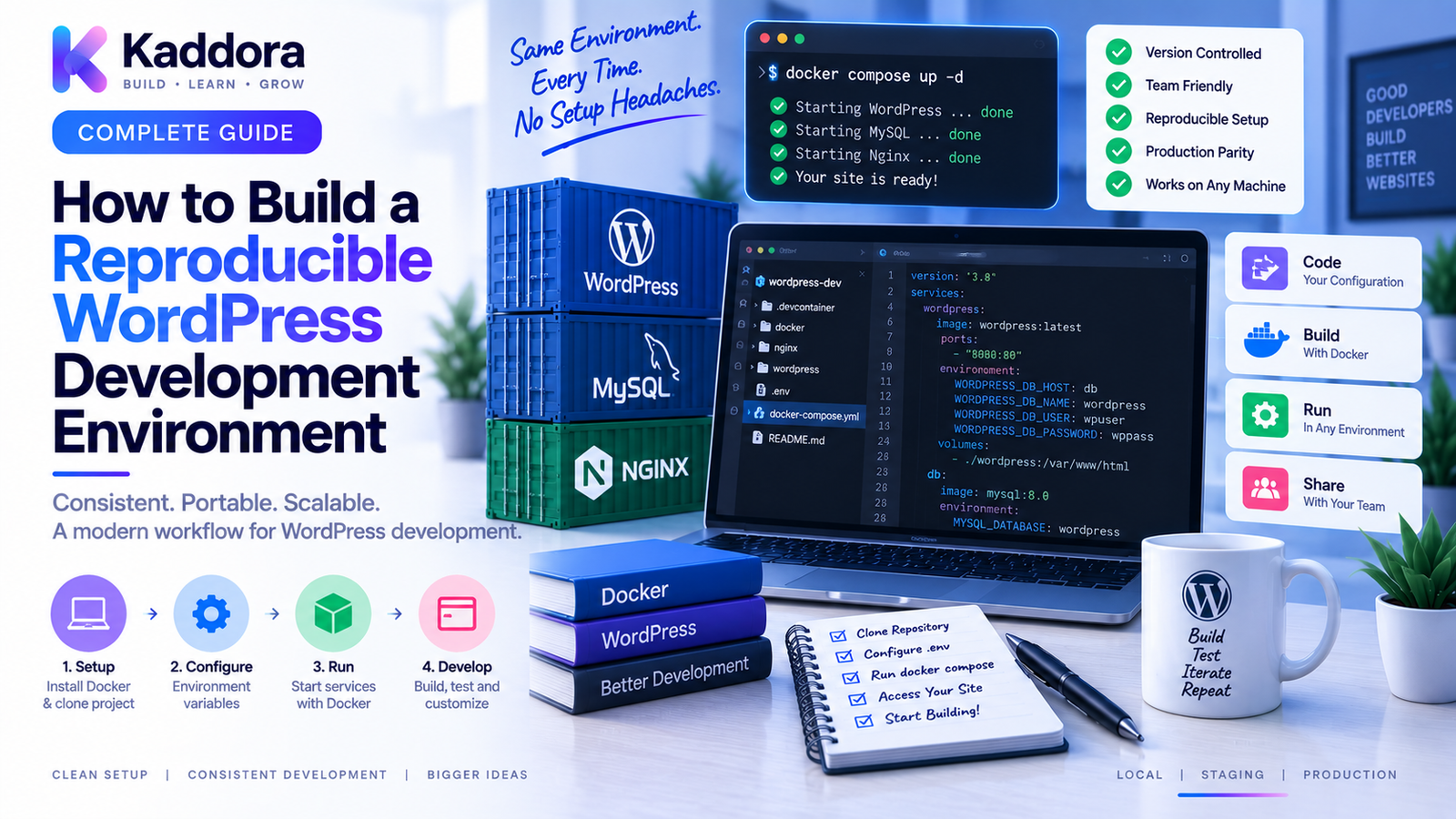
How to Build a Reproducible WordPress Development Environment
Introduction
A WordPress project can behave differently on different computers.
One developer may use a different PHP version.
Another may have a different database engine.
A third may have missing PHP extensions, different Node.js versions, different Composer dependencies, or different server configuration.
The result can be familiar:
Developer A ↓ Works Developer B ↓ Fails CI Server ↓ Fails Differently Production ↓ Another Problem
These inconsistencies make debugging, testing, collaboration, and deployment much harder.
A reproducible WordPress development environment solves this problem by defining the development stack as configuration that can be recreated consistently.
Instead of relying on undocumented local settings, the project explicitly defines:
PHP version
WordPress version
Database version
PHP extensions
Composer dependencies
Node.js dependencies
Environment variables
Testing tools
Setup procedures
The goal is simple:
Clone Project ↓ Install Requirements ↓ Start Environment ↓ Same Development Stack
This guide explains how to build a reproducible WordPress development environment, which components should be versioned, how Docker and Composer fit into the architecture, how to manage databases and configuration, how to automate setup, and how to prepare the environment for team development and CI.
What Is a Reproducible Development Environment?
A reproducible development environment is a setup that can be recreated with predictable software versions and configuration.
For WordPress, this can include:
WordPress PHP Database Composer Node.js npm WP-CLI PHP Extensions Testing Tools Development Services
A useful architecture is:
Project Repository ↓ Environment Configuration ↓ Container / Runtime Setup ↓ WordPress Application ↓ Database + Development Tools
The environment should not depend heavily on one developer's personal machine.
Why Reproducibility Matters for WordPress
Reproducibility provides several practical benefits.
Consistent Development
Everyone works with compatible software versions.
Easier Onboarding
New developers can configure a project faster.
More Reliable Testing
Tests run against known dependencies.
Easier Debugging
A bug can be reproduced in a controlled environment.
Better CI/CD
The same environment principles can be used in automated pipelines.
Safer Releases
Compatibility issues are easier to identify before deployment.
Define the Environment Before Writing Code
Before building the setup, document the target stack.
For example:
PHP ↓ Specific Supported Version WordPress ↓ Project Compatibility Version Database ↓ MySQL / MariaDB Version Node.js ↓ Frontend Tooling Version Composer ↓ Dependency Manager WP-CLI ↓ WordPress Automation
The exact versions should reflect the project's actual compatibility requirements.
Do not choose versions simply because they are newest.
Treat Environment Configuration as Code
A reproducible project should store environment configuration in version control.
Typical files might include:
project/ ├── docker-compose.yml ├── Dockerfile ├── composer.json ├── composer.lock ├── package.json ├── package-lock.json ├── .env.example ├── phpunit.xml ├── phpcs.xml └── README.md
These files describe how the environment should work.
The objective is:
Git Repository ↓ Developer Machine ↓ CI Environment ↓ Consistent Configuration
Pin Important Versions
Version pinning is one of the most important reproducibility practices.
For example, avoid relying entirely on:
latest
for critical infrastructure.
Instead, define intentional versions for:
PHP
Database
WordPress
Node.js
Tooling
Composer packages
Pinned versions reduce unexpected environment changes.
Use Docker for Environment Isolation
Docker is one of the most practical ways to reproduce a WordPress development environment.
A basic architecture can look like:
Docker Compose │ ┌────┼────────────┐ ▼ ▼ ▼ WordPress Database │ ├── Composer ├── WP-CLI └── Development Tools
Each project can have its own isolated environment.
This is particularly useful when different projects require different PHP or database versions.
Create a Docker Compose Environment
A basic Compose file might conceptually define:
services: wordpress: image: wordpress:<version> ports: - "8080:80" environment: WORDPRESS_DB_HOST: db WORDPRESS_DB_NAME: wordpress WORDPRESS_DB_USER: wordpress WORDPRESS_DB_PASSWORD: development-password db: image: mysql:<version> environment: MYSQL_DATABASE: wordpress MYSQL_USER: wordpress MYSQL_PASSWORD: development-password MYSQL_ROOT_PASSWORD: root-password
For a production-quality development repository, use project-specific versions and configuration rather than copying these values unchanged.
Use a Dockerfile When Customization Is Required
A Dockerfile allows you to create a project-specific development image.
For example:
WordPress Base Image ↓ Dockerfile ↓ PHP Extensions Composer WP-CLI Debugging Tools ↓ Project Development Image
This becomes useful when your plugin or application requires:
Specific PHP extensions
Xdebug
Composer
Custom PHP settings
WP-CLI
Additional command-line tools
Standardize PHP Extensions
One developer may have an extension installed while another does not.
That can create unpredictable failures.
Document and automate required extensions.
For example:
Required Extensions ├── mysqli / PDO MySQL ├── JSON ├── XML ├── mbstring ├── Zip └── Image Processing
The exact requirements depend on the project.
The important point is to make them explicit.
Use Composer for PHP Dependencies
Composer should be part of the reproducible workflow for projects that use external PHP packages.
A typical project contains:
composer.json composer.lock
The lock file records the resolved dependency versions.
This is important because:
composer.json ↓ Dependency Rules composer.lock ↓ Exact Resolved Versions
Developers should generally install from the lock file when consistency is required.
Use npm Lock Files for Frontend Dependencies
The same principle applies to JavaScript dependencies.
A project may use:
package.json package-lock.json
or the lock-file format associated with another package manager.
The lock file helps keep dependency versions consistent across development and CI.
Create a Standard Directory Structure
Consistency becomes easier when projects use predictable layouts.
For a WordPress plugin:
plugin-project/ ├── src/ ├── includes/ ├── tests/ ├── assets/ ├── vendor/ ├── composer.json ├── phpunit.xml ├── phpcs.xml ├── docker-compose.yml └── README.md
For a theme:
theme-project/ ├── assets/ ├── inc/ ├── templates/ ├── tests/ ├── package.json ├── docker-compose.yml └── README.md
A standard structure also improves onboarding and automation.
Use Environment Variables Properly
Environment-specific values should not be hard-coded throughout the project.
Create a template such as:
.env.example
Example:
WP_ENV=development WP_PORT=8080 DB_NAME=wordpress DB_USER=wordpress DB_PASSWORD=change-me
Developers can copy the file:
.env.example ↓ .env
The real .env file should generally remain outside version control when it contains local secrets.
Separate Configuration From Secrets
Not every configuration value is a secret.
For example:
PHP_VERSION=... WORDPRESS_VERSION=...
may not be sensitive.
Passwords and API keys are different.
Use appropriate secret-handling practices for:
API keys
Database passwords
OAuth secrets
Private tokens
Service credentials
Never put production credentials into a repository simply because the local environment uses them.
Automate WordPress Installation
A new developer should not need to manually perform ten dashboard steps.
Use WP-CLI or setup scripts to automate:
WordPress installation
Admin user creation
Plugin activation
Theme activation
Permalink configuration
Demo data
Database configuration
A useful workflow is:
Clone ↓ Create .env ↓ docker compose up ↓ Run setup script ↓ WordPress Ready
Create Database Seeding
A fresh environment often needs sample data.
Seed scripts can create:
Users
Posts
Pages
Products
Categories
Custom post types
Test configurations
For example:
Empty Database ↓ Seed Command ↓ Known Test Dataset
This makes bugs easier to reproduce because every developer can use the same baseline data.
Never place real customer or production-sensitive data into a shared development seed.
Make Resetting the Environment Easy
A reproducible environment should also be easy to destroy and recreate.
For example:
Reset ↓ Remove Containers ↓ Reset Development Database ↓ Recreate ↓ Seed ↓ Clean Environment
A reset workflow is valuable when:
Migrations fail
Test data becomes corrupted
Dependencies change
Configuration becomes inconsistent
The exact reset commands should be documented.
Create a One-Command Setup
A professional developer experience should minimize setup friction.
For example:
make setup
or:
./scripts/setup.sh
could perform:
Check Docker ↓ Create Environment ↓ Start Services ↓ Install Dependencies ↓ Install WordPress ↓ Activate Plugins ↓ Seed Data ↓ Run Health Check
The exact implementation can use Make, shell scripts, PowerShell, or another appropriate tool.
Support Windows, macOS, and Linux
Development teams may use different operating systems.
A reproducible architecture should minimize OS-specific assumptions.
Containerization helps by standardizing the runtime.
Still document:
Required Docker version
Shell commands
File-sharing requirements
Port configuration
Permission considerations
Where scripts are OS-specific, provide clearly documented alternatives.
Add Health Checks
Services may start before they are ready.
A database container may be running but not yet accepting connections.
Health checks can help:
Database Starting ↓ Health Check ↓ Ready ↓ WordPress Starts
This reduces startup race conditions and makes automated environments more reliable.
Add Development Tools
A complete environment may include tools for:
PHP
Composer
PHPStan
PHP_CodeSniffer
PHPUnit
WordPress
WP-CLI
WordPress test framework
Frontend
Node.js
npm
Build tooling
Debugging
Xdebug
Log inspection
Mail testing
These tools should be versioned and documented when they are part of the project's workflow.
Standardize Code Quality
A reproducible environment should also reproduce quality checks.
For example:
Developer ↓ PHP_CodeSniffer ↓ PHPStan ↓ Unit Tests ↓ Build
Everyone should run the same configuration.
Store configuration files in the repository:
phpcs.xml phpstan.neon phpunit.xml
This prevents each developer from inventing their own standards.
Use the Same Tests Locally and in CI
One of the best reproducibility practices is using the same commands everywhere.
For example:
composer test
should run the same essential test suite for:
Developer
Pull Request
CI
Release Candidate
The goal is:
Local = CI = Expected Release Environment
The exact infrastructure can differ, but the important commands and configuration should remain aligned.
Reproduce Database Migrations
If your WordPress project has custom database tables, migrations or schema changes should be version-controlled.
For example:
Migration 001 ↓ Migration 002 ↓ Migration 003
A new developer should be able to create the expected database schema from an empty state.
Do not rely on one developer's local database being the "correct" schema.
Handle WordPress Version Compatibility
Plugin developers may need to test against multiple WordPress versions.
A reproducible environment can support a matrix:
PHP Version × WordPress Version × Database Version
For example:
PHP A + WordPress A PHP A + WordPress B PHP B + WordPress A PHP B + WordPress B
Docker makes these isolated environments easier to create.
Handle PHP Version Compatibility
The same principle applies to PHP.
If your plugin supports multiple PHP versions, test them deliberately.
For example:
PHP 8.1 PHP 8.2 PHP 8.3
The supported matrix should reflect your actual plugin requirements.
Do not claim compatibility simply because the code happens to run locally.
Reproducible WordPress Plugin Development
For plugin projects, a complete environment may look like:
Git Repository │ ├── Docker ├── WordPress ├── Database ├── Composer ├── PHPUnit ├── PHPStan └── PHPCS
This gives developers a consistent environment for:
Coding
Testing
Static analysis
Debugging
Packaging
Reproducible WordPress Theme Development
Themes can use the same principles.
For example:
Theme Repository ↓ Docker WordPress ↓ PHP Tooling ↓ Node.js ↓ CSS / JS Build ↓ Browser Testing
This helps ensure that frontend builds and backend behavior remain consistent.
Reproducible WooCommerce Development
WooCommerce projects may need additional seed data.
For example:
Development Database ↓ Products Orders Customers Coupons Categories ↓ Known Test Environment
This allows developers to reproduce ecommerce issues using consistent datasets.
Again, development data should be generated or anonymized rather than copied from real customers.
Add Local Email Testing
Email behavior should also be reproducible.
Use a development-only mail-capture service so developers can inspect:
Password reset emails
Order notifications
Form emails
Plugin messages
Architecture:
WordPress ↓ Mail Service ↓ Local Inbox
This prevents development emails from reaching real users.
Add a Local Search or Cache Service When Required
Some applications depend on:
Redis
Elasticsearch/OpenSearch
External search APIs
When such dependencies are essential to application behavior, the development environment should provide a predictable substitute or compatible local service.
Do not add infrastructure that the project does not actually need.
Document the Environment
A reproducible setup is incomplete without documentation.
Your README should explain:
Requirements
Docker Git Optional host tools
Start
docker compose up -d
Stop
docker compose down
Reset
documented reset command
Tests
composer test npm test
Logs
docker compose logs
Documentation reduces onboarding time and support questions.
Add Environment Health Checks
Create a health command that verifies:
Docker ↓ WordPress ↓ Database ↓ PHP ↓ Composer ↓ Node.js ↓ Plugin ↓ Theme
For example:
Environment Health ✓ Docker ✓ WordPress ✓ Database ✓ PHP ✓ Composer ✓ Plugin ✓ Tests
This makes setup failures easier to diagnose.
Use Version-Controlled Configuration
Everything required to reproduce the environment should ideally be represented in the repository.
Examples include:
Docker configuration
Dependency manifests
Lock files
Test configuration
Build scripts
Setup scripts
Documentation
Keep generated runtime state separate.
Avoid Environment Drift
Environment drift occurs when developers gradually customize their local setup.
For example:
Developer A PHP + Extension A Developer B PHP + Extension A + B + C Developer C Different Database Version
The project now has three undocumented environments.
Containerization and automated setup reduce this drift.
Monitor Configuration Changes
When environment requirements change, update the repository.
For example:
PHP Version Changed ↓ Dockerfile Updated ↓ Documentation Updated ↓ CI Matrix Updated ↓ Developers Recreate Environment
Don't rely on verbal instructions.
Build Reproducibility Into CI
CI should be able to recreate the environment from the repository.
A basic workflow is:
Pull Request ↓ Checkout ↓ Build Environment ↓ Install Dependencies ↓ Install WordPress ↓ Run Tests ↓ Static Analysis ↓ Build Artifact
This provides an important validation that the repository contains everything required to build and test the project.
Reproducible Environment vs Production Environment
A development environment does not need to be identical to production in every detail.
But important compatibility characteristics should be representative.
A useful distinction is:
Development ↓ Optimized for Productivity CI ↓ Optimized for Repeatable Validation Production ↓ Optimized for Reliability and Security
The three environments have different goals.
The key is to intentionally define the differences.
Security in Reproducible Development Environments
Reproducibility should not come at the cost of security.
Avoid:
Production database copies
Production passwords
Private API credentials
Real customer information
Publicly exposed database ports
Public development admin tools
Use development-only credentials and data.
Common Reproducibility Mistakes
Using Different PHP Versions
Small version differences can cause unexpected failures.
Relying on latest
Moving versions can silently change behavior.
No Lock Files
Dependency versions can drift.
Manual Setup
Undocumented steps are difficult to reproduce.
Shared Local Databases
One developer's state can become another developer's assumption.
Missing PHP Extensions
The project works on one machine but not another.
Different Test Commands
Local validation may not match CI.
Hard-Coded Secrets
Sensitive values can leak into version control.
No Reset Workflow
Corrupted local state becomes difficult to recover.
No Documentation
A technically reproducible environment can still be practically unusable if nobody knows how to start it.
Reproducible WordPress Development Checklist
Environment
PHP version defined
WordPress version defined
Database version defined
Required PHP extensions defined
Node.js version defined where required
Dependencies
composer.json
composer.lock
package.json
JavaScript lock file
Infrastructure
Dockerfile
Docker Compose
Volumes
Networks
Health checks
Automation
Setup script
WP-CLI automation
Database seeding
Reset workflow
Environment health check
Quality
PHPUnit
PHPStan
PHP_CodeSniffer
Frontend tests where applicable
Security
No production secrets
No real customer data
Development-only credentials
Database access restricted
Documentation
Setup instructions
Start/stop instructions
Reset instructions
Testing commands
Troubleshooting guide
Recommended Reproducible WordPress Architecture
A scalable development environment can look like:
Git Repository │ ┌──────────────┼──────────────┐ ▼ ▼ ▼ Docker Composer npm │ │ │ └──────────────┼──────────────┘ ▼ WordPress Runtime │ ┌───────────┴───────────┐ ▼ ▼ Database Dev Services │ ├── Mail │ ├── Redis │ └── Other Tools │ ▼ Seeded Test Data │ ▼ Automated Tests │ ▼ CI
The same repository should be able to recreate the essential environment repeatedly.
A Practical Reproducible Workflow
The complete workflow can be summarized as:
Clone ↓ Configure ↓ Build ↓ Start ↓ Install ↓ Seed ↓ Develop ↓ Test ↓ Reset ↓ Repeat
This workflow reduces the amount of hidden state inside a developer's machine.
Best Practices for Building a Reproducible WordPress Environment
Define versions explicitly.
Make important runtime versions intentional.
Version-control environment configuration.
Treat Docker, dependency files, tests, and setup scripts as project assets.
Use lock files.
They reduce dependency drift.
Automate setup.
Developers should not need undocumented manual configuration.
Automate reset and seeding.
A clean environment should be easy to recreate.
Use the same tests locally and in CI.
Validation should be consistent.
Keep secrets separate.
Never use production credentials simply for convenience.
Document everything needed to reproduce the environment.
Reproducibility has little value if the team cannot understand the setup.
Keep production differences intentional.
Development can be optimized for productivity while still reflecting important production characteristics.
Using AI to Improve Development Environment Management
AI can help developers diagnose environment differences.
For example:
Environment Report ↓ AI Analysis ↓ Compare: PHP Extensions Dependencies Docker WordPress ↓ Identify Differences ↓ Recommend Fix
AI can also help:
Explain startup errors
Generate setup documentation
Identify dependency conflicts
Summarize environment differences
Suggest missing configuration
However, AI-generated configuration should be reviewed before it becomes part of the project's official environment.
Never paste private credentials into an AI system merely to troubleshoot configuration.
Why Choose ThemeKaddora?
At ThemeKaddora, professional WordPress themes, plugins, WooCommerce solutions, HTML templates, UI kits, and SaaS-oriented products can benefit significantly from standardized development environments.
A reproducible environment makes it easier to:
Develop plugins consistently
Test theme compatibility
Reproduce bugs
Run static analysis
Validate WordPress versions
Test PHP compatibility
Prepare release packages
For agencies and product teams, the same setup can become a reusable engineering standard across multiple WordPress projects.
Instead of every project starting from a completely different local environment, teams can create a consistent development foundation.
Conclusion
A reproducible WordPress development environment turns development configuration from hidden personal setup into documented project infrastructure.
The core idea is:
Environment = Code
Define the runtime.
Pin important versions.
Lock dependencies.
Containerize services where appropriate.
Automate WordPress installation.
Seed predictable test data.
Standardize testing.
Separate secrets.
Document the workflow.
Make reset and recreation easy.
The practical process is:
Define → Version → Automate → Recreate → Test → Improve
For a small personal WordPress project, a simple local setup may be sufficient.
For plugins, themes, WooCommerce systems, agencies, SaaS products, and enterprise WordPress projects, reproducibility becomes much more valuable.
It reduces environment drift, improves onboarding, makes bugs easier to reproduce, and creates stronger alignment between development and CI.
The goal is not to make every machine identical in every possible detail.
The goal is to make the project's important behavior predictable and repeatable.
Once the environment becomes part of the repository, developers can move from a fragile process based on local machine assumptions to a professional engineering workflow based on documented, versioned, and reproducible infrastructure.
Frequently Asked Questions
What is a reproducible WordPress development environment?
It is a development setup that can be recreated consistently using versioned configuration, dependencies, services, scripts, and documented procedures.
Why is reproducibility important for WordPress development?
It reduces environment differences, makes bugs easier to reproduce, improves onboarding, supports reliable testing, and provides a stronger foundation for CI.
Is Docker required for reproducible WordPress development?
No. Docker is one effective approach, but reproducibility can also be improved through version managers, Composer, lock files, scripts, and carefully documented environments.
Why should I pin PHP and database versions?
Pinning important versions reduces unexpected behavior caused by automatic upgrades and makes the environment easier to recreate.
What is environment drift?
Environment drift occurs when development machines gradually become different from one another because of undocumented changes to software versions, extensions, configuration, or dependencies.
Why are lock files important?
Lock files record resolved dependency versions, helping different developers and CI environments install consistent dependency sets.
Can WP-CLI help create reproducible environments?
Yes. WP-CLI can automate WordPress installation, plugin activation, configuration, database operations, test data creation, and other setup tasks.
How can I make a WordPress environment easy for new developers?
Provide a version-controlled Docker or environment configuration, setup scripts, dependency manifests, seed data, health checks, and clear README instructions.
Should I use production data in development?
Generally, avoid using real production or customer data unless there is a documented, secure, and compliant process for doing so. Generated or anonymized development data is safer for shared environments.
How can I reset a WordPress development environment?
Automate a reset workflow that can recreate containers, databases, dependencies, and test data from the project configuration.
Should local testing use the same commands as CI?
Yes. Using consistent commands and configurations reduces the chance that a project passes locally but fails in CI.
Can I use reproducible environments for WordPress plugins?
Yes. Plugin projects can define WordPress, PHP, database, Composer, PHPUnit, PHPStan, PHPCS, and other development requirements in a reusable environment.
Can WooCommerce projects use reproducible development environments?
Yes. WooCommerce projects can include predictable products, orders, customers, categories, and test configurations through generated seed data.
Should development and production be identical?
Not necessarily. Development, CI, and production have different goals, but important compatibility characteristics should be intentionally aligned.
Can AI help manage reproducible environments?
AI can assist with troubleshooting, dependency analysis, documentation, and identifying environment differences. Official configuration should still be reviewed and tested by developers.
Why choose ThemeKaddora?
ThemeKaddora develops WordPress themes, plugins, WooCommerce solutions, HTML templates, UI kits, SaaS solutions, and business-focused digital products with an emphasis on modern development practices, compatibility, maintainability, performance, and professional engineering workflows.
Comments (0)