
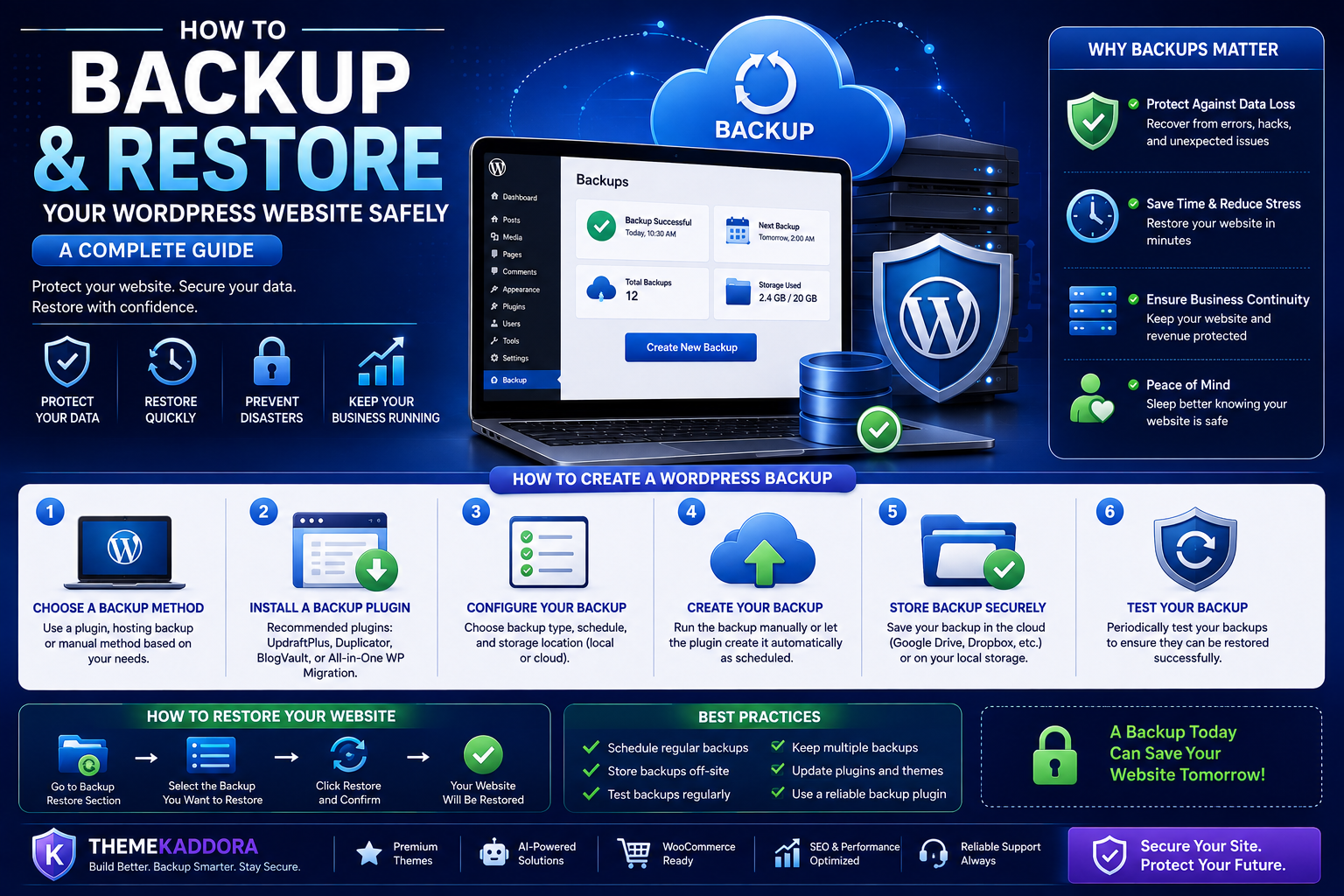
How to Backup and Restore Your WordPress Website Safely: A Complete Guide
Introduction
Imagine waking up one morning to discover that your WordPress website has stopped working. Perhaps a plugin update caused a critical error, your hosting server experienced a failure, your website was infected by malware, or important files were accidentally deleted. Without a recent backup, recovering your website can be difficult, time-consuming, and sometimes impossible.
This is why regular WordPress backups are one of the most important parts of website management. A backup acts as a safety net, allowing you to restore your website quickly whenever something goes wrong. Whether you run a personal blog, a business website, an online portfolio, or a WooCommerce store, having a reliable backup strategy protects your hard work and minimizes downtime.
Many website owners assume backups are only necessary after a problem occurs. In reality, backups should be part of your routine website maintenance. They protect your content, themes, plugins, media files, customer data, and database from unexpected issues.
In this comprehensive guide, you'll learn what WordPress backups are, why they're essential, different types of backups, how to create them, and the best practices for restoring your website safely.
What Is a WordPress Backup?
A WordPress backup is a complete copy of your website that can be used to restore it if anything goes wrong. It preserves your website's content, settings, and functionality, allowing you to recover from unexpected failures with minimal disruption.
A complete WordPress backup usually includes:
- Website files
- WordPress core files
- Themes
- Plugins
- Images and media uploads
- Database
- User accounts
- Website settings
- Custom configurations
Think of it as creating a snapshot of your website at a specific point in time. If something breaks later, you can return to that snapshot instead of rebuilding everything from scratch.
Why Every WordPress Website Needs Regular Backups
Many website owners underestimate the importance of backups until disaster strikes. Even well-maintained websites can experience unexpected issues.
Protection Against Human Error
Mistakes happen. Accidentally deleting pages, editing the wrong file, or removing important content can cause significant problems. A backup allows you to recover quickly without losing valuable work.
Failed Updates
WordPress, themes, and plugins receive regular updates to improve functionality and security. Occasionally, an update may conflict with your existing setup and cause your website to malfunction.
With a recent backup, you can restore your website while troubleshooting the issue.
Plugin and Theme Conflicts
Installing a new plugin or changing themes can sometimes create compatibility problems. Instead of manually fixing every error, restoring a backup often provides the fastest solution.
Malware and Security Breaches
Although security plugins reduce risks, no website is completely immune to attacks. If malware infects your website, restoring a clean backup is often the safest recovery option after removing the malicious code.
Server Failures
Hosting providers invest heavily in infrastructure, but hardware failures, software issues, or accidental server problems can still occur. Keeping your own backups ensures you're not entirely dependent on your hosting provider.
Website Migration
Backups also simplify website migrations when moving to a new hosting provider or launching a staging environment.
Types of WordPress Backups
Different websites require different backup strategies. Understanding the available backup types helps you choose the right approach.
Full Backup
A full backup copies every part of your WordPress website, including files, themes, plugins, uploads, and the database.
Advantages include:
- Complete website recovery
- Easy restoration
- Suitable for major updates
- Recommended before redesigns
The downside is that full backups require more storage space and take longer to complete.
Database Backup
The WordPress database contains:
- Posts
- Pages
- Comments
- User accounts
- Settings
- Product information
- Orders
- Categories
Database backups are useful when content changes frequently but website files remain unchanged.
Incremental Backup
Incremental backups only save changes made since the previous backup.
Benefits include:
- Faster backup process
- Less storage usage
- Reduced server load
- Frequent automatic backups
This method works well for websites with regular updates.
Real-Time Backup
Real-time backups automatically record important changes as they happen.
Ideal for:
- WooCommerce stores
- Membership websites
- Online learning platforms
- High-traffic business websites
Every order, customer registration, or content update is protected almost instantly.
Manual Backup
Manual backups are created whenever you decide to generate one.
They're especially useful before:
- Installing plugins
- Updating WordPress
- Editing theme files
- Changing hosting providers
- Redesigning your website
Although manual backups offer full control, relying solely on them isn't recommended for active websites.
Automatic Backup
Automatic backups occur according to a predefined schedule.
Common backup frequencies include:
- Daily
- Weekly
- Monthly
- Real-time
Automating backups reduces the risk of forgetting to create one.
How to Create a WordPress Backup
There are several ways to back up a WordPress website depending on your hosting environment and technical experience.
Using Your Hosting Provider
Many hosting providers include automatic backups as part of their hosting plans.
Typical hosting backup features include:
- Daily backups
- One-click restore
- File recovery
- Database restoration
- Backup scheduling
Even if your host provides backups, maintaining your own independent backup copies is considered a best practice.
Using WordPress Backup Plugins
Backup plugins simplify the process by automating backups and providing user-friendly restoration options.
A quality backup plugin should support:
- Scheduled backups
- Cloud storage integration
- Incremental backups
- One-click restoration
- Database backups
- File backups
- Email notifications
These tools are suitable for beginners and experienced users alike.
Manual Backup Through Hosting Control Panel
Advanced users may prefer creating manual backups through their hosting control panel.
This typically involves:
- Downloading website files
- Exporting the database
- Saving both securely
Although manual backups require more effort, they provide complete control over the process.
Backup Using FTP
Another option is downloading your website files using an FTP client.
This method allows you to copy:
- Themes
- Plugins
- Uploads
- Configuration files
- WordPress installation files
Remember that FTP backups should be combined with database backups to create a complete recovery solution.
Exporting the Database
Since much of your website's content lives inside the database, exporting it regularly is essential.
Database exports preserve:
- Posts
- Pages
- Comments
- Settings
- Customer information
- WooCommerce products
- Orders
Combining database exports with file backups ensures complete protection.
How to Restore a WordPress Website
A backup is only valuable if you know how to restore it successfully. Restoring your WordPress website should be a straightforward process, but it's important to follow the correct steps to avoid additional issues.
Before restoring any backup:
- Identify the cause of the problem.
- Keep a copy of your current website, even if it's broken.
- Restore the most recent clean backup.
- Test the restored website thoroughly before making it live.
Having a documented restoration process can significantly reduce downtime during emergencies.
Restore Using Your Hosting Provider
Many WordPress hosting providers offer built-in backup and restore features.
Typically, the process involves:
- Log in to your hosting control panel.
- Open the Backup or Restore section.
- Select the desired backup date.
- Choose whether to restore files, the database, or both.
- Confirm the restoration.
This is usually the fastest recovery method because the backup is already stored on the hosting server.
Restore Using a Backup Plugin
Most backup plugins include a one-click restore option.
The typical workflow is:
- Select the backup version.
- Start the restoration process.
- Wait for the files and database to be restored.
- Log in and verify everything is working correctly.
Always ensure the backup is complete and free from malware before restoring it.
Manual Restoration
Manual restoration gives you full control but requires more technical knowledge.
A manual restore generally involves:
- Uploading website files via FTP or your hosting File Manager.
- Importing the database using your hosting tools.
- Updating configuration files if necessary.
- Clearing website caches.
- Testing every important page.
This method is useful when automated tools are unavailable or when migrating to a new server.
Test Your Website After Restoring
Never assume a restoration is successful without testing.
Check the following:
- Homepage
- Navigation menus
- Contact forms
- Login functionality
- WooCommerce checkout
- Product pages
- Images and media
- Internal links
- Search functionality
A few minutes of testing can prevent users from encountering unexpected issues.
Best Practices for WordPress Backups
Creating backups is only part of the process. Following best practices ensures your backups remain useful when you need them most.
Schedule Automatic Backups
Manual backups are easy to forget. Automating the process ensures your website is protected consistently.
Recommended backup frequency:
- Daily for blogs with frequent updates
- Daily or real-time for WooCommerce stores
- Weekly for smaller business websites
- Before every major update
Keep Multiple Backup Versions
Never rely on a single backup.
Maintain multiple restore points so you can recover from:
- Malware infections
- Corrupted updates
- Human mistakes
- Server failures
Having several backup versions increases your recovery options.
Store Backups in Multiple Locations
Avoid storing backups only on your hosting server.
Instead, keep copies in separate secure locations such as:
- External storage devices
- Cloud storage services
- Secondary servers
- Secure offline archives
This protects your backups if the hosting server itself experiences problems.
Test Your Backups Regularly
Many website owners create backups but never verify whether they actually work.
Schedule periodic restoration tests using a staging environment to ensure:
- Files are complete.
- Databases restore correctly.
- Themes function properly.
- Plugins remain compatible.
A tested backup is far more valuable than an unverified one.
Encrypt Sensitive Backups
Backups often contain:
- Customer information
- User accounts
- Business data
- Configuration files
If backups leave your server, ensure they are stored securely and protected against unauthorized access.
Common Backup Mistakes to Avoid
Even experienced website owners make backup mistakes that can complicate recovery.
Not Backing Up Before Updates
Always create a fresh backup before:
- Updating WordPress
- Installing plugins
- Switching themes
- Editing code
Keeping Only One Backup
A single backup may already contain corrupted files or malware.
Multiple restore points provide better protection.
Ignoring Database Backups
Your database contains most of your website's valuable content.
Without it, recovering posts, pages, customer accounts, or WooCommerce orders becomes extremely difficult.
Never Testing Restores
A backup you cannot restore is effectively useless.
Regular testing ensures your recovery process works when needed.
Storing Backups on the Same Server
If the hosting server fails completely, locally stored backups may also be lost.
Always maintain off-site backup copies.
Forgetting Media Files
Images, videos, downloadable resources, and documents are valuable assets.
Ensure your backup includes the complete uploads directory.
Backup and Website Security
Backups are an important part of every WordPress security strategy.
They help recover from:
- Malware infections
- Ransomware attacks
- Hacked websites
- File corruption
- Accidental deletions
However, backups themselves should also be protected.
Best security practices include:
- Restrict backup access.
- Use strong administrator passwords.
- Enable two-factor authentication.
- Keep backup software updated.
- Monitor backup activity.
- Store encrypted backups whenever possible.
Combining strong security measures with regular backups significantly reduces the impact of unexpected incidents.
Choosing the Right Backup Solution
Every website has different requirements.
When selecting a backup solution, consider:
Ease of Use
Choose a solution that fits your technical expertise and simplifies routine backup management.
Automation
Automatic backups reduce the risk of human error.
Storage Options
Look for support for multiple storage locations rather than relying on a single destination.
Restoration Speed
Quick restoration minimizes website downtime.
Scalability
Your backup solution should continue meeting your needs as your website grows.
Why Choose ThemeKaddora?
At ThemeKaddora, we understand that website reliability is just as important as design and functionality. Our WordPress themes and plugins are developed using clean coding practices and modern development standards to provide a stable foundation for businesses, bloggers, agencies, and WooCommerce stores.
ThemeKaddora products are designed with:
- Performance-focused architecture
- SEO-friendly code
- Responsive layouts
- WooCommerce compatibility
- Secure development practices
- Regular updates
- Easy customization
- Compatibility with leading backup and security solutions
Alongside our growing collection of AI-powered plugins, analytics tools, and business automation solutions, ThemeKaddora helps you build WordPress websites that are not only visually appealing but also dependable and easy to maintain.
Conclusion
Backing up your WordPress website is one of the simplest yet most effective ways to protect your online presence. Whether you're running a personal blog or managing a large eCommerce store, unexpected issues such as server failures, malware infections, plugin conflicts, or accidental deletions can happen at any time.
A reliable backup strategy ensures that you can recover quickly with minimal disruption. By combining automated backups, secure storage, regular testing, and a clear restoration process, you'll be prepared to handle emergencies with confidence.
Remember that backups are only one part of a comprehensive website maintenance plan. Pair them with strong security practices, regular updates, quality hosting, and well-optimized themes to create a WordPress website that remains secure, stable, and ready for long-term growth.
Frequently Asked Questions
1. What is a WordPress backup?
A WordPress backup is a copy of your website's files, database, themes, plugins, and settings that can be restored if something goes wrong.
2. How often should I back up my WordPress website?
The ideal frequency depends on how often your site changes. Active websites often benefit from daily backups, while smaller sites may only need weekly backups.
3. What is included in a full WordPress backup?
A full backup typically includes website files, the database, themes, plugins, uploads, media, and configuration settings.
4. Can I restore my website after a failed update?
Yes. If you have a recent backup, you can restore your website to its previous working state.
5. Are automatic backups better than manual backups?
Automatic backups provide consistent protection, while manual backups are useful before making major changes. Using both together offers the best protection.
6. Where should I store my backups?
Store backups in multiple secure locations, including cloud storage or external devices, rather than relying solely on your hosting server.
7. Do I need database backups?
Yes. The database stores essential website content, user accounts, settings, and, for WooCommerce sites, product and order information.
8. How do I know if my backup works?
Regularly test the restoration process in a staging environment to verify that your backup is complete and functional.
9. Can backups protect me from hackers?
Backups cannot prevent attacks, but they allow you to restore a clean version of your website after the issue has been resolved.
10. Why choose ThemeKaddora?
ThemeKaddora offers performance-optimized WordPress themes and AI-powered plugins built with clean code, strong compatibility, and business-focused features that support secure, reliable, and scalable websites.
Comments (0)