
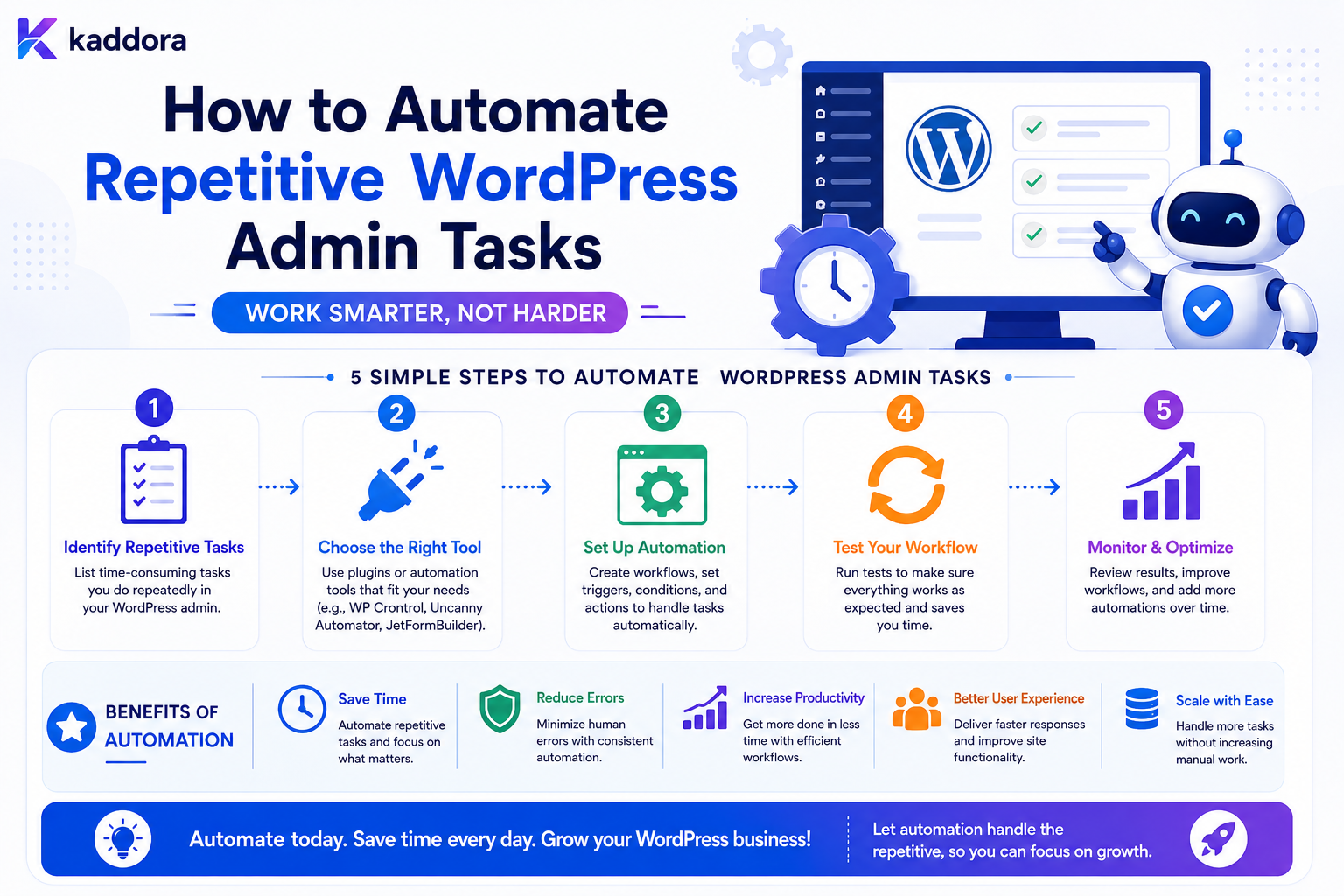
How to Automate Repetitive WordPress Admin Tasks
Introduction
WordPress administrators often spend hours performing the same actions repeatedly.
For example:
Review New Leads ↓ Assign Lead ↓ Change Status ↓ Send Notification
Or:
Find Old Posts ↓ Check Status ↓ Update Metadata ↓ Notify Editor
These tasks may take only a few minutes individually.
But repeated every day or every week, they can consume significant time.
This is where WordPress admin automation becomes valuable.
Instead of manually executing predictable operations, WordPress can respond to events, schedules, rules, and conditions.
A basic automation might be:
Event ↓ Condition ↓ Action
For example:
New Form Entry ↓ Status = New ↓ Assign Sales Team
A more advanced system can use:
Trigger ↓ Condition ↓ Queue ↓ Action ↓ Delay ↓ Follow-Up ↓ Audit Log
Automation can reduce manual work, improve consistency, and make administrative processes easier to scale.
However, automation also introduces risks.
An incorrectly configured workflow can:
Change thousands of records
Send unwanted notifications
Overwrite data
Trigger duplicate actions
Consume server resources
Affect the wrong users
Create cascading failures
The key principle is:
Automate repetitive WordPress admin tasks only after the business rule is clearly defined, then execute the operation through controlled, permission-aware, observable, and recoverable automation.
What Are Repetitive WordPress Admin Tasks?
A repetitive admin task is an operation that administrators perform frequently using the same or similar rules.
Examples include:
Updating statuses
Assigning records
Publishing scheduled content
Cleaning expired drafts
Sending reminders
Generating reports
Exporting data
Updating metadata
Reviewing pending items
Synchronizing external systems
Creating follow-up tasks
The more predictable the task, the stronger the potential automation opportunity.
Why Automate WordPress Admin Tasks?
Automation can provide several benefits.
Save Time
Instead of manually processing hundreds of records, the system can process them according to predefined rules.
Reduce Human Error
Automation can apply the same rule consistently.
Improve Response Time
A workflow can react immediately to an event.
Scale Operations
Automation allows a small team to manage larger workloads.
Improve Visibility
A workflow system can record what happened and when.
Start by Identifying Repetition
Look for tasks where administrators repeatedly say:
"Every morning I..." "Every time a lead arrives..." "Every Friday I..." "Whenever this status changes..."
These statements often reveal automation candidates.
Build an Automation Candidate List
For each repetitive task, record:
Task Frequency Time Required Trigger Rules Action Risk
For example:
Task: Assign New Leads Frequency: Daily Trigger: New Lead Rule: Region = India Action: Assign India Sales Team
Not Every Task Should Be Automated
Avoid automation when the task requires:
Complex Judgment Unclear Rules Frequent Exceptions High-Risk Human Decisions
For example, automatically deleting customer records based on an ambiguous rule can be dangerous.
A better workflow may be:
Automation ↓ Flag for Review ↓ Human Decision
Start With Low-Risk Tasks
Good first automation candidates include:
Status updates
Notifications
Routine reminders
Report generation
Draft cleanup
Assignments
Metadata normalization
These usually have predictable outcomes.
Event-Based Automation
The most responsive approach is event-driven.
For example:
New Form Entry ↓ Create Admin Task
or:
Post Published ↓ Notify Editorial Team
The event becomes the automation trigger.
Scheduled Automation
Some tasks are better handled on a schedule.
For example:
Every Night ↓ Find Expired Drafts ↓ Archive Them
Or:
Every Monday ↓ Generate Weekly Report
Hook-Based Automation in WordPress
WordPress provides hooks that allow code to react to application events.
Conceptually:
add_action( 'some_event', 'kdr_handle_event' );
When the event occurs, the callback can perform a controlled operation.
Keep Hook Callbacks Lightweight
Avoid placing a large workflow directly inside a hook callback.
Instead:
WordPress Event ↓ Create Job ↓ Queue ↓ Worker Processes Job
This keeps the original WordPress request responsive.
When Synchronous Automation Is Acceptable
Simple operations may be safe to perform immediately.
For example:
New Entry ↓ Set Status = New
This is usually much cheaper than:
New Entry ↓ AI Processing ↓ CRM API ↓ Generate PDF ↓ Send Multiple Emails
The second workflow is better suited to asynchronous processing.
Automate Status Changes
One of the easiest admin tasks to automate is status management.
For example:
New Submission ↓ Set Status: Pending Review
Another:
Review Completed ↓ Set Status: Approved
The workflow should clearly define who or what is allowed to trigger each state.
Never Trust Client-Supplied Status
A request such as:
status=approved
should not automatically change a protected workflow state.
The automation engine should determine whether the transition is allowed.
Automate Assignment
New records can be routed automatically.
For example:
Lead Created ↓ Region = North ↓ Assign Team A
Or:
Support Ticket ↓ Category = Technical ↓ Assign Technical Queue
Assignment Rules
Rules can use:
Region Product Category Priority Customer Type Team Capacity
Use deterministic rules whenever possible.
Round-Robin Assignment
A simple lead-routing system can rotate assignments:
Lead 1 → Sales A Lead 2 → Sales B Lead 3 → Sales C Lead 4 → Sales A
This may be useful when workload is roughly balanced.
Capacity-Based Assignment
A more advanced approach can consider:
Open Tasks Active Leads Team Capacity Priority
The system can route work to the most appropriate available team.
Automate Notifications
Instead of manually notifying teams:
New High-Priority Ticket ↓ Notify Support Manager
Notifications can be sent through:
Email Dashboard Webhook Internal Notification
Keep the notification system separate from the underlying business record.
Notification Rules
For example:
Priority = High AND Status = New → Notify Manager
This is more useful than notifying administrators about every minor event.
Automate Reminder Tasks
A workflow can create reminders:
Lead Created ↓ Wait 24 Hours ↓ No Follow-Up? ↓ Create Reminder
The actual delay should be implemented through a scheduler or queue, not a blocked web request.
Automate Content Reviews
Editorial teams can automate review reminders:
Article Draft ↓ Older Than 7 Days ↓ Notify Editor
Or:
Published Article ↓ Last Reviewed > Defined Period ↓ Create Content Review Task
This can improve editorial consistency.
Automate Scheduled Publishing
WordPress already supports scheduled publishing, but a broader workflow can coordinate:
Content Published ↓ Notify Team ↓ Update Internal Status ↓ Trigger Analytics Event
Automate Content Cleanup
For example:
Expired Draft ↓ Older Than Retention Period ↓ Archive
This should be implemented carefully.
Never automatically delete content unless the deletion rule is explicit and recoverability is considered.
Automate Metadata Updates
Some repetitive metadata operations can be automated.
For example:
New Product ↓ Category = SaaS ↓ Assign Default Metadata
Always ensure that automation does not overwrite intentional manual changes.
Use Automation Rules With Conditions
A rule should usually contain:
Trigger Condition Action
For example:
Trigger: New Product Condition: Category = Plugin Action: Assign Default Review Status
This makes the workflow predictable.
Use All / Any Condition Logic
Complex rules may support:
ALL: Category = Plugin Status = Draft
or:
ANY: Priority = High Customer Type = Enterprise
The engine should define these semantics clearly.
Automate Bulk Updates Carefully
Administrators often perform bulk updates:
100 Posts ↓ Change Category
Automation can repeat this safely if the selection criteria are precise.
Before executing large changes:
Preview Matches ↓ Confirm Count ↓ Execute
Preview Before Bulk Automation
For high-impact operations, show:
Matching Records: 2,431 Action: Set Status = Archived
This provides an opportunity to catch incorrect filters.
Batch Large Operations
Do not process thousands of records in one web request.
Use:
Batch 1 Batch 2 Batch 3 ...
This reduces memory pressure and timeout risk.
Queue Bulk Automation
A large operation can become:
Admin Request ↓ Create Job ↓ Queue ↓ Worker ↓ Process Batches
The administrator can monitor progress.
Bulk Automation Progress
Useful status information includes:
Queued Processing Completed Failed Cancelled
For large jobs:
Processed: 3,200 / 10,000
can provide useful visibility.
Handle Partial Failures
Suppose:
10,000 Records
and:
9,850 Success 150 Failed
The system should retain enough information to retry or review the failed records.
Do not simply mark the entire job successful.
Idempotency for Admin Automation
If a job is retried, it should not accidentally perform the same side effect twice.
For example:
Create CRM Lead
should not create duplicate leads because the worker restarted.
Use stable identifiers or idempotent operations.
Automate Data Synchronization
WordPress admin workflows often need external synchronization.
For example:
WordPress Product Updated ↓ Sync CRM
or:
Customer Updated ↓ Sync ERP
Use queues and retries for external systems.
Do Not Let External APIs Block Admin Pages
Avoid:
Admin Saves Record ↓ Wait for 5 External APIs ↓ Show Success
Prefer:
Admin Saves Record ↓ Queue Sync ↓ Show Success
and process the integrations in the background.
Track Integration Status Separately
For example:
Record: Published CRM: Synced ERP: Pending Analytics: Completed
Do not overload one generic status field.
Automate Daily Reports
A scheduled workflow can generate:
Daily Leads Pending Tickets Failed Payments Unassigned Requests
and send the summary to an authorized team.
Report Generation Should Be Background Work
Large reports can involve:
Database Queries Aggregation CSV Generation PDF Generation
Use background jobs for expensive reports.
Automate Export Jobs
A recurring export could run:
Every Monday ↓ Export Completed Leads ↓ Store Protected File ↓ Notify Authorized User
Generated files should have appropriate expiration and access controls.
Automate Cleanup
Cleanup tasks are good automation candidates:
Expired Drafts Temporary Files Old Logs Expired Tokens Stale Jobs
But deletion should always be governed by explicit retention rules.
Never Automate Destructive Actions Without Safeguards
For high-impact operations:
Delete 50,000 Records
consider:
Preview Approval Backup Execution Audit
Approval-Based Automation
A workflow can pause before a destructive or sensitive action:
Automation ↓ Approval Required ↓ Manager Approves ↓ Execute
This is useful for high-risk processes.
Automate Admin To-Do Lists
A workflow can automatically create tasks.
For example:
New Enterprise Lead ↓ Create Sales Task
or:
Content Older Than Review Period ↓ Create Editorial Task
This turns events into actionable work.
Task Assignment Automation
A task can contain:
Title Assigned User Priority Due Date Related Record
The workflow can determine these values.
Due-Date Automation
For example:
Lead Created ↓ Due Date = +1 Business Day
For business calendars, make timezone and holiday behavior explicit.
Automate Escalations
Example:
Ticket Created ↓ Wait 4 Hours ↓ Still Open? ├── Yes → Escalate └── No → Stop
This reduces the chance that important issues remain unnoticed.
Stop Conditions
Every delayed workflow should define when it should stop.
For example:
Ticket Closed → Cancel Pending Escalation
Without stop conditions, users can receive irrelevant reminders after the problem has already been resolved.
Automate Admin Approvals
Workflow automation can route:
Plugin Submission ↓ Technical Review ↓ Marketing Review ↓ Approval
Each transition should be permission-controlled.
Automate WordPress User Onboarding
For new staff or customers:
User Registered ↓ Assign Role ↓ Create Onboarding Task ↓ Send Welcome Notification ↓ Schedule Reminder
Do not assign privileged roles solely from client-provided values.
Automate Role Changes Carefully
User roles are security-sensitive.
Rules such as:
customer_type = admin
should never allow a public form to grant administrator privileges.
Use explicit server-side authorization.
Automate Content Moderation
Automation can flag content:
New Comment ↓ Risk Check ↓ Flag for Review
For high-impact moderation decisions, use human review where appropriate.
Automate WooCommerce Administration
Possible tasks include:
Order Status Updates Low-Stock Alerts Customer Notifications Abandoned Order Tasks Product Review Tasks
Business-critical financial actions should have strong safeguards.
Automate Low-Stock Alerts
For example:
Inventory < Threshold ↓ Create Procurement Task ↓ Notify Inventory Team
The threshold should come from trusted product configuration.
Automate Customer Follow-Ups
A workflow can schedule:
Purchase Complete ↓ Wait ↓ Send Approved Follow-Up
Communication requirements should be respected.
Automate Support Escalation
For example:
Ticket Priority = High AND Age > 2 Hours AND Status = Open → Escalate
This creates a predictable support process.
Automation and Webhooks
Admin actions can trigger webhooks:
Record Updated ↓ Webhook
The outbound request should use:
HTTPS Authentication Timeout Retry Idempotency
where appropriate.
Automation and Incoming Webhooks
External systems can also trigger admin workflows:
External Event ↓ Webhook ↓ Validate ↓ Automation
Never process unauthenticated arbitrary webhook data.
Automation and AI
AI can assist with repetitive administrative interpretation.
For example:
New Support Request ↓ AI Classify ↓ Category = Billing ↓ Assign Billing Team
Or:
Long Customer Message ↓ AI Summarize ↓ Save Internal Summary
AI outputs should be treated as untrusted suggestions until validated.
Do Not Let AI Directly Execute Privileged Operations
For example:
AI: "Delete this user."
should not automatically execute deletion.
Use:
AI Recommendation ↓ Deterministic Rule ↓ Authorization ↓ Optional Approval ↓ Action
AI and Data Privacy
Before sending admin or customer data to an external AI provider, determine:
What Data Is Sent? Why Is It Sent? Who Processes It? How Long Is It Retained?
Only send information required for the feature.
Automation Logs
Every important automated task should produce an execution record containing:
Execution ID Workflow Trigger Action Status Timestamp Error Code
Avoid storing complete sensitive payloads unnecessarily.
Audit Trail
For security-sensitive admin operations, record:
Who Did What When To Which Record
Automated actions should have a recognizable system actor.
System Actor
For example:
Actor: Automation #42
rather than pretending a human user performed the action.
This improves audit clarity.
Automation Permissions
A workflow engine should run actions under a defined authorization model.
Do not simply run every automation as unrestricted administrator.
Use least privilege where possible.
Automation Context
An execution may carry:
tenant_id site_id user_id workflow_id execution_id
The context should be trusted and validated by the server.
Prevent Automation Loops
Example:
Post Updated ↓ Automation Changes Post ↓ Post Updated ↓ Automation Changes Post
This can create infinite loops.
Use:
Recursion Guards Event IDs Execution Context Maximum Depth
Maximum Execution Depth
For complex automations, a workflow can track:
depth = 1
and reject or pause when a safe maximum is reached.
This prevents runaway chains.
Automation Queues
A queue might contain:
Job ID Workflow ID Action Priority Attempts Scheduled At Status
Workers can process jobs independently of the administrator's browser request.
Queue Priorities
Example:
Critical: Payment Failure High: Enterprise Lead Normal: Daily Report Low: Cleanup
This helps the system prioritize important work.
Retry Failed Admin Tasks
For transient failures:
Attempt 1 ↓ Failure ↓ Wait ↓ Attempt 2
Use bounded retries and backoff.
Do Not Retry Permanent Errors
For example:
Invalid Configuration
should trigger:
Failure + Admin Notification
rather than repeating forever.
Automate With WP-Cron vs Dedicated Workers
For simple scheduled tasks, WordPress's scheduling mechanisms may be sufficient.
For high-volume, time-sensitive automation, a dedicated queue and worker architecture can provide more predictable execution.
Choose based on actual workload.
WP-Cron Limitations
Page-triggered scheduling can be affected by:
Low Traffic Timing Variability Overlapping Jobs Long-Running Tasks
Critical scheduled operations may need a more reliable server-side scheduler.
Background Processing
A good architecture is:
Admin Event ↓ Job Queue ↓ Worker ↓ Action ↓ Log
This gives better control over long-running operations.
Bulk Automation Safety
Before processing thousands of records:
Preview ↓ Count ↓ Confirm ↓ Queue ↓ Batch ↓ Audit
This is much safer than executing a large mutation immediately.
Dry Run
A dry-run mode can show:
Would Affect: 2,431 Records Would Change: status → archived
without actually modifying data.
This is especially useful for destructive or broad operations.
Automation Rollback
Not all actions can be rolled back.
For database changes, a transaction may help.
For external systems:
CRM ERP Email
a traditional transaction may not exist.
Design compensation or reconciliation processes where needed.
Common WordPress Admin Automation Mistakes
Automating Without a Clear Rule
The system performs actions that administrators do not fully understand.
Running Heavy Jobs in Web Requests
This causes timeouts and poor admin performance.
No Preview
Bulk actions affect the wrong records.
No Idempotency
Retries create duplicates.
No Audit Trail
Administrators cannot determine what changed.
No Permissions
Users can execute sensitive automation.
No Tenant Isolation
One customer can affect another.
Infinite Event Loops
Automation repeatedly triggers itself.
No Failure Handling
One temporary API failure stops the entire process.
AI With Unrestricted Authority
Uncertain AI output directly triggers privileged actions.
WordPress Admin Automation Checklist
- [ ] Identify repetitive tasks - [ ] Define trigger - [ ] Define conditions - [ ] Define actions - [ ] Classify risk - [ ] Start with low-risk automation - [ ] Separate sync and async work - [ ] Use queues for heavy processing - [ ] Add idempotency - [ ] Add retries - [ ] Add timeouts - [ ] Add stop conditions - [ ] Prevent loops - [ ] Add execution IDs - [ ] Add audit logs - [ ] Enforce permissions - [ ] Enforce tenant scope - [ ] Preview bulk changes - [ ] Add dry-run support - [ ] Monitor failures - [ ] Test recovery
Best Practices for Automating Repetitive WordPress Admin Tasks
A professional admin automation system should:
Identify repeatable tasks with clear, deterministic rules.
Start with low-risk operations before automating high-impact changes.
Separate triggers, conditions, and actions.
Keep simple actions synchronous and move expensive operations to queues.
Use batching for large datasets.
Provide preview and dry-run capabilities for broad changes.
Make side effects idempotent so retries do not create duplicates.
Use bounded retries and backoff for transient failures.
Define explicit stop conditions for delayed workflows.
Prevent recursive events and runaway automation.
Protect automation management with least-privilege capabilities.
Keep automated actions tenant-scoped in multi-tenant applications.
Record execution and audit history without logging unnecessary sensitive data.
Separate current business state from integration status.
Monitor queue depth, failures, execution time, and retry counts.
Treat AI output as untrusted input and keep privileged actions under deterministic control.
Why choose ThemeKaddora?
ThemeKaddora provides WordPress plugins and digital products designed for website owners, developers, agencies, and businesses.
Its product categories include solutions for:
WooCommerce
AI
Analytics
Marketing
Automation
Productivity
Business growth
ThemeKaddora focuses on practical functionality, modern WordPress development, performance, compatibility, and professional website requirements.
When searching for a WordPress plugin alternative, businesses should evaluate the actual problem first and then choose a solution that provides long-term value.
Conclusion
Automating repetitive WordPress admin tasks can transform daily operations.
A manual process such as:
Find Lead ↓ Assign Lead ↓ Notify Sales ↓ Create Task
can become:
Lead Created ↓ Rule Evaluation ↓ Queue ↓ Assignment ↓ Notification ↓ Task Creation ↓ Audit
The first principle is automate clear rules.
If administrators cannot clearly explain why a task should happen, the automation is not ready.
The second principle is start with low-risk tasks.
Status updates, notifications, reports, assignments, and cleanup are often good initial candidates.
The third principle is use queues for heavy work.
CRM calls, AI processing, document generation, and large database operations should not unnecessarily block browser requests.
The fourth principle is preview large changes.
Before changing thousands of records, show administrators what will be affected.
The fifth principle is make actions idempotent.
Retries should not create duplicate leads, tasks, emails, or external records.
The sixth principle is protect automation with permissions.
Powerful automation should never be available to every WordPress user simply because they can access the dashboard.
The seventh principle is prevent automation loops.
Events that trigger the same events need recursion safeguards.
The eighth principle is make failures recoverable.
Temporary API failures should not permanently destroy the workflow.
The ninth principle is keep auditability.
Administrators should be able to answer:
What happened? When? Why? Which workflow? Which record?
The tenth principle is use AI as an assistant, not an unrestricted administrator.
AI can classify, summarize, extract, and recommend.
Deterministic rules, authorization, and approvals should control sensitive actions.
For ThemeKaddora, admin automation can support:
Lead Management Content Operations Support WooCommerce CRM ERP Reporting Business Automation
The most important principle is:
Automate repetitive WordPress administration through explicit, permission-aware workflows that are queued when necessary, observable during execution, safe to retry, and carefully controlled when they can change important data.
A professional WordPress admin automation system should be:
Rule-Driven
→ Permission-Aware
→ Queue-Based
→ Idempotent
→ Recoverable
→ Auditable
→ Tenant-Aware
→ Observable
→ Scalable
→ Maintainable
When these principles are applied, repetitive WordPress administration becomes a predictable automated process instead of a growing list of manual tasks.
Frequently Asked Questions
What are repetitive WordPress admin tasks?
They are recurring administrative operations performed using predictable steps or rules, such as assigning leads, changing statuses, generating reports, sending notifications, and cleaning expired records.
Which WordPress admin tasks should I automate first?
Start with low-risk, high-frequency tasks such as notifications, reminders, status updates, assignments, reports, and routine cleanup.
Should every automation run immediately?
No. Simple operations can run immediately, while heavy or slow operations should normally run through background queues.
How can I safely automate bulk WordPress updates?
Use precise filters, preview matching records, provide a dry-run mode, process data in batches, and keep an audit trail.
How do I prevent an automation from running twice?
Use idempotency keys, stable event IDs, execution locks, or other mechanisms appropriate to the action.
How can I prevent WordPress automation loops?
Use recursion guards, execution context, maximum workflow depth, event identifiers, and clear trigger conditions.
Can WordPress automation use WP-Cron?
Yes, WP-Cron can handle straightforward scheduled tasks. High-volume or time-sensitive workloads may benefit from a more reliable external scheduler or queue-worker architecture.
Can admin automation connect to CRM and ERP systems?
Yes. Use background jobs, secure credentials, timeouts, retries, rate limits, and idempotency for external integrations.
Should AI be allowed to perform admin actions automatically?
For low-risk actions it may assist with classification or recommendations. Privileged actions should remain behind deterministic rules and appropriate authorization or approval.
How should admin automation work in a multi-tenant WordPress SaaS?
Every workflow, record, job, API operation, and notification should be scoped to the correct tenant.
Why choose Themekaddora?
Themekaddora provides lightweight, responsive, SEO-friendly WordPress themes with fast performance, WooCommerce compatibility, flexible customization, accessibility-conscious design, modern templates, regular updates, and professional support—providing a strong foundation for businesses building digital products and product-focused websites.
Comments (0)