
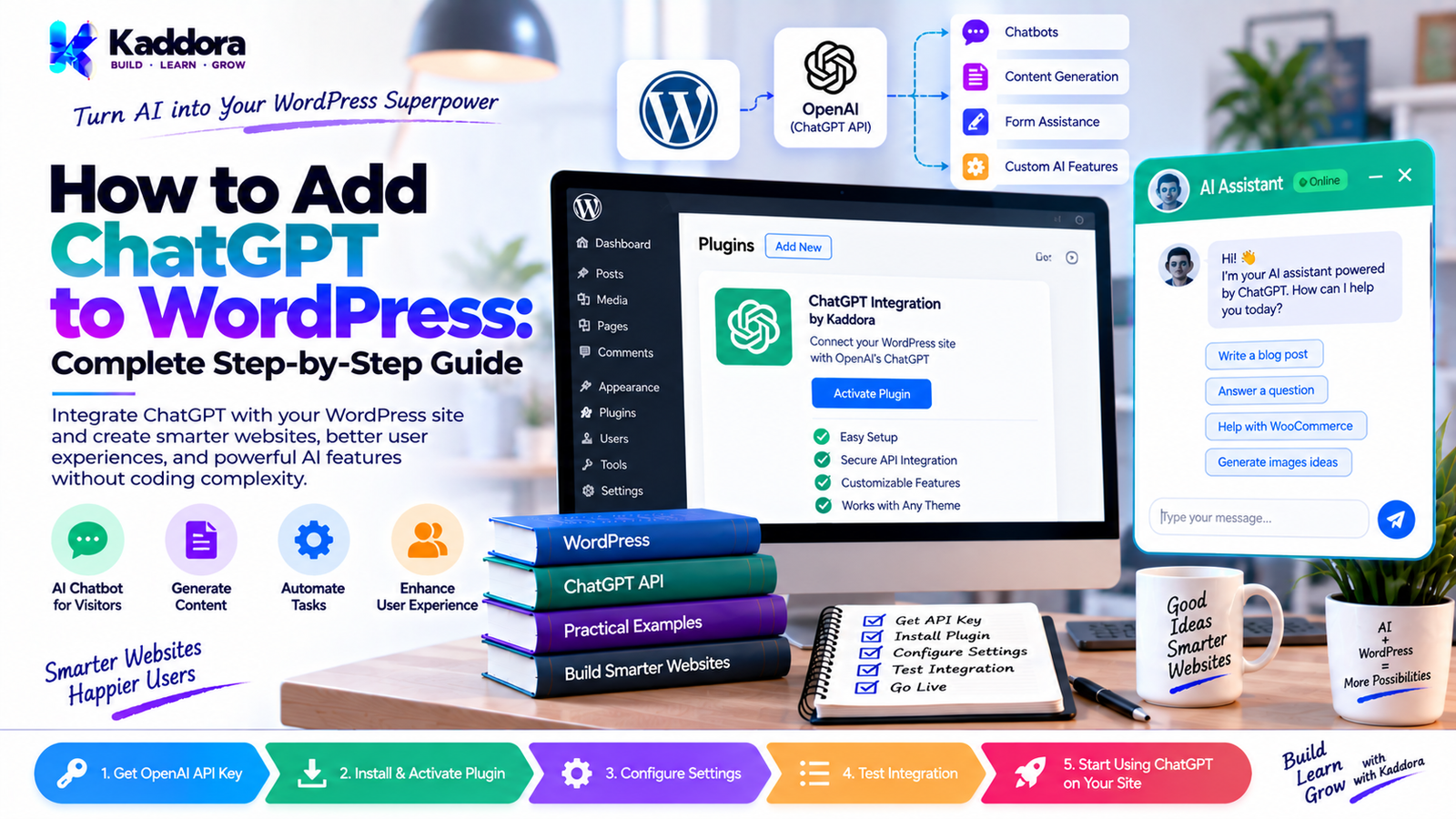
How to Add ChatGPT to WordPress: Complete Step-by-Step Guide
Introduction
Artificial intelligence is becoming an important part of modern WordPress websites. Businesses, publishers, WooCommerce stores, agencies, and developers can use AI to automate content creation, answer visitor questions, generate product descriptions, summarize content, improve customer support, and build intelligent website features.
One of the most popular Artificial intelligence platforms developers use for these applications is ChatGPT.
But adding ChatGPT to a WordPress website is not simply a matter of placing a chatbot on a page. Depending on your requirements, you may need to connect WordPress to an AI API, securely store API credentials, send user requests to the AI service, process responses, control usage, and integrate the generated output into your WordPress workflow.
In this guide, you'll learn how to add ChatGPT to WordPress using different approaches, from ready-made plugins to custom WordPress development.
What Does Adding ChatGPT to WordPress Mean?
Adding ChatGPT to WordPress means connecting your WordPress website with an AI service so that your website can use AI-powered functionality.
For example, you could build:
AI chatbots
AI content generators
AI product description generators
AI writing assistants
AI FAQ systems
AI customer support
AI search assistants
AI-powered internal search
AI email generators
AI WooCommerce assistants
AI form assistants
AI document summarization
AI recommendation systems
The implementation depends on what you want the AI to accomplish.
A simple website may only need a chatbot plugin, while a complex SaaS or WooCommerce website may require a custom API integration.
Why Add ChatGPT to WordPress?
There are several reasons businesses and developers integrate AI into WordPress.
1. Automate Content Creation
AI can help generate:
Blog outlines
Product descriptions
Meta descriptions
FAQs
Social media content
Email drafts
Content summaries
Instead of manually creating every piece of content, editors can use AI as an assistant.
2. Improve Customer Support
A ChatGPT-powered assistant can answer common questions about:
Products
Services
Pricing
Policies
Documentation
Website navigation
3. Create Interactive Websites
AI can make a WordPress website more interactive.
Visitors can ask questions using natural language rather than navigating through multiple pages.
4. Improve WooCommerce
AI can assist shoppers with:
Product discovery
Product comparisons
Product recommendations
Product questions
Product summaries
5. Build Internal Business Tools
AI can also be integrated into WordPress admin areas.
For example:
WordPress Admin ↓ AI Assistant ↓ Generate Content ↓ Review ↓ Publish
Different Ways to Add ChatGPT to WordPress
There are several approaches.
Method 1: Use a WordPress AI Plugin
The easiest approach is installing a plugin that already provides AI functionality.
Depending on the plugin, you may get features such as:
Chatbots
AI content generation
AI image generation
Writing assistants
WooCommerce AI
Custom prompts
AI forms
This approach is suitable when you want functionality quickly without developing the integration yourself.
Advantages
Fast setup
No custom API development
Easier configuration
Usually includes an admin interface
Disadvantages
Limited customization
Plugin dependency
Possible performance overhead
Subscription or usage costs
Less control over architecture
Method 2: Use the ChatGPT API From a Custom Plugin
Developers who need complete control can build a custom WordPress plugin.
The basic architecture looks like this:
WordPress ↓ Custom Plugin ↓ WordPress REST/AJAX Layer ↓ Server-Side API Client ↓ AI API ↓ Response ↓ WordPress ↓ Frontend
This architecture allows you to control:
Prompts
Authentication
User permissions
API requests
Response processing
Logging
Rate limiting
Caching
Conversation history
AI features
For professional WordPress products, this is often more flexible than embedding a third-party chatbot.
Method 3: Embed an External Chatbot
Another option is using an external AI chatbot platform and embedding it into WordPress.
Usually this involves adding:
JavaScript
iframe
shortcode
widget code
This can be useful if the chatbot infrastructure is managed outside WordPress.
However, you have less control over the underlying system.
Method 4: Build a WordPress AI Assistant
Instead of simply adding a chatbot, you can create an AI assistant that understands your website.
For example:
Visitor ↓ Question ↓ WordPress AI Assistant ↓ Website Knowledge ↓ AI Model ↓ Answer
The knowledge layer could include:
Posts
Pages
Products
Documentation
FAQs
Custom post types
This approach is more powerful than a generic chatbot.
Step 1: Decide What ChatGPT Should Do
Before writing code, define the exact AI functionality.
For example:
Simple chatbot
Visitor → Question → AI → Answer
Content assistant
Editor → Topic → AI → Draft
WooCommerce assistant
Customer → Product Question → AI → Recommendation
Documentation assistant
Visitor → Question ↓ Documentation ↓ Relevant Information ↓ AI Answer
Defining the use case first prevents unnecessary complexity.
Step 2: Create an AI API Account
If you're building a custom integration, you'll need access to an appropriate AI API.
Your WordPress application should communicate with the API from the server side.
The API key should never be exposed in frontend JavaScript.
Incorrect approach
const apiKey = "YOUR_SECRET_API_KEY";
This exposes the credential to visitors.
Better approach
Browser ↓ WordPress ↓ Server ↓ AI API
The browser should never receive the secret API credential.
Step 3: Create a WordPress Plugin
For a custom implementation, create a plugin such as:
wp-content/ └── plugins/ └── kaddora-chatgpt/ ├── kaddora-chatgpt.php ├── includes/ │ ├── class-api.php │ ├── class-rest.php │ └── class-admin.php ├── assets/ │ ├── css/ │ └── js/ └── uninstall.php
A simple plugin bootstrap could look like:
<?php /** * Plugin Name: Kaddora ChatGPT Integration * Description: Adds AI-powered functionality to WordPress. * Version: 1.0.0 */ if ( ! defined( 'ABSPATH' ) ) { exit; } define( 'KADDORA_CHATGPT_VERSION', '1.0.0' ); define( 'KADDORA_CHATGPT_PATH', plugin_dir_path( __FILE__ ) ); require_once KADDORA_CHATGPT_PATH . 'includes/class-api.php'; require_once KADDORA_CHATGPT_PATH . 'includes/class-rest.php'; require_once KADDORA_CHATGPT_PATH . 'includes/class-admin.php';
For a production plugin, use stronger initialization, capability checks, translations, validation, error handling, and WordPress coding standards.
Step 4: Store API Credentials Securely
One of the most important parts of an AI integration is credential security.
Never place the API key inside:
JavaScript
HTML
Shortcodes
Public REST responses
Page source
CSS
Client-side configuration
Instead, keep it on the server.
For example, an administrator could configure the credential through a protected WordPress settings page.
The settings page should include:
Capability checks
Nonces
Sanitization
Masked credentials
Validation
Clear error messages
Step 5: Send Requests From WordPress
WordPress provides an HTTP API that can be used for server-side API communication.
A simplified example is:
$response = wp_remote_post( 'https://api.example.com/v1/responses', array( 'timeout' => 30, 'headers' => array( 'Content-Type' => 'application/json', 'Authorization' => 'Bearer ' . $api_key, ), 'body' => wp_json_encode( array( 'model' => $model, 'input' => $prompt, ) ), ) );
The exact request structure depends on the API endpoint and model you are using.
Always follow the current API documentation for the provider you're integrating.
Step 6: Handle API Errors
Never assume every API request succeeds.
Your integration should handle:
Timeout
Authentication failure
Invalid request
Rate limiting
Server errors
Network errors
Invalid response
Usage limits
For example:
if ( is_wp_error( $response ) ) { return new WP_Error( 'kaddora_chatgpt_request_failed', 'Unable to contact the AI service.' ); }
Do not expose internal API errors directly to visitors.
Instead of:
API authentication error: secret credential rejected
show:
Sorry, the AI assistant is temporarily unavailable. Please try again later.
Log technical information securely for administrators.
Step 7: Create a WordPress REST API Endpoint
A REST endpoint can allow the frontend to communicate with your plugin.
For example:
/wp-json/kaddora-chatgpt/v1/chat
Registering a REST route can look like:
register_rest_route( 'kaddora-chatgpt/v1', '/chat', array( 'methods' => WP_REST_Server::CREATABLE, 'callback' => array( $this, 'handle_chat' ), 'permission_callback' => '__return_true', ) );
However, public AI endpoints require additional protection.
Do not treat __return_true as sufficient security for a production AI endpoint.
You should consider:
Request validation
Rate limiting
Abuse prevention
Input length limits
Authentication where appropriate
Origin controls where appropriate
Logging
CAPTCHA or other anti-abuse mechanisms
Step 8: Validate User Input
Never send unlimited user input directly to the AI service.
For example:
$message = isset( $request['message'] ) ? sanitize_textarea_field( $request['message'] ) : '';
Then validate the result:
if ( '' === $message ) { return new WP_Error( 'empty_message', 'Please enter a message.' ); }
You should also enforce reasonable length limits.
For example:
if ( strlen( $message ) > 4000 ) { return new WP_Error( 'message_too_long', 'Your message is too long.' ); }
The exact limit should depend on your application.
Step 9: Design a Good AI Prompt
The quality of the response depends heavily on how your application structures instructions and context.
Instead of sending only:
Tell me about our products.
provide useful instructions.
For example:
You are the website assistant for a WordPress business. Answer questions using the supplied website information. Rules: - Be concise. - Do not invent product specifications. - If information is unavailable, say that you do not know. - Do not claim that an action was completed unless the application confirms it.
This can significantly improve consistency.
Step 10: Connect ChatGPT With WordPress Content
A basic AI integration does not automatically know everything on your website.
You can provide relevant WordPress content as context.
For example:
WordPress Content ↓ Retrieve Relevant Content ↓ Build Context ↓ AI Request ↓ Answer
Your application could retrieve:
Posts
Pages
Products
FAQs
Documentation
Custom post types
Using WordPress Search as an AI Context Layer
A simple implementation could first search WordPress content.
For example:
$query = new WP_Query( array( 's', => $message, 'post_type' => array( 'post', 'page' ), 'posts_per_page' => 5, ) );
The relevant content can then be converted into context for the AI request.
A production implementation should use a more deliberate retrieval strategy rather than blindly sending large amounts of content.
What Is RAG?
RAG stands for Retrieval-Augmented Generation.
It is a common architecture for building AI assistants that answer questions using your own data.
The process looks like this:
User Question ↓ Search Website Knowledge ↓ Retrieve Relevant Content ↓ Create Context ↓ Send Context + Question to AI ↓ Generate Answer
For example, a customer asks:
Which hosting plan includes daily backups?
Your system can first retrieve the relevant hosting documentation and then ask the AI to answer using that information.
This is generally more reliable than asking the model to guess.
Adding ChatGPT to WooCommerce
WooCommerce is an excellent use case for AI integration.
You could build an AI shopping assistant that helps customers discover products.
For example:
Customer: I need a lightweight laptop for programming. ↓ AI Assistant ↓ WooCommerce Products ↓ Relevant Products ↓ AI Recommendation
The system could use:
Product title
Description
Categories
Attributes
Price
Stock status
Custom fields
The application should ensure that product information presented to customers is retrieved from current WooCommerce data rather than invented by the AI.
AI Product Description Generator
Another useful feature is generating product descriptions.
A WooCommerce workflow could be:
Product Information ↓ AI ↓ Short Description ↓ Long Description ↓ SEO Suggestions ↓ Editor Review ↓ Publish
The AI should assist the editor rather than automatically publishing unreviewed content.
Adding ChatGPT to WordPress Admin
AI can also be integrated into the WordPress dashboard.
For example:
WordPress Admin ↓ AI Content Assistant ↓ Generate Rewrite Summarize Expand Improve
Useful admin features include:
Generate post outlines
Rewrite paragraphs
Generate excerpts
Create FAQs
Summarize posts
Generate product descriptions
Suggest titles
Create email drafts
Add ChatGPT to the WordPress Editor
You can integrate AI functionality into the WordPress editor using WordPress's modern editor architecture.
For example, an editor tool could provide buttons such as:
[ Generate ] [ Rewrite ] [ Summarize ] [ Expand ] [ Improve ]
The selected content can be sent to your server-side integration and returned to the editor.
The important principle is to keep API credentials server-side.
Build a ChatGPT Chatbot UI
A basic frontend could contain:
---------------------------------- | AI Assistant | ---------------------------------- | How can I help you? | | | | User: What services do you | | offer? | | | | AI: We offer... | | | ---------------------------------- | Type your question... [Send] | ----------------------------------
The interface should support:
Loading states
Error states
Keyboard accessibility
Mobile responsiveness
Clear conversation history
Retry functionality
Character limits
Add Loading Indicators
AI responses may take time.
Never leave users wondering whether the website is working.
Use a loading indicator:
AI is thinking...
or:
Generating response...
If the application supports streaming responses, the UI can display output progressively.
Add Rate Limiting
Public AI endpoints can become expensive if abused.
Imagine an attacker sends:
1000 requests
within a short period.
Your API usage could increase rapidly.
Implement controls such as:
Per-IP limits
Per-user limits
Request cooldowns
Daily quotas
Maximum input size
Maximum response size
For example:
Guest: 10 requests/hour Registered User: 50 requests/hour Premium User: Higher quota
The exact limits should match your business model.
Protect Against Prompt Injection
AI applications can receive malicious instructions from users or external content.
For example, a user may attempt to manipulate the assistant into revealing:
System instructions
Private data
Internal configuration
Hidden prompts
Credentials
Never treat AI output as inherently trustworthy.
Your application should enforce permissions and security independently of the AI model.
For example:
AI says: "Delete this user's account." WordPress: Permission denied.
The AI should not be the authority that determines whether sensitive operations are allowed.
Never Allow AI to Directly Perform Sensitive Actions Without Controls
Be especially careful with:
Account deletion
Refunds
Payments
Password changes
User creation
Order modifications
Database operations
File deletion
Use explicit application-level authorization.
A safer architecture is:
AI ↓ Proposed Action ↓ Application Validation ↓ Permission Check ↓ User Confirmation ↓ Action
Store Conversation History Carefully
If your chatbot supports conversations, you may want to store previous messages.
Possible storage options include:
WordPress options
User meta
Custom database tables
External databases
For larger applications, custom tables may provide better control.
A conceptual table might contain:
conversation_id user_id role message created_at
However, do not store sensitive conversation data unnecessarily.
Privacy Considerations
Before sending WordPress content or user messages to an external AI service, understand exactly what data is being transmitted.
Avoid sending unnecessary:
Personal information
Passwords
Payment information
Private customer records
Authentication tokens
Internal credentials
Your privacy policy should accurately explain relevant data processing.
If your plugin is distributed publicly, provide transparent configuration and documentation around external API communication.
Cache AI Responses Where Appropriate
Not every AI request needs to generate a new response.
For repeated requests, caching can reduce:
API usage
Server load
Response latency
For example:
Question ↓ Check Cache ↓ Cached? ┌───┴───┐ Yes No ↓ ↓ Answer AI API ↓ Cache ↓ Answer
Caching should only be used where the response remains appropriate for the user and context.
Handle API Timeouts
AI requests can take longer than normal WordPress requests.
Always configure reasonable timeouts.
For example:
$response = wp_remote_post( $endpoint, array( 'timeout' => 30, 'body' => wp_json_encode( $payload ), ) );
Do not make visitors wait indefinitely.
For long-running tasks, asynchronous processing may be more appropriate.
Add Logging
Logging can help diagnose:
API failures
Invalid requests
Timeout problems
Unexpected responses
Rate-limit events
Do not log secrets.
Never write an API key or sensitive user information into debug logs.
Measure AI Performance
After launching your AI feature, monitor its real-world performance.
Useful metrics include:
Number of conversations
Requests per user
Failed requests
Average response time
Most common questions
Unanswered questions
API costs
Conversion rate
User feedback
For an AI support chatbot, unanswered questions can reveal gaps in your documentation.
Improve WordPress SEO With AI Carefully
AI can help with SEO workflows such as:
Title suggestions
Meta descriptions
Content outlines
FAQ generation
Internal-link suggestions
Content summaries
However, AI should not replace editorial review.
A useful workflow is:
Keyword Research ↓ Content Strategy ↓ AI Assistance ↓ Human Review ↓ Optimization ↓ Publish
The goal should be useful content rather than producing large quantities of automatically generated pages.
ChatGPT + WordPress Forms
AI can also work with WordPress forms.
For example:
Visitor submits form ↓ Form validation ↓ AI processing ↓ Generate response ↓ Email / Dashboard / CRM
Potential applications include:
Lead qualification
Customer message summaries
Support classification
Automated replies
Form categorization
Sensitive form data should be handled carefully.
ChatGPT + Email Automation
A WordPress application could use AI to help create email content.
For example:
Customer Request ↓ AI Summary ↓ Email Draft ↓ Human Review ↓ Send
For business-critical communication, keeping a human approval step can prevent inappropriate or inaccurate messages from being sent automatically.
ChatGPT + WordPress Search
Traditional WordPress search generally works around matching terms and indexed content.
AI can provide a natural-language layer.
For example:
Traditional search:
"refund policy"
AI search:
Can I get my money back if I cancel after three days?
The AI search system can retrieve relevant policy content and formulate an answer.
This can make large documentation websites easier to navigate.
Recommended Architecture for a Professional WordPress ChatGPT Integration
A scalable implementation can look like this:
WordPress | +------------+------------+ | | | Admin Frontend WooCommerce | | | +------------+------------+ | Plugin API Layer | +----------+----------+ | | | Auth Validation Limits | | | +----------+----------+ | AI Service | Response Handler | +------------+------------+ | | | Cache Logging Storage
This architecture keeps the AI integration organized without coupling every WordPress component directly to the external AI provider.
Recommended WordPress Plugin Structure
A practical plugin could use:
kaddora-chatgpt/ │ ├── kaddora-chatgpt.php │ ├── includes/ │ ├── class-api-client.php │ ├── class-settings.php │ ├── class-rest-controller.php │ ├── class-rate-limiter.php │ ├── class-context-builder.php │ └── class-response-handler.php │ ├── admin/ │ ├── class-admin.php │ └── views/ │ ├── public/ │ ├── class-chatbot.php │ └── views/ │ ├── assets/ │ ├── css/ │ └── js/ │ ├── languages/ │ ├── uninstall.php └── readme.txt
The exact structure should match the plugin's complexity. Avoid creating unnecessary abstraction simply for the sake of architecture.
Common Mistakes When Adding ChatGPT to WordPress
1. Exposing the API Key
Never expose secret credentials in frontend code.
2. Sending Every Database Record to AI
Only retrieve the information necessary for the task.
3. No Rate Limiting
Public AI endpoints can be abused.
4. Trusting AI Output
AI responses should be treated as generated content, not authoritative application instructions.
5. No Error Handling
API failures are normal and should be handled gracefully.
6. Ignoring Privacy
Understand what information is being sent to the external AI provider.
7. Creating an Unoptimized Chatbot
Large context windows and unnecessary requests can increase latency and cost.
8. Automatically Publishing AI Content
Use editorial review when content quality and accuracy matter.
9. Hardcoding Credentials
Use secure server-side configuration.
10. Building Without a Defined Use Case
First determine what problem the AI integration is solving.
Plugin vs Custom ChatGPT Integration
Feature
AI Plugin
Custom Integration
Setup
Faster
More development
Customization
Limited to plugin
Extensive
Maintenance
Plugin dependent
Developer controlled
UI control
Usually limited
Full control
WordPress integration
Depends on plugin
Full control
WooCommerce integration
Depends on plugin
Custom
RAG
Plugin dependent
Fully customizable
API handling
Usually built in
Developer controlled
Scalability
Depends on architecture
Can be designed specifically
Cost control
Varies
Full application control
Choose the approach based on your actual requirements rather than adding custom code unnecessarily.
Security Checklist
Before launching a ChatGPT integration, check the following:
API credentials are server-side.
API keys are never exposed in JavaScript.
User input is validated.
Output is escaped appropriately.
REST endpoints have appropriate permissions.
Nonces are used where applicable.
Capability checks protect administrative actions.
Rate limiting is implemented.
Input length is limited.
API timeouts are configured.
API errors are handled.
Sensitive information is not unnecessarily transmitted.
Logs do not contain credentials.
AI output is not blindly executed.
Sensitive actions require application-level authorization.
Privacy requirements are documented.
Performance Checklist
For better WordPress performance:
Use asynchronous requests where appropriate.
Avoid loading chatbot assets on every page unnecessarily.
Load JavaScript and CSS only where required.
Cache reusable responses.
Limit context size.
Avoid unnecessary API requests.
Configure reasonable HTTP timeouts.
Use efficient content retrieval.
Consider background processing for long-running tasks.
Monitor API usage and server performance.
Step-by-Step Implementation Plan
If you're building a custom ChatGPT integration, use this development process.
Phase 1: Define the Feature
Decide whether you need:
Chatbot
Content assistant
WooCommerce assistant
AI search
Documentation assistant
Form automation
Phase 2: Design the Architecture
Define:
Frontend ↓ WordPress Plugin ↓ API Layer ↓ AI Service
Phase 3: Secure Credentials
Create an administrator settings interface for API configuration.
Phase 4: Build the API Client
Use WordPress's HTTP API and implement:
Authentication
Requests
Timeouts
Error handling
Phase 5: Build the WordPress Endpoint
Create a REST or AJAX endpoint with proper validation and permissions.
Phase 6: Build the Frontend
Create:
Input
Send button
Loading state
Response area
Error state
Phase 7: Add Protection
Implement:
Rate limits
Input limits
Abuse prevention
Authorization
Phase 8: Add Context
Connect the AI system with relevant WordPress content.
Phase 9: Test
Test:
Invalid input
API failures
Long requests
Concurrent requests
Mobile UI
Accessibility
Unauthorized requests
Phase 10: Monitor
Track:
Usage
Costs
Errors
Response times
User questions
When Should You Use a WordPress Plugin?
Use an existing plugin when:
You need a simple chatbot.
You don't need deep customization.
You want a quick implementation.
The plugin provides the features you require.
You don't need custom business logic.
When Should You Build a Custom Plugin?
A custom plugin makes more sense when:
AI is part of your core product.
You need custom WooCommerce integration.
You need RAG.
You need custom permissions.
You need custom analytics.
You need a custom AI workflow.
You need complete control over API requests.
You are building a commercial WordPress product.
For developers building AI-powered WordPress products, separating the AI provider from the rest of the application can also make future provider or model changes easier.
Final WordPress ChatGPT Integration Checklist
Before going live, verify:
Planning
AI use case is clearly defined.
User workflow is documented.
AI capabilities are clearly scoped.
Development
Server-side API integration works.
API credentials are protected.
REST/AJAX requests are validated.
Error handling is implemented.
Rate limiting is implemented.
Context retrieval works correctly.
Security
Nonces are used where applicable.
Capability checks are implemented.
Sensitive actions are protected.
API credentials aren't exposed.
Logs don't contain secrets.
UX
Loading states exist.
Error messages are clear.
Mobile layout works.
Keyboard accessibility is considered.
Chat history behaves correctly.
Performance
Assets are loaded efficiently.
Requests are minimized.
Caching is considered.
Timeouts are configured.
API usage is monitored.
Why Choose Kaddora?
Building AI-powered WordPress functionality requires more than simply connecting an API.
A production-ready solution needs to consider:
WordPress architecture
API security
Plugin compatibility
Performance
User experience
WooCommerce integration
Data privacy
AI prompt design
Content retrieval
Error handling
Scalability
Kaddora focuses on practical WordPress development, plugins, AI integrations, WooCommerce solutions, and modern website technologies.
Whether you're building a simple AI chatbot, an AI content assistant, an intelligent WooCommerce system, or a complete AI-powered WordPress plugin, the implementation should be designed around the actual business requirement rather than adding AI for its own sake.
Conclusion
Adding ChatGPT to WordPress can transform a traditional website into a more interactive and intelligent application.
You can start with a ready-made WordPress AI plugin or build a custom integration using a server-side API architecture.
For simple requirements, a plugin can provide a fast solution. For advanced applications, a custom WordPress plugin gives you much greater control over authentication, prompts, content retrieval, WooCommerce data, rate limiting, analytics, and user workflows.
The most important principles are simple:
Keep API credentials secure. Validate user input. Protect your endpoints. Control AI usage. Don't blindly trust AI output. Retrieve reliable website data when necessary.
When these principles are combined with good WordPress engineering practices, ChatGPT can become a useful part of your website rather than simply another widget.
Frequently Asked Questions
Can I add ChatGPT to WordPress?
Yes. You can add ChatGPT functionality to WordPress using an AI plugin, an embedded chatbot, or a custom API integration.
What is the easiest way to add ChatGPT to WordPress?
Using an established WordPress AI plugin is generally the simplest approach because much of the integration is already implemented.
Can I add a ChatGPT chatbot to WordPress?
Yes. A chatbot can be implemented using a WordPress plugin or custom development with a server-side AI API integration.
Can I connect ChatGPT to WooCommerce?
Yes. A custom integration can use WooCommerce product information to create AI-powered product assistants, recommendations, search experiences, and content tools.
Can ChatGPT generate WordPress content?
Yes. AI can assist with outlines, drafts, summaries, product descriptions, FAQs, titles, and other content. Human review remains important for accuracy and quality.
Is it safe to put an AI API key in WordPress JavaScript?
No. Secret API credentials should not be exposed in frontend JavaScript. API requests should normally be handled server-side.
Can ChatGPT understand my WordPress website?
Not automatically. Your application needs to retrieve relevant WordPress content and provide it as context, or use a suitable retrieval architecture.
Can I build my own ChatGPT WordPress plugin?
Yes. A custom plugin can provide complete control over the AI API, WordPress integration, UI, permissions, content retrieval, rate limits, and business logic.
Why choose Themekaddora?
Themekaddora provides lightweight, responsive, SEO-friendly WordPress themes with fast performance, WooCommerce compatibility, flexible customization, accessibility-conscious design, modern templates, regular updates, and professional support—providing a strong foundation for businesses building digital products and product-focused websites.
Comments (0)