
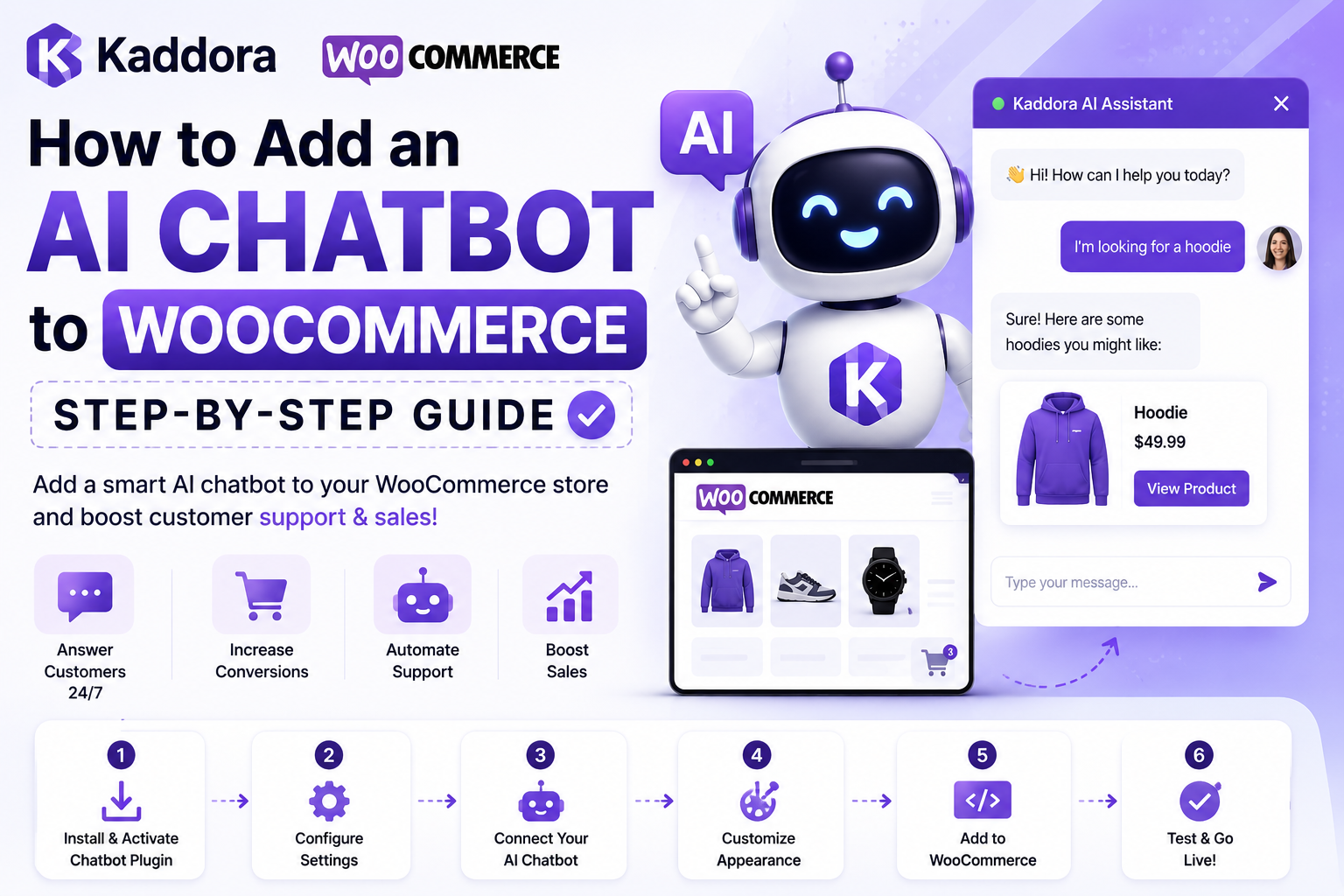
How to Add an AI Chatbot to WooCommerce
As your WooCommerce store grows, responding to every customer inquiry manually becomes increasingly difficult. Questions about products, shipping, payments, returns, and order status can quickly consume valuable time.
An AI chatbot helps automate these conversations, allowing customers to receive instant answers while freeing your support team to focus on more complex requests.
In this guide, you'll learn the general process of adding an AI chatbot to a WooCommerce store and the key configuration steps to help deliver a smooth customer experience.
Quick Answer
How do you add an AI chatbot to WooCommerce?
The typical process involves choosing a compatible chatbot solution, installing or connecting it to your WooCommerce store, configuring its knowledge base and conversation flows, testing customer interactions, and monitoring performance over time.
The exact steps may vary depending on the chatbot platform you choose.
Step 1: Define Your Goals
Before installing any chatbot, identify what you want it to accomplish.
Common goals include:
Answer frequently asked questions
Recommend products
Help customers track orders
Assist during checkout
Generate leads
Provide 24/7 customer support
Clear goals will help you choose the right features and configuration.
Step 2: Choose an AI Chatbot
When evaluating chatbot solutions, consider whether they provide:
WooCommerce compatibility
AI-powered conversations
Product recommendations
Order assistance
FAQ automation
Human handoff
Analytics and reporting
Multi-language support
Choose a solution that matches your business size and support requirements.
Step 3: Install or Connect the Chatbot
Most WooCommerce chatbot platforms follow one of these approaches:
WordPress Plugin
Install the chatbot as a WordPress plugin and complete the setup wizard.
External Platform
Some providers require creating an account and connecting your WooCommerce store through an integration or API.
Always follow the installation instructions provided by your chosen chatbot vendor.
Step 4: Configure Basic Settings
After installation, configure the chatbot's basic behavior.
Typical settings include:
Welcome message
Business hours
Language
Brand colors
Chat widget position
Contact information
These settings help create a consistent customer experience.
Step 5: Build Your Knowledge Base
The quality of chatbot responses depends on the information available.
Include answers for common topics such as:
Shipping policy
Return policy
Payment methods
Delivery estimates
Product availability
Warranty information
Contact details
Regularly update this information as your business changes.
Step 6: Configure Product Assistance
If your chatbot supports WooCommerce product integration, configure it to help customers:
Search for products
Compare products
Recommend related items
Answer product questions
Direct shoppers to relevant categories
This makes product discovery easier for visitors.
Step 7: Set Up Human Handoff
AI is effective for routine conversations, but some situations require human support.
Configure clear escalation rules for:
Billing issues
Refund requests
Technical problems
Complaints
Special customer requests
Providing an easy transition to a support agent helps maintain customer satisfaction.
Step 8: Test the Chatbot
Before making the chatbot available to customers, test common scenarios.
Examples include:
Product search
Shipping questions
Return policy
Order status requests
Checkout assistance
Contact information
Testing helps identify incorrect or incomplete responses before customers encounter them.
Step 9: Monitor Performance
After launch, review chatbot performance regularly.
Useful metrics include:
Number of conversations
Frequently asked questions
Customer satisfaction
Human handoff rate
Conversation completion rate
Popular product inquiries
Use these insights to improve responses and expand your chatbot's knowledge.
Best Practices
To get the most from your AI chatbot:
Keep information accurate and up to date.
Review conversations regularly.
Add new FAQs based on customer questions.
Keep responses clear and concise.
Make human support easy to access.
Continuously improve chatbot performance.
AI chatbots work best when they are maintained over time rather than configured once and forgotten.
Common Mistakes to Avoid
Avoid these common setup mistakes:
Publishing without testing
Outdated product information
Missing shipping or return policies
No human escalation option
Overly complicated conversation flows
Ignoring chatbot analytics
Preventing these issues can improve both customer experience and support efficiency.
Related Articles
Continue learning:
Beginner Guides
What Is an AI Chatbot for WooCommerce?
Benefits of AI Chatbots for eCommerce
How AI Chatbots Increase WooCommerce Sales
AI Chatbot vs Live Chat
WooCommerce AI Customer Support Guide
Best AI Chatbots for WooCommerce
Frequently Asked Questions
Is an AI chatbot difficult to install?
Installation varies by provider. Many WooCommerce-compatible chatbot solutions offer plugins or guided setup processes designed to simplify deployment.
Do I need coding knowledge?
Many chatbot platforms provide visual configuration tools that allow store owners to set up common features without programming experience. More advanced customizations may require technical knowledge.
Can I customize chatbot responses?
Yes. Most AI chatbot solutions allow businesses to customize greetings, FAQs, conversation flows, branding, and support information.
Can customers still contact a human?
They should. A well-designed support workflow includes an option to transfer conversations to a human agent whenever AI cannot resolve the issue.
How often should I update my chatbot?
Review your chatbot regularly—especially after adding new products, changing policies, or identifying recurring customer questions.
Final Thoughts
Adding an AI chatbot to your WooCommerce store is more than a technical installation—it's an opportunity to improve customer support, simplify product discovery, and provide faster assistance throughout the shopping journey.
By choosing a chatbot that fits your business goals, maintaining an accurate knowledge base, and continuously reviewing performance, you can create a more helpful and efficient customer experience.
If you're looking for a WooCommerce-focused solution, the Kaddora AI Chatbot Plugin is being developed to help merchants automate customer conversations, recommend products, answer common questions, and integrate seamlessly with WooCommerce.
Comments (0)