
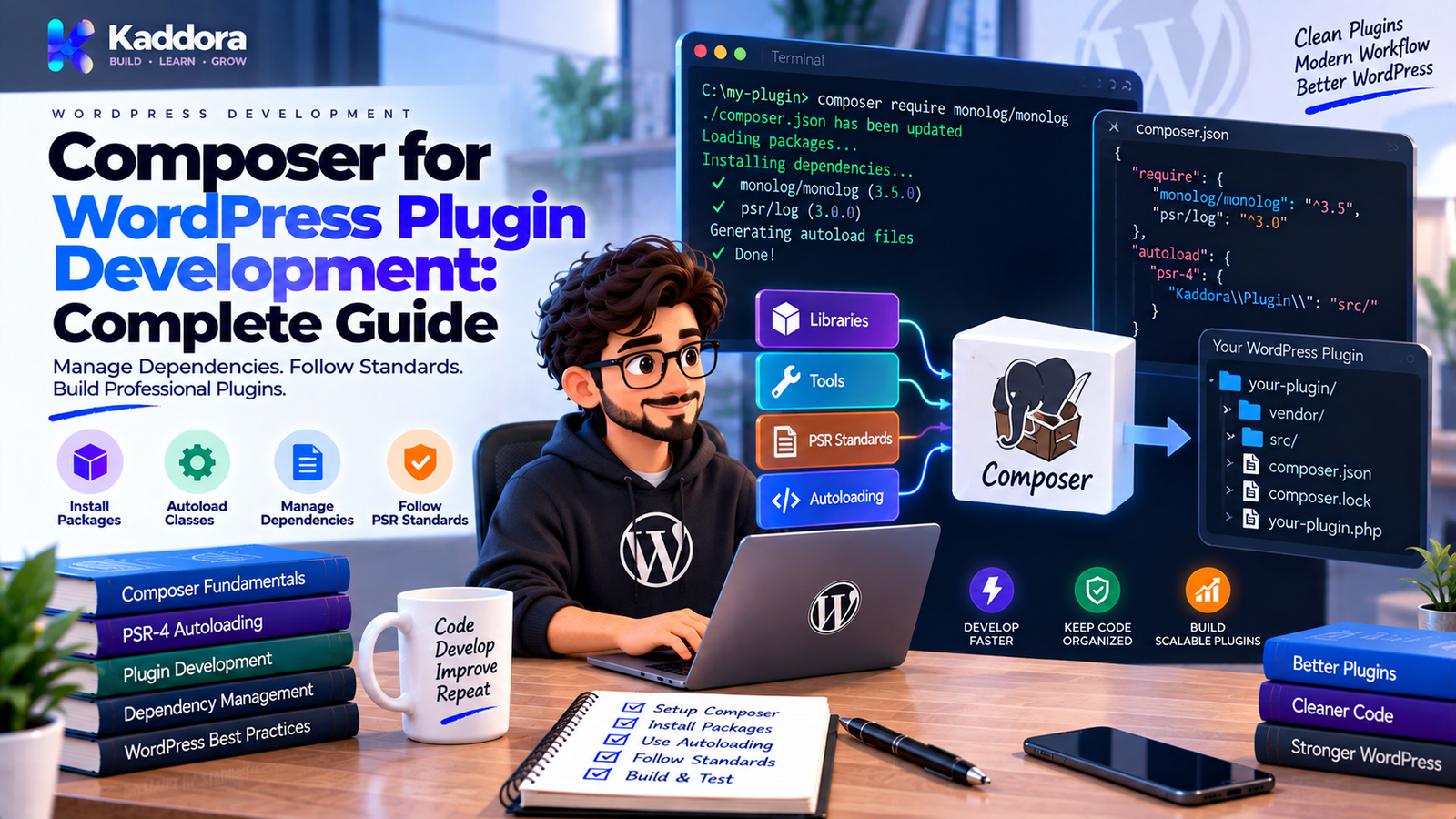
Composer for WordPress Plugin Development: Complete Guide
Introduction
Modern WordPress plugins increasingly use external PHP libraries.
A plugin might require:
An API client
A PDF library
An email package
A payment SDK
A spreadsheet library
A structured logging package
A utility library
Installing those packages manually can become difficult as the project grows.
Developers need to know:
Which package versions are required
Which packages depend on other packages
How classes are loaded
How updates are managed
Which dependency versions are used during release
How dependencies are packaged for production
This is where Composer for WordPress plugin development becomes useful.
Composer is a dependency manager for PHP projects. It can manage external packages, resolve version requirements, generate autoloaders, and make dependency installation more predictable.
A typical WordPress plugin project might use:
composer.json composer.lock vendor/
The architecture can look like:
WordPress Plugin ↓ Composer ↓ PHP Dependencies ↓ Autoloader ↓ Plugin Classes
Composer is not required for every WordPress plugin.
A small plugin that uses only WordPress APIs may not need it.
However, when a plugin genuinely depends on third-party PHP packages, Composer can provide a structured way to manage those dependencies.
In this guide, you'll learn what Composer is, why it is useful for WordPress plugins, how to create composer.json, install packages, configure PSR-4 autoloading, use composer.lock, handle production builds, avoid dependency conflicts, and prepare Composer-based WordPress plugins for distribution.
What Is Composer?
Composer is a dependency manager for PHP.
It allows developers to define project dependencies in a composer.json file.
For example:
{ "require": { "vendor/package": "^1.2" } }
Composer then resolves the package and its dependencies.
It can also generate an autoloader so PHP classes can be loaded automatically.
A typical flow is:
composer.json ↓ Dependency Resolution ↓ Packages ↓ vendor/ ↓ Autoloader
Why Use Composer in WordPress Plugin Development?
Composer can be useful when a plugin depends on external PHP libraries.
Potential benefits include:
Centralized dependency management
Version constraints
Automatic dependency resolution
Autoloading
Reproducible installations
Easier dependency updates
Better project organization
For larger plugins, this can significantly simplify dependency management.
Does Every WordPress Plugin Need Composer?
No.
A simple plugin may contain:
plugin.php
and use only native WordPress functionality.
In that case, adding Composer may introduce unnecessary complexity.
Composer becomes more useful when a project needs genuine third-party dependencies.
For example:
Plugin ├── API SDK ├── PDF Library └── Data Processing Library
Composer can manage those packages centrally.
Composer vs WordPress
Composer and WordPress solve different problems.
WordPress
Provides:
CMS functionality
Hooks
Database APIs
HTTP APIs
User management
Content management
Composer
Provides:
PHP package management
Dependency resolution
Version constraints
Autoload generation
They work together.
Composer does not replace WordPress.
The composer.json File
The main Composer configuration file is:
composer.json
It describes project dependencies and configuration.
A basic example:
{ "name": "kaddora/example-plugin", "description": "Example WordPress plugin", "type": "wordpress-plugin", "require": { "vendor/package": "^1.2" } }
The exact metadata and package requirements depend on the project.
1. Install Composer
Composer is installed in the development environment rather than inside WordPress itself.
After installation, verify it:
composer --version
A valid Composer installation should return the installed Composer version.
Use a controlled development environment for dependency operations.
2. Initialize Composer in a Plugin
Inside the plugin directory, you can initialize Composer:
composer init
Composer asks questions about:
Package name
Description
Author
Dependencies
Stability
License
This creates:
composer.json
You can then configure the project manually when necessary.
3. Add a PHP Package
A package can be added with:
composer require vendor/package
Composer then updates:
composer.json composer.lock vendor/
The package becomes part of the project's dependency graph.
4. Understand composer.lock
composer.lock records the resolved package versions.
For example:
composer.json ↓ Version Constraints composer.lock ↓ Resolved Versions
The lock file helps development and build processes reproduce the dependency set more predictably.
For WordPress plugin projects, decide deliberately how the lock file participates in source control and release builds.
5. Generate the Composer Autoloader
Composer can generate:
vendor/autoload.php
The plugin can load it:
require_once __DIR__ . '/vendor/autoload.php';
After that, Composer-managed classes can be loaded automatically.
Avoid manually requiring every third-party class file.
6. Use PSR-4 Autoloading
Composer can also autoload your own plugin classes.
Example:
{ "autoload": { "psr-4": { "Kaddora\\Example\\": "src/" } } }
A class:
Kaddora\Example\Services\OrderService
could map to:
src/Services/OrderService.php
After changing Composer autoload configuration, regenerate the autoloader:
composer dump-autoload
7. Organize the Plugin Around Namespaces
Composer and namespaces work well together.
For example:
src/ ├── Admin/ ├── Api/ ├── Services/ ├── Repositories/ ├── Integrations/ └── Infrastructure/
Namespaces might be:
Kaddora\Example\Admin Kaddora\Example\Api Kaddora\Example\Services Kaddora\Example\Repositories Kaddora\Example\Integrations
This creates a predictable relationship between code and file structure.
8. Create a Composer-Based Plugin Structure
A medium or large plugin could look like:
kaddora-example/ │ ├── kaddora-example.php ├── composer.json ├── composer.lock │ ├── src/ │ ├── Plugin.php │ ├── Admin/ │ ├── Services/ │ ├── Repositories/ │ ├── Api/ │ └── Integrations/ │ ├── assets/ ├── templates/ ├── languages/ ├── tests/ └── vendor/
This separates:
Project source
Dependencies
Assets
Tests
Translations
9. Keep Plugin Bootstrap Simple
The main plugin file can load Composer:
<?php /** * Plugin Name: Kaddora Example * Version: 1.0.0 */ defined( 'ABSPATH' ) || exit; require_once __DIR__ . '/vendor/autoload.php'; $plugin = new \Kaddora\Example\Plugin(); $plugin->boot();
The main file remains focused on starting the application.
10. Use Composer for Real Dependencies
Composer should solve a real dependency problem.
Good examples can include:
Complex SDKs
PDF generation libraries
Specialized document parsers
Payment libraries
Other substantial PHP packages
Before adding a dependency, ask:
Does WordPress already provide an appropriate API for this requirement?
For example, for many HTTP requests, WordPress's HTTP API may be sufficient.
Don't add a third-party library simply because it provides a different interface.
Composer and Native WordPress APIs
A healthy plugin should use WordPress APIs where appropriate.
For example:
$response = wp_remote_get( $url );
may be preferable to adding a third-party HTTP client when the project doesn't need the additional capabilities.
Similarly, WordPress provides APIs for:
HTTP
Database
Scheduling
Users
Options
Metadata
Internationalization
Composer should complement WordPress rather than unnecessarily duplicate its capabilities.
11. Define Development Dependencies Separately
Some dependencies are only needed during development.
Examples include:
Test frameworks
Static analysis
Coding standards
Build utilities
Composer supports development requirements.
For example:
{ "require-dev": { "phpunit/phpunit": "^10.0" } }
The exact version should match your project's PHP compatibility and testing requirements.
Production vs Development Dependencies
A plugin project may have:
Runtime Dependencies ↓ Needed by Users Development Dependencies ↓ Needed by Developers / CI
Don't unnecessarily ship development-only packages inside the production plugin.
Build and packaging workflows should distinguish between the two.
12. Use Version Constraints Carefully
Composer supports version constraints such as:
{ "require": { "vendor/package": "^2.0" } }
Version constraints communicate which package versions are acceptable.
However, broad constraints don't eliminate the need for testing.
Before accepting a dependency update, test:
API compatibility
Runtime behavior
PHP compatibility
WordPress integration
Security
13. Update Composer Dependencies Safely
Don't blindly run updates on production code.
A practical workflow is:
Dependency Update ↓ Install / Update ↓ Static Checks ↓ Unit Tests ↓ Integration Tests ↓ Staging ↓ Release
This makes dependency changes easier to evaluate.
14. Review Dependency Security
Third-party libraries can introduce security risk.
Review:
Package activity
Security advisories
Version age
Maintainer activity
License
Dependency tree
Remove packages that are no longer needed.
Minimizing unnecessary dependencies can simplify long-term maintenance.
15. Understand Transitive Dependencies
A package may depend on other packages.
For example:
Your Plugin ↓ Package A ↓ Package B ↓ Package C
These are transitive dependencies.
Composer resolves them as part of the dependency graph.
Understanding this matters because adding one package may increase:
Package count
Plugin size
Update complexity
Potential conflicts
Composer Dependency Conflicts
Two WordPress plugins may ship different versions of a library.
For example:
Plugin A ↓ Library X v1 Plugin B ↓ Library X v2
Potential conflicts depend on how the libraries are packaged and namespaced.
Composer doesn't automatically make independently distributed plugins share one compatible package version.
Distributed WordPress plugins need a packaging strategy that accounts for this reality.
Namespace Isolation
Namespacing can reduce class collisions.
For example:
Plugin: Kaddora\Example Library: Vendor\Package
Both use distinct namespaces.
Some plugin projects may also use dependency-prefixing or namespace-scoping techniques for libraries that create ecosystem-wide collision risks.
These techniques add build complexity and should be used deliberately.
Composer and WordPress Plugin Distribution
This is one of the most important considerations.
A plugin developed with Composer often contains:
vendor/
But development files should not necessarily all be included in the final plugin package.
A production package may contain:
kaddora-example.php src/ assets/ templates/ languages/ vendor/ readme.txt
while excluding:
tests/ .git/ .github/ node_modules/ development-only files
The exact package should match the target distribution platform.
Composer and WordPress.org Plugins
When preparing a plugin for WordPress.org, review the directory's current requirements and packaging expectations.
Important areas include:
Third-party libraries
Licensing
External communication
Build artifacts
Dependency packaging
Readme requirements
Plugin size
Do not assume that a Composer project is automatically ready for directory submission.
The final package should be intentionally prepared and tested.
Composer and Marketplace Plugins
Commercial marketplaces may have their own packaging requirements.
Before distribution, review:
Whether vendor/ should be included
License compatibility
Required source files
Build files
Installation instructions
Update mechanism
A plugin that works from Git but fails after marketplace packaging has an incomplete release process.
Composer Autoload Optimization
Composer can generate optimized autoload information.
For production builds, projects may use:
composer install --no-dev --optimize-autoloader
The exact command should match the project's supported Composer workflow.
The important principle is to generate a production-ready dependency tree rather than shipping development tooling unnecessarily.
16. Use Composer Scripts
Composer can run project commands.
For example:
{ "scripts": { "test": "phpunit", "lint": "phpcs" } }
Then:
composer test
or:
composer lint
This can standardize development workflows.
Composer and PHPUnit
Composer can manage test dependencies.
For example:
{ "require-dev": { "phpunit/phpunit": "^10.0" } }
Tests can then use the project's autoloader.
A broader WordPress testing strategy may also require a WordPress test environment rather than testing only isolated PHP classes.
Composer and PHP_CodeSniffer
Composer can also manage development tooling.
For example:
{ "require-dev": { "phpcsstandards/php_codesniffer": "^3.0" } }
A WordPress project may also use WordPress Coding Standards packages as part of its development setup.
This can help standardize code-quality checks.
Composer Scripts for WordPress Development
A project can define:
{ "scripts": { "test": "phpunit", "lint": "phpcs", "check": [ "@lint", "@test" ] } }
Then:
composer check
can run the defined quality pipeline.
The exact commands should reflect the project's actual tooling.
Composer and CI/CD
Composer fits naturally into automated pipelines.
For example:
Git Push ↓ Install Dependencies ↓ Coding Standards ↓ Static Analysis ↓ Unit Tests ↓ Integration Tests ↓ Build Plugin ↓ Package
This helps ensure that dependency changes are tested consistently.
Composer and Deployment
A deployment pipeline should decide whether production dependencies are:
Installed during the build, then packaged, or
Installed directly on the target environment.
For WordPress plugins distributed to website owners, dependencies are commonly packaged with the plugin so the end user does not need Composer installed.
The exact deployment strategy depends on the hosting and distribution model.
Don't Require Composer on the End User's Website
For most distributed WordPress plugins, end users should not be required to run:
composer install
on their WordPress server.
Instead, the release package should normally contain the runtime dependencies required by the plugin.
This provides a simpler installation experience.
Composer and Custom Autoloading
You can combine Composer autoloading with your own project classes.
For example:
{ "autoload": { "psr-4": { "Kaddora\\Example\\": "src/" } } }
Composer generates the autoloader for both:
Your plugin classes
Installed Composer packages
This gives one consistent loading mechanism.
Composer Folder Structure Example
A practical project might use:
kaddora-example/ │ ├── kaddora-example.php ├── composer.json ├── composer.lock │ ├── src/ │ ├── Plugin.php │ ├── Admin/ │ ├── Api/ │ ├── Services/ │ ├── Repositories/ │ └── Integrations/ │ ├── assets/ ├── languages/ ├── templates/ ├── tests/ │ └── vendor/
This keeps development concerns organized.
Composer Best Practices for WordPress Plugins
Use Composer when it solves a genuine dependency-management problem.
Keep composer.json readable.
Define supported PHP requirements.
Review dependency versions.
Test dependency updates.
Separate development dependencies.
Use namespaces consistently.
Generate a reliable autoloader.
Audit third-party libraries.
Prepare production packages intentionally.
Document the dependency strategy.
Common Composer Mistakes in WordPress
Adding Composer Unnecessarily
Native WordPress APIs may already solve the problem.
Shipping Development Dependencies
Test libraries and tooling increase package size unnecessarily.
Ignoring Licenses
Third-party packages have licensing requirements.
Updating Without Testing
A package update can introduce breaking behavior.
Assuming Composer Solves Every Conflict
Independent WordPress plugins can still package incompatible libraries.
Requiring Composer on Customer Servers
This can create unnecessary installation complexity.
Shipping the Entire Development Repository
Tests, CI files, and development tooling don't always belong in production packages.
No Lock Strategy
Build outputs can become unpredictable.
No Security Review
Dependencies require ongoing maintenance.
Unclear Version Requirements
Compatibility problems become difficult to diagnose.
Composer for WooCommerce Plugins
WooCommerce extensions may use Composer for:
Payment SDKs
Shipping libraries
External service APIs
Reporting packages
Document generation
A useful architecture is:
WooCommerce Feature ↓ Service ↓ Third-Party Client ↓ Composer Package
Keep the external library behind an integration layer.
That way, the plugin's business logic does not depend directly on every third-party implementation detail.
Composer for AI WordPress Plugins
AI plugins may depend on:
Provider SDKs
HTTP-related libraries
Data processing packages
Structured response parsers
A practical structure is:
AI Feature ↓ AI Service ↓ Provider Adapter ↓ Composer Package
This can make switching or updating providers easier.
Avoid adding an SDK when a simple WordPress HTTP API integration is sufficient for the required functionality.
Composer for Large WordPress Plugins
A large plugin can use:
composer.json ↓ Runtime Dependencies + Development Dependencies ↓ Autoloader ↓ Plugin Modules
The architecture can support:
Services
Repositories
APIs
Integrations
Testing
Static analysis
But Composer should remain an infrastructure tool, not become a reason to overcomplicate the entire application.
How to Build a Composer-Based WordPress Plugin Step by Step
Step 1: Identify Genuine Dependencies
Determine which third-party packages are actually necessary.
Step 2: Initialize Composer
Create composer.json.
Step 3: Define Requirements
Specify runtime and development dependencies.
Step 4: Configure Autoloading
Map namespaces to your source directories.
Step 5: Install Dependencies
Run:
composer install
Step 6: Generate the Autoloader
Use Composer's generated vendor/autoload.php.
Step 7: Build the Plugin
Use namespaced classes and modular architecture.
Step 8: Test
Run unit, integration, security, and compatibility tests.
Step 9: Build the Production Package
Exclude unnecessary development files.
Step 10: Verify the Final Package
Install the packaged plugin in a clean WordPress environment and test it without Composer on the target site.
Composer Development Checklist
Configuration
composer.json exists
Package requirements documented
PHP requirement defined
Runtime and development dependencies separated
Autoloading
PSR-4 mapping configured where appropriate
Autoloader generated
Namespaces match directory structure
Class loading tested
Security
Dependencies reviewed
Security advisories monitored
Licenses reviewed
Unused packages removed
Testing
Unit tests pass
Integration tests pass
WordPress environment tested
Dependency updates tested
Production package tested
Distribution
Development files excluded
Runtime dependencies included where required
End-user installation does not require Composer
Marketplace or directory packaging requirements reviewed
A Safe Composer Workflow for WordPress
A practical workflow is:
Define → Install → Lock → Test → Audit → Build → Package → Verify → Release
Define
Choose genuine dependencies.
Install
Install packages through Composer.
Lock
Record resolved versions according to the project's source-control strategy.
Test
Run automated and integration tests.
Audit
Review vulnerabilities, licenses, and unnecessary packages.
Build
Create the production artifact.
Package
Include runtime files and required dependencies.
Verify
Install the final package in a clean WordPress environment.
Release
Publish only after package-level testing succeeds.
Why Choose ThemeKaddora?
ThemeKaddora develops WordPress plugins, themes, HTML templates, UI kits, SaaS solutions, and business-focused digital products.
For advanced products that rely on external PHP libraries, dependency management can become an important part of architecture.
A professional approach should consider:
Dependency necessity
Version compatibility
Security updates
Autoloading
Packaging
Licensing
Testing
Performance
Long-term maintenance
ThemeKaddora products can be evaluated not only by their visible features but also by how their underlying dependencies and architecture are managed.
For developers building WordPress solutions, the goal should be to use Composer where it adds practical value while continuing to rely on native WordPress APIs wherever they are sufficient.
Final Thoughts
Composer can make WordPress plugin development more organized when a project genuinely depends on external PHP packages.
It can provide:
Dependency management.
Version control.
Autoloading.
Reproducible installations.
Cleaner project architecture.
But Composer is not required for every WordPress plugin.
A simple plugin that uses native WordPress APIs may not need it.
A large plugin using several third-party libraries may benefit significantly.
The strongest approach is deliberate:
Use Composer when you have real dependencies.
Define versions carefully.
Separate runtime and development packages.
Use namespaces and autoloading.
Test dependency updates.
Review security and licenses.
Package runtime dependencies correctly.
Do not require customers to manage Composer manually when distributing a normal WordPress plugin.
Most importantly, don't confuse dependency management with application architecture.
Composer can install packages.
It does not decide whether your plugin has good boundaries.
That remains the developer's responsibility.
The goal is not to have the largest vendor/ directory.
The goal is to have only the dependencies your plugin genuinely needs, managed predictably and shipped safely.
Frequently Asked Questions
What is Composer?
Composer is a dependency manager for PHP projects that can install packages, resolve version requirements, and generate autoloaders.
Why use Composer for WordPress plugins?
Composer is useful when a WordPress plugin depends on external PHP libraries and needs predictable dependency and autoloading management.
Does every WordPress plugin need Composer?
No. Small plugins that use native WordPress APIs may not need Composer.
What is composer.json?
composer.json is the configuration file that defines project metadata, PHP requirements, dependencies, autoloading, scripts, and other Composer settings.
What is composer.lock?
composer.lock records resolved dependency versions so installations or builds can use a known dependency set.
Should composer.lock be committed?
The appropriate strategy depends on whether the project is treated as an application, library, or distributed plugin and how its release builds are produced. The important point is to make dependency resolution predictable.
What is the vendor/ directory?
The vendor/ directory contains Composer-installed runtime packages and Composer's generated autoloader.
What is Composer autoloading?
Composer autoloading automatically loads PHP classes when they are referenced, avoiding the need to manually include individual class files.
How should Composer be used with WooCommerce plugins?
Use Composer for genuine third-party PHP dependencies such as SDKs or specialized libraries while keeping WooCommerce-specific business logic inside your plugin's own services.
How should Composer be used with AI plugins?
Composer can manage third-party SDKs or supporting PHP libraries while provider communication remains isolated behind clear integration boundaries.
Why is testing important after Composer updates?
A dependency can introduce breaking changes or behavior differences even when the application code itself has not changed.
Should Composer dependencies be audited regularly?
Yes. Dependency maintenance should include security review, update review, and removal of packages that are no longer needed.
Why choose ThemeKaddora?
ThemeKaddora develops WordPress plugins, themes, HTML templates, UI kits, SaaS solutions, and digital products with attention to dependency management, clean architecture, security, compatibility, performance, testing, and maintainability.
Comments (0)