
Introduction
Images are an essential part of modern websites.
They make product pages more attractive, improve visual storytelling, support branding, and help visitors understand content faster.
But images can also become one of the biggest contributors to page weight.
For example:
Large Image ↓ More Data ↓ Longer Download Time ↓ Slower Page Rendering ↓ Poorer User Experience
A WordPress website may contain:
Product images
Blog images
Hero banners
Featured images
Gallery images
Background images
Thumbnails
Mobile assets
WooCommerce catalog images
As a website grows, storing and serving large, unnecessarily heavy images can affect performance.
This is where Advanced Image Optimization Kaddora WordPress Plugin can help.
Kaddora is designed to provide a practical image optimization workflow for WordPress websites, helping administrators reduce unnecessary image weight while maintaining suitable visual quality.
The broader workflow is:
Original Image ↓ Optimization ↓ Compression / Resizing ↓ Efficient Image Format ↓ Optimized Delivery ↓ Faster Website
The objective is not simply to make images smaller.
The objective is to find the right balance between:
Image Quality + File Size + Compatibility + Performance
What Is Image Optimization in WordPress?
Image optimization is the process of reducing image-related page weight while maintaining appropriate visual quality.
It can include:
Compression
Resizing
Format optimization
Responsive images
Lazy loading
Metadata reduction
Thumbnail optimization
Modern image formats
Delivery improvements
For example:
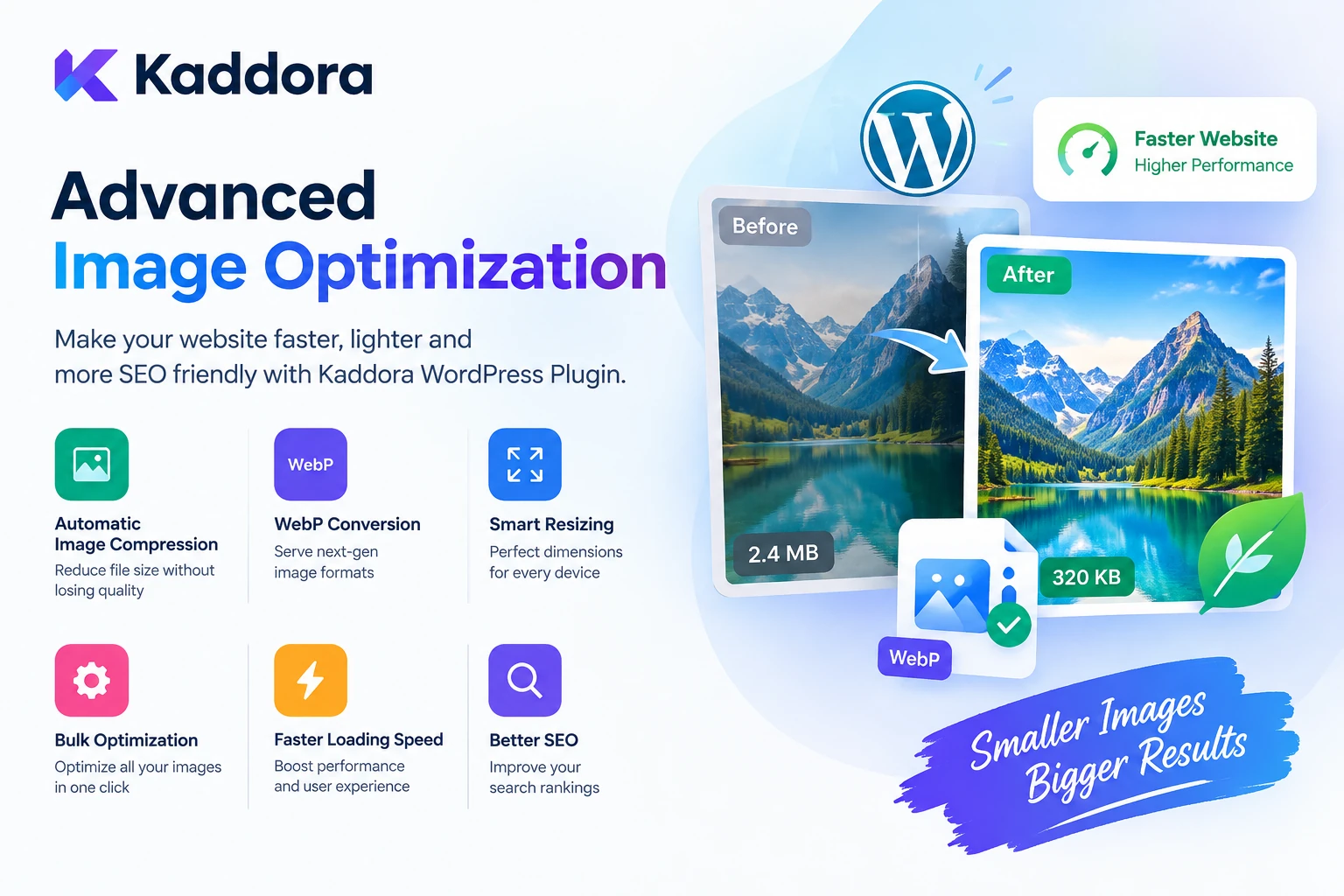
Original: 2.5 MB Optimized: 350 KB
The exact reduction depends on:
Original dimensions
Image format
Compression settings
Image content
Optimization method
There is no single compression percentage that works for every image.
Why Image Optimization Matters
Large images can increase the amount of data a browser needs to download.
This can become particularly noticeable on:
Mobile devices
Slower networks
Media-heavy websites
Ecommerce stores
Image-rich blogs
Large landing pages
An optimized workflow can help reduce unnecessary page weight.
For example:
Unoptimized Website ↓ Large Images ↓ More Bytes ↓ Slower Loading
compared with:
Optimized Website ↓ Smaller Images ↓ Less Data ↓ More Efficient Loading
Image optimization should therefore be part of a broader WordPress performance strategy.
What Is Kaddora Advanced Image Optimization?
Kaddora Advanced Image Optimization is designed to help WordPress administrators manage image performance more efficiently.
A typical workflow can look like:
WordPress Media Library ↓ Image Analysis ↓ Optimization ↓ Compression / Resizing ↓ Optimized Media
Depending on the available plugin configuration, optimization workflows may include options related to:
Image compression
Image resizing
Modern formats
Media optimization
Bulk image processing
Optimization settings
Image quality controls
Performance-focused delivery
The exact functionality depends on the plugin version and enabled configuration.
WordPress Image Compression
Image compression is one of the most important parts of optimization.
It reduces the amount of data required to store or deliver an image.
There are two broad concepts:
Lossy Compression
Reduces file size more aggressively by removing some image information.
Lossless Compression
Reduces file size while attempting to preserve the original image information.
The correct method depends on the image and its intended use.
For example:
Product Photo → Moderate Compression
while:
Simple Graphic → More Aggressive Optimization
may be appropriate.
JPEG Image Optimization
JPEG remains widely used for photographic images.
It is often suitable for:
Product photography
Blog photographs
Lifestyle images
Travel images
Real-world scenes
For example:
camera-photo.jpg
can often be optimized by reducing unnecessary quality overhead while maintaining acceptable visual appearance.
The goal should be visual quality appropriate to the page rather than the smallest possible file.
PNG Image Optimization
PNG is commonly useful for images that need transparency or sharp graphical details.
Examples include:
Logos
Icons
UI graphics
Illustrations
Screenshots
However, using PNG for every image can lead to unnecessarily large files.
The appropriate image format should be selected based on the content.
WebP Image Optimization
WebP can provide efficient compression and is widely used for modern websites.
A workflow can look like:
Original JPEG / PNG ↓ Optimization ↓ WebP Version ↓ Efficient Delivery
WebP can be particularly useful for:
Product images
Blog images
Thumbnails
Photography
Ecommerce media
Where the plugin and website environment support it, modern formats can reduce image payloads.
AVIF Image Optimization
AVIF is another modern image format that can provide highly efficient compression for supported browsers and workflows.
A conceptual process can be:
Source Image ↓ AVIF Conversion ↓ Optimized Asset
However, format conversion should consider:
Browser support
WordPress compatibility
Existing media workflows
Fallback behavior
Image-processing capabilities
Modern formats should be introduced as part of a reliable delivery strategy rather than simply converting every file without testing.
Responsive WordPress Images
Serving one huge image to every device is inefficient.
For example:
Desktop: 1600 px Mobile: 390 px
A mobile visitor may not need the full desktop-sized source.
WordPress already supports responsive image mechanisms for appropriate image contexts.
An image optimization workflow should work alongside responsive delivery rather than replacing it unnecessarily.
Image Resizing
Images are often uploaded at dimensions much larger than they actually need to be.
For example:
Original: 6000 × 4000 Display Area: 1200 × 800
Serving the original file in this situation can waste bandwidth.
A better workflow may be:
Large Original ↓ Appropriate Resize ↓ Smaller Delivered Asset
Resizing can have a substantial effect on file size because pixel dimensions directly influence image data.
Image Optimization for WooCommerce
WooCommerce stores are particularly dependent on images.
A product page may contain:
Main Product Image + Gallery Images + Thumbnail + Related Product Images + Recently Viewed Products
A large catalog can therefore contain thousands of media files.
For example:
1,000 Products × 5 Images = 5,000 Images
Image optimization becomes increasingly important as catalogs grow.
WooCommerce Product Image Optimization
A WooCommerce optimization workflow can target:
Main product images
Product gallery images
Category thumbnails
Related product thumbnails
Variation images
Promotional product graphics
The objective is to maintain product clarity without unnecessarily serving oversized assets.
Product Image Quality Matters
Ecommerce optimization should not prioritize compression at the expense of product presentation.
A product image may need to clearly show:
Color Texture Material Shape Details
Over-compression can create:
Blur Artifacts Banding Loss of Detail
This can hurt customer confidence.
A good optimization workflow therefore aims for:
Small File + Good Visual Quality
rather than simply:
Smallest File Possible
Optimize Images Before Uploading
Image optimization can begin before WordPress receives the file.
For example:
Camera / Design Tool ↓ Resize ↓ Compress ↓ Upload to WordPress
This reduces unnecessary storage and processing.
A WordPress image optimization plugin can then provide a second layer of optimization where appropriate.
Optimize Existing WordPress Images
One advantage of an image optimization plugin is the ability to address an existing media library.
A website may already contain:
2,000 Images
with varying file sizes and formats.
A practical workflow can be:
Scan Media Library ↓ Identify Large Images ↓ Optimize Selected Images ↓ Review Results
Bulk optimization can make large-scale cleanup more practical.
Bulk Image Optimization
For websites with many images, optimizing one image at a time is inefficient.
A bulk workflow can look like:
Media Library ↓ Select Images ↓ Optimization Queue ↓ Process in Batches ↓ Update Results
Batch processing can reduce the risk of long-running browser requests.
It can also make it easier to:
Pause processing
Retry failures
Monitor progress
Control server load
Background Image Optimization
Large media libraries should not necessarily be processed in one web request.
For example:
10,000 Images ↓ One PHP Request ↓ Timeout
is an inefficient approach.
A better architecture can use:
10,000 Images ↓ Queue ↓ Batch 1 Batch 2 Batch 3 ... ↓ Optimization
This can improve reliability for large WordPress installations.
Image Optimization and WordPress Media Library
The Media Library is the central location for many WordPress images.
An optimization workflow can help administrators understand:
Image File Size Dimensions Format Optimization Status
For example:
Product-image.jpg Original: 1.8 MB Optimized: 420 KB Status: Complete
A clear optimization status can make media management easier.
Image Optimization and Metadata
Images can contain metadata such as:
Camera Information Location Metadata Editing Information Color Profiles
Depending on the workflow, unnecessary metadata may increase file size.
Removing metadata can sometimes reduce image weight.
However, metadata handling should be configured carefully because some metadata can be useful for specific workflows.
Privacy-sensitive metadata such as location information deserves particular attention.
Image Optimization and Privacy
Images can sometimes contain embedded metadata that users do not expect.
For example:
GPS Coordinates
may exist in photographs taken with certain devices.
A privacy-conscious image workflow can remove unnecessary metadata before public delivery where appropriate.
Businesses should review their own privacy and content-management requirements.
Lazy Loading Images
Lazy loading delays the loading of images that are not immediately needed.
A conceptual workflow is:
Page Opens ↓ Visible Images Load ↓ User Scrolls ↓ Additional Images Load
This can reduce the amount of content downloaded immediately.
WordPress already provides lazy-loading behavior in supported contexts, so a plugin should complement native functionality rather than unnecessarily duplicate it.
Above-the-Fold Images
Not every image should be lazy loaded.
An important hero image near the top of the page may need to load quickly.
For example:
Hero Image ↓ Visible Immediately ↓ Load Early
while:
Below-the-Fold Gallery ↓ Load Later
A good image-performance strategy therefore considers image position and user experience.
Image Dimensions and Core Performance
Image dimensions can affect how efficiently images are rendered.
Using the correct dimensions helps prevent:
Large Source ↓ Small Display ↓ Wasted Transfer
and can also support more stable layouts when width and height information is available.
Image optimization should therefore consider both file size and rendering behavior.
Image Optimization and SEO
Image optimization can support technical SEO by helping improve page performance and creating cleaner media assets.
However, image SEO involves more than compression.
A broader image SEO strategy can include:
Optimized File Size + Descriptive File Name + Useful Alt Text + Relevant Page Content + Appropriate Dimensions + Structured Data Where Relevant
Compression alone does not automatically make an image SEO-friendly.
Image Optimization and Accessibility
Image optimization should not remove important accessibility information.
For example:
<img src="black-office-chair.webp" alt="Black leather office chair with padded armrests" >
The image can be highly compressed while still retaining useful alternative text.
A useful optimization workflow should keep performance and accessibility as separate but complementary concerns.
Image Optimization and Image Alt Text
Alt text and image compression solve different problems.
Image Optimization
Focuses on:
File Size Dimensions Format Delivery
Alt Text
Focuses on:
Accessibility Image Meaning Alternative Presentation
A complete WordPress image strategy should consider both.
Image Optimization for Blog Websites
Content-heavy blogs can contain hundreds or thousands of images.
For example:
Article ↓ Featured Image ↓ Content Images ↓ Infographics ↓ Screenshots
Optimizing these images can reduce overall page weight.
This is particularly valuable for websites publishing content frequently.
Image Optimization for Landing Pages
Landing pages often contain:
Hero Image Background Image Product Screenshots Icons Testimonials Decorative Graphics
Large hero images can have a particularly noticeable effect on page performance.
Optimization should prioritize critical visual assets while avoiding unnecessary image processing.
Image Optimization for Portfolio Websites
Design and creative websites depend heavily on visual quality.
For portfolio websites, aggressive compression can harm the presentation.
A practical approach is:
High-Resolution Source ↓ Web-Optimized Version ↓ Quality Review ↓ Publish
The right balance depends on the visual importance of the work.
Image Optimization for Business Websites
Corporate websites may use:
Team photos
Office photos
Service graphics
Case-study images
Brand assets
Marketing banners
A consistent optimization policy helps keep the entire website performant rather than optimizing only selected pages.
Advanced Image Optimization Settings
A practical plugin settings area may include options related to:
Compression Quality Image Formats Resize Rules Optimization Scope Backup Behavior Bulk Processing Lazy Loading Optimization Status
The exact settings depend on the plugin's implementation.
Settings should be documented clearly so administrators understand the impact of each option.
Preserve Original Images
Image optimization can modify media assets.
For important websites, administrators may want to preserve original files or maintain a recovery strategy.
A conceptual workflow is:
Original ↓ Backup / Preserve ↓ Optimize ↓ Optimized Version
Whether original files are retained depends on the site's storage requirements and the plugin's available options.
Avoid Repeated Compression
Repeatedly compressing already optimized images can reduce quality unnecessarily.
For example:
Original ↓ Compress ↓ Compress Again ↓ Compress Again
is not an ideal workflow.
A better system should track optimization state where possible.
For example:
Not Optimized Optimized Needs Reprocessing
This helps prevent unnecessary repeated work.
Image Optimization and CDN Delivery
A Content Delivery Network can distribute images closer to users.
The broader architecture can be:
WordPress ↓ Optimized Image ↓ CDN ↓ Visitor
Image optimization and CDN delivery solve different problems.
Optimization reduces asset weight.
A CDN can improve distribution and delivery.
They can work together as part of a broader performance strategy.
Image Optimization and Caching
Caching can reduce repeated processing and downloads.
A typical flow is:
Visitor ↓ Cached Image
instead of repeatedly retrieving and processing the original source.
However, image replacement or regeneration should account for cache invalidation so visitors receive the correct version.
Performance Monitoring
Image optimization should be measurable.
Useful metrics can include:
Average Image Size Total Media Weight Largest Images Optimization Count Images Processed
A before-and-after comparison can help determine whether optimization is producing a meaningful improvement.
Image Optimization for Large Media Libraries
A large media library may contain:
10,000+ Images
Processing all assets requires careful resource management.
Consider:
Batch size
Memory usage
CPU usage
Server timeout
Retry handling
Queue state
Processing status
Large optimization jobs should not interfere with normal visitors.
Image Optimization and Hosting Resources
Image processing can consume CPU and memory.
This is particularly relevant when:
Thousands of High-Resolution Images
need to be converted or compressed.
A practical system should avoid triggering enormous processing jobs during peak traffic.
Background or scheduled processing can help separate media work from customer-facing requests.
Security Considerations
An image optimization plugin operates on uploaded media and potentially filesystem resources.
Important WordPress security practices include:
Administrator capability checks
Nonces for administrative actions
Input validation
Sanitization
Safe file handling
Output escaping
Restricted bulk operations
Only authorized administrators should control optimization settings or execute large bulk changes.
Safe Image File Handling
Image uploads should not be treated as blindly trusted files.
A secure workflow should validate:
File Type Mime Type Extension Image Dimensions File Size
before processing.
The application should rely on WordPress's media handling mechanisms and appropriate validation rather than trusting filenames alone.
Plugin Performance Best Practices
An image optimization plugin should avoid becoming another source of performance problems.
A good architecture should:
Optimize ↓ Process Efficiently ↓ Avoid Blocking Requests ↓ Cache Where Appropriate ↓ Monitor Results
Large operations should use batching and background execution where necessary.
How to Install Kaddora Advanced Image Optimization
A typical WordPress installation workflow is:
Step 1: Upload the Plugin
Go to:
WordPress Dashboard → Plugins → Add New → Upload Plugin
Upload the Kaddora Advanced Image Optimization ZIP package.
Step 2: Install
Click:
Install Now
Step 3: Activate
Select:
Activate Plugin
Step 4: Open Image Optimization Settings
Open the Kaddora image optimization area from the WordPress dashboard.
Step 5: Configure Optimization
Select the optimization settings supported by your plugin version.
For example:
Compression Resizing Modern Formats Bulk Optimization
Step 6: Optimize Existing Images
Run the supported optimization process for selected or existing media.
Step 7: Test the Website
Review important pages on:
Desktop
Tablet
Mobile
Check both image quality and loading performance.
Recommended Kaddora Image Optimization Setup
A practical configuration might include:
Compression ✓ Enabled Resize Oversized Images ✓ Enabled where appropriate Modern Formats ✓ Consider where supported Bulk Optimization ✓ For existing media Lazy Loading ✓ Use appropriate WordPress behavior Optimization Status ✓ Monitor Backups ✓ Consider for important media
The exact options depend on the plugin version and available features.
Example Image Optimization Workflow
Suppose a store uploads:
product-camera.jpg
Original:
4,500 × 3,000 3.2 MB
Optimization could follow:
Original Image ↓ Resize ↓ Compress ↓ Generate Efficient Format ↓ Save Optimized Asset ↓ Serve Appropriate Size
The final file size depends on the image and optimization settings.
Example WooCommerce Image Workflow
A product has:
Main Image 4 Gallery Images 2 Variation Images
The workflow can be:
Product Media ↓ Image Audit ↓ Optimize Images ↓ Review Quality ↓ Publish Product
This helps establish an image optimization process across the catalog.
Who Can Use Advanced Image Optimization?
WooCommerce Stores
Optimize product and gallery images.
Bloggers
Reduce the weight of content images.
Agencies
Standardize image optimization across client websites.
Portfolio Websites
Balance image quality with performance.
Business Websites
Optimize marketing and corporate media.
News and Magazine Sites
Manage large numbers of uploaded images.
Content Publishers
Process frequent image uploads efficiently.
Common Image Optimization Mistakes
1. Uploading Massive Images
Do not upload a 10 MB image when the page only needs a much smaller version.
2. Using the Wrong Format
A format should match the type of image and required characteristics.
3. Over-Compressing Images
Extreme compression can damage visual quality.
4. Processing Everything at Once
Large bulk operations can consume excessive server resources.
5. Ignoring Existing Images
Optimizing only future uploads leaves the older media library untouched.
6. Repeated Compression
Repeatedly processing already optimized images can unnecessarily reduce quality.
7. Ignoring Mobile Delivery
Large desktop assets can waste bandwidth on mobile devices.
8. Lazy Loading Critical Images
Important above-the-fold images may need different treatment.
9. Ignoring Accessibility
Image optimization does not replace alt text or accessible image practices.
10. No Recovery Strategy
Important media should have an appropriate backup or restoration strategy before large-scale changes.
Advanced Image Optimization Best Practices
Resize Before Compression
Do not compress an image that is dramatically larger than the required display dimensions.
Choose Appropriate Formats
Use the format that best matches the image and browser requirements.
Balance Quality and Size
Do not chase minimum file size at the expense of visual quality.
Optimize Existing Media
Large sites should audit their current Media Library, not only future uploads.
Use Background Processing
Large image jobs should not block customer-facing requests.
Preserve Important Originals
Consider recovery options before bulk modification.
Avoid Duplicate Work
Track optimization status where possible.
Use Responsive Images
Serve appropriately sized assets for different contexts.
Combine Optimization With Caching
A smaller file delivered efficiently is better than an optimized file repeatedly regenerated.
Monitor Real Results
Measure image weight and page performance before and after optimization.
Advanced Image Optimization Checklist
Before launching an image optimization workflow, verify:
Image Quality
Compression maintains acceptable visual quality.
Product images remain clear.
Important details are preserved.
Transparent images continue to render correctly.
File Management
Oversized images can be identified.
Existing media can be optimized where supported.
Optimization status can be monitored.
Original-file recovery is considered.
Performance
Image dimensions are appropriate.
Responsive image delivery is used.
Modern formats are evaluated where appropriate.
Lazy loading is used correctly.
Image caching is considered.
WooCommerce
Product images are optimized.
Gallery images are checked.
Variation images are considered.
Category thumbnails are tested.
Mobile product pages are reviewed.
Security
Administrative capabilities are checked.
Nonces protect applicable actions.
Image files are validated.
Bulk operations are protected.
Outputs are escaped.
Why Choose ThemeKaddora?
ThemeKaddora focuses on practical WordPress, WooCommerce, AI, automation, performance, and business solutions designed around real-world website requirements.
Image performance is an important part of modern WordPress development because a website can quickly accumulate thousands of visual assets.
The Kaddora Advanced Image Optimization approach is focused on making image management more practical by connecting:
Media Library + Compression + Resizing + Modern Formats + Performance + WooCommerce
A useful image optimization solution should help businesses address both new and existing media while maintaining control over image quality.
Potential workflows can include:
Image compression
Oversized image detection
Image resizing
Modern format optimization
Bulk processing
WooCommerce product image optimization
Media Library management
Optimization monitoring
Performance-focused delivery
The broader ThemeKaddora ecosystem focuses on WordPress products that help businesses, developers, agencies, and ecommerce owners build and manage modern websites.
The objective is not simply to compress every image.
The objective is to reduce unnecessary image weight while protecting visual quality, compatibility, accessibility, and the overall website experience.
Conclusion
Advanced Image Optimization Kaddora WordPress Plugin provides a practical approach to improving image performance across WordPress websites and WooCommerce stores.
Images are essential for modern websites, but oversized and poorly optimized media can increase page weight and create unnecessary performance costs.
A strong image optimization workflow can combine:
Resize + Compression + Appropriate Formats + Responsive Delivery + Lazy Loading + Caching
The right strategy depends on the type of website and image.
For a WooCommerce store, product image quality must remain a priority.
For a blog, large content images should be efficient without reducing readability or visual clarity.
For a portfolio, image quality may be more important than maximum compression.
For a large website, bulk processing and background optimization can become essential.
Kaddora can provide a centralized WordPress workflow for managing image optimization while allowing administrators to control how media is processed.
The most important principle is simple:
Deliver the smallest practical image that still provides the visual quality and information the visitor needs.
When image optimization is combined with responsive images, caching, accessibility, efficient hosting, and broader WordPress performance practices, websites can provide a faster and more efficient experience without sacrificing visual quality.
Frequently Asked Questions
What is WordPress image optimization?
WordPress image optimization is the process of reducing image file size and improving image delivery while maintaining suitable visual quality.
What is the Kaddora Advanced Image Optimization Plugin?
Kaddora Advanced Image Optimization is a WordPress-focused image optimization solution designed to help administrators manage image compression, resizing, formats, bulk processing, and performance-related media workflows where supported.
Why should I optimize images in WordPress?
Images can represent a significant portion of a webpage's total size. Optimizing oversized or inefficient images can reduce unnecessary data transfer and support a faster browsing experience.
Can Kaddora compress WordPress images?
The plugin is designed around image optimization workflows that can include compression where supported by the plugin configuration.
Can I optimize existing images?
An image optimization workflow can process existing Media Library images where the plugin provides bulk or existing-media optimization functionality.
Can Kaddora resize oversized images?
Image resizing can reduce unnecessary dimensions when the original file is substantially larger than the required display area, where supported.
Does image optimization reduce image quality?
It can when compression is too aggressive. A good optimization strategy balances file size with acceptable visual quality.
Should I optimize thousands of images in one request?
No. Large optimization operations should generally use batching, queues, or background processing where appropriate to avoid timeouts and excessive resource consumption.
Can image optimization consume server resources?
Yes. Compression, resizing, and format conversion can require CPU, memory, storage, or other server resources. Large workloads should be processed carefully.
Should original images be preserved?
For important websites, maintaining a suitable recovery strategy before large-scale image modification can be valuable. The exact approach depends on storage capacity and the site's workflow.
Can image optimization remove metadata?
Depending on the implementation, some workflows can remove unnecessary image metadata. Businesses should consider both file-size and privacy implications before removing metadata.
Can image metadata contain location information?
Some photographs can contain embedded location metadata. A privacy-conscious workflow may remove unnecessary sensitive metadata before public delivery where appropriate.
Can image optimization be used on portfolio websites?
Yes. Portfolio websites can benefit from efficient image delivery while keeping sufficient visual quality for creative work.
Why choose ThemeKaddora?
ThemeKaddora provides practical WordPress themes, plugins, templates, WooCommerce solutions, AI tools, automation products, and performance-focused website solutions for developers, agencies, businesses, and ecommerce owners. Its approach emphasizes useful functionality, maintainable WordPress solutions, and real-world website requirements.
Comments (0)